AI image retouching for social aspect ratios: fast workflows for creators
Replace slow shoots with an AI-first workflow: retouch, convert formats, and export campaign-ready lifestyle images in multiple social aspect ratios.
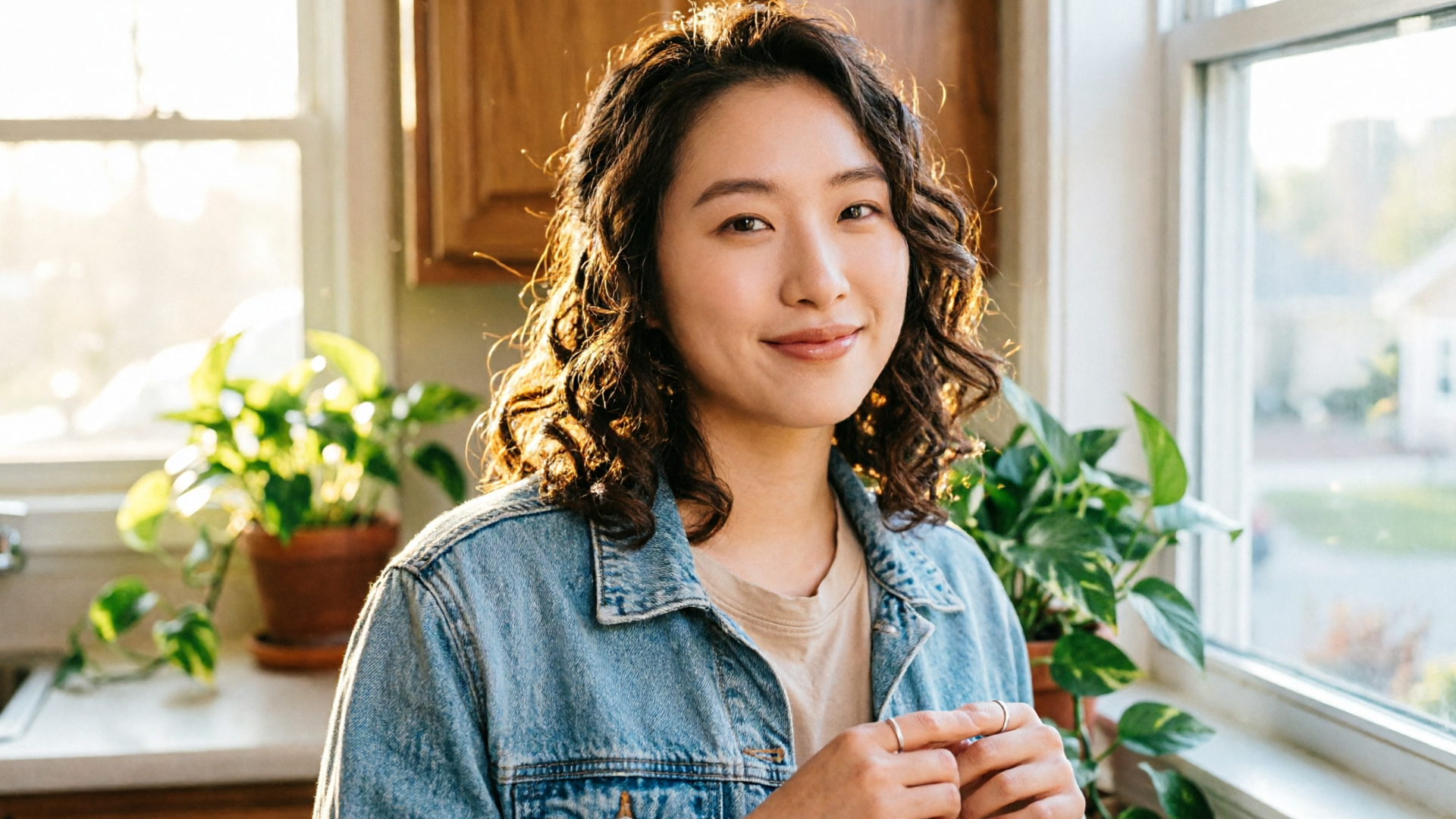
Creators waste days on shoots and hours in Photoshop when a repeatable AI workflow could deliver on-brand lifestyle images and thumbnails in minutes. This guide shows how to use PlayVideo.AI AI Image Generator to replace slow shoots with a compact process that handles retouching, format conversions, and multi-platform aspect ratios — without losing control of brand, lighting, or mood.
You’ll get practical steps, a worked example using a single reference photo plus prompts, and export rules for YouTube thumbnails, Instagram posts, Reels, and ad creatives. Along the way I’ll reference playback-ready steps (export formats and file-size targets) so your images load fast and test well across platforms.
Why modern creators need an AI-first image workflow (retouch, format conversion, and multi-aspect output)
Traditional photoshoots are expensive in time and coordination: booking talent, scouting locations, shooting, culling, and then a long post-production pass. For creators and small teams — YouTube channels, podcasters, indie marketers — the bottleneck isn’t creativity, it’s repeatability.
An AI-first image workflow shifts the heavy lifting to a toolchain that produces campaign-ready brand scenes in seconds. Modern AI lifestyle-photo generators advertise "campaign-ready brand scenes" delivered in seconds rather than days; that speed matters when you need a batch of thumbnails, hero images, and ad variants on a weekly cadence. PlayVideo.AI AI Image Generator fits this use case: it generates images from text prompts, restyles uploaded photos, and outputs the aspect ratios social platforms actually need.
Why that combination is practical: you keep a single visual direction (brand colors, pose, lighting) while producing several aspect-ratio outputs and format conversions in one pass. That eliminates repeated reshoots and saves manual retouch time. Many specialized retouching modules now automate skin, hair, and background tweaks — reducing Photoshop cycles — and the AI image hub becomes the place you iterate, save variations, and ship assets to video or ad platforms.
How AI lifestyle photo generation is changing brand shoots — what to keep and what to automate
AI lifestyle generation changes the balance of what teams must do in-person versus what can be automated. Keep these parts human: talent direction (how a face emotes for your brand), unique props that tell a specific story, and any legal or model-consent details tied to a campaign.
Automate or augment these parts: background variations, quick wardrobe swaps, subtle retouching (skin smoothing, stray hair correction), and producing multiple aspect ratios for social deliverables. PlayVideo.AI AI Image Generator’s edit-in-place flow lets you upload a single reference photo and iterate—so you don’t lose the original performance or expression while you restyle and create variations. It’s also useful for prototypes: produce concept frames to feed into the PlayVideo.AI AI Video Generator when you want animated marketing clips from the same visual language.
Real-world tradeoffs: AI can replicate lighting styles and backgrounds convincingly, but complex, high-fashion shoots or editorial spreads still benefit from a photographer’s eye. Use AI to compress the prep + edit phase from weeks to hours, then bring a photographer in when you need a one-off, signature image that can’t be approximated by synthetic augmentation.
Quick primer: file formats and format conversion best practices for web and social (JPEG, PNG, WebP, AVIF, TIFF)
Knowing which file formats to export matters as much as composition. For distribution and performance:
- JPEG: still the universal fallback for legacy tools. Keep it for thumbnails and systems that don’t accept modern formats. Aim for high quality but small file sizes; YouTube thumbnail guides recommend staying under 2 MB to avoid recompression and preserve sharpness on many devices.
- PNG: use for images that need transparency or exact pixel fidelity. It’s lossless but large—avoid for hero photos unless transparency is required.
- WebP and AVIF: best for web delivery. Both achieve better compression than JPEG while maintaining visual quality; modern browsers widely support WebP and increasingly support AVIF. Still keep JPEG/PNG fallbacks for older tools or partner platforms with compatibility friction.
- TIFF: reserved for archival master files or print workflows—too large for social.
Practical format-conversion tips: export a highest-quality master (TIFF or high-quality JPEG), then batch-generate WebP/AVIF for web delivery and a JPEG fallback for older systems. PlayVideo.AI AI Image Generator exports to the aspect ratios social platforms need and can be used as the conversion hub so you don’t perform separate format conversions in another app.
For a deeper look at continuing compatibility issues you can reference Windows Central’s notes on legacy workflow friction: https://www.windowscentral.com/microsoft/windows-11/microsoft-finally-kills-the-save-as-jpg-chore-windows-11-backgrounds-get-a-modern-brain.
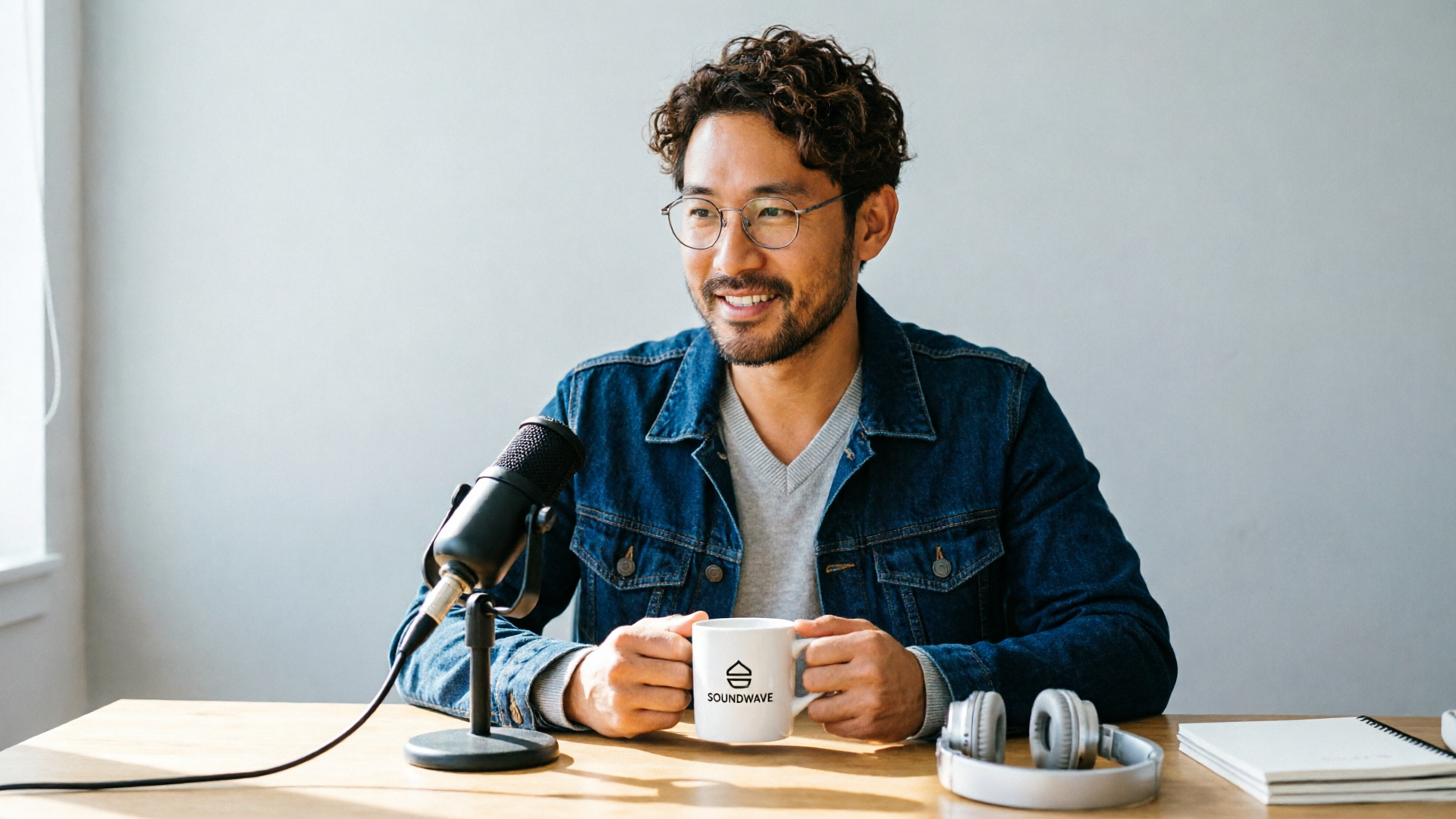
Hands-on workflow — generate a set of on‑brand lifestyle photos from text prompts and a single reference image
This worked example shows a short repeatable flow using PlayVideo.AI AI Image Generator to create a campaign of lifestyle photos starting from one headshot.
Step-by-step example:
- Choose a reference photo: pick a high-resolution headshot with good face orientation and neutral background. Upload it to the PlayVideo.AI AI Image Generator.
- Define the brand prompt: craft a short prompt that captures mood, setting, and wardrobe. Example: "Warm morning kitchen scene, natural window light, subject smiling, casual denim jacket, warm color grade, shallow depth of field, brand logo on mug subtle." Include style tokens for your brand (e.g., "moody cyan-orange grade").
- Use edit-in-place: apply the prompt as an edit to the uploaded photo—this preserves the expression and pose while changing background, clothes, and lighting.
- Generate variations: request 6–8 variations focusing on slight framing changes and color shifts. PlayVideo.AI saves these variations to your library so you can pick winners later.
- Export base aspect ratios: in the same pass export 16:9 (1280×720 thumbnail-ready), 1:1 (Instagram feed), and 9:16 (Reels/Stories). The AI Image Generator supports same prompt, multiple aspect ratios in one pass—this is the biggest time saver.
Why this matters: instead of booking another shoot, you now have a controlled set of images with consistent lighting and expression that work across platforms. If you later need animated openers or concept frames for short clips, those same images plug into the PlayVideo.AI AI Video Generator to create motion without a new shoot. Link to the video generator when you need to move from stills to short clips: /create-video.

Hands-on workflow — retouching, background swaps, and batch export to multiple platform aspect ratios
After generating your variations, focus on retouching and batch export. Use specialized AI retouch modules for portraits if you need precise skin, hair, or blemish fixes; these modules mirror what recent specialty tools automate for portraits and background replacement.
Step-by-step retouch and batch export:
- Pick the candidate image in your PlayVideo.AI library. Use the prompt-edit flow to apply targeted retouch notes: "smooth skin, remove stray hairs, brighten eyes, soften shadow on left cheek". Because edits are prompt-based and non-destructive, you can iterate without starting over.
- Background swaps: use a background prompt like "urban café interior, soft bokeh, morning light" or "clean white studio, subtle vignette" and let the generator recompose the scene around the subject. Verify edges at 100% zoom for hair artifacts.
- Batch export: select all approved variations and choose output aspect presets (16:9, 1:1, 9:16). For thumbnails, export at YouTube’s recommended 1280×720 16:9 and keep file size under 2 MB to avoid platform recompression.
- Format pipeline: export WebP/AVIF for site delivery, and create JPEG fallbacks for partner tools. PlayVideo.AI’s export options let you produce multiple files in a single job so you don’t run conversions afterwards.
A few practical checks before finalizing: inspect faces at full size for retouch artifacts, confirm text areas (if adding overlays later) have safe margins, and run a quick compression pass to hit target file sizes. When you need heavyweight retouching beyond the generator’s scope, export a TIFF master and bring it into specialist tools or a retoucher.
Design checklist: thumbnail and hero-image rules for YouTube, Instagram, podcast covers, and paid ads
Design consistency across platforms drives recognizability and improves CTR. Use this checklist to keep thumbnails and hero images crisp and clickable:
- YouTube thumbnails (16:9, 1280×720): close-up faces with strong eye contact, high contrast between subject and background, minimal on-image text (large, legible type), and stay under 2 MB to avoid recompression. Test at mobile sizes to ensure clarity.
- Instagram feed (1:1): center the subject, leave ~10% safe space for cropping, and maintain consistent color grade across posts to build a grid aesthetic.
- Reels/Stories (9:16): compose vertically with top/bottom-safe zones for UI overlays. Place crucial visual hooks in the central third so they aren’t obscured.
- Podcast covers: square but often displayed small—ensure title text is legible at thumbnail size and the logo contrasts with the background.
- Paid ads: export ad-sized variants your platform requires (Facebook/Instagram often accept multiple aspect options). For ads, keep visual hierarchy strong: product or face, short headline, CTA area clear.
Use A/B testing: creators who A/B test thumbnails report measurable CTR lifts by iterating composition (face close-ups, color contrast, text size) and file format. Track CTR and loading times together; faster-loading assets (WebP/AVIF) improve both user experience and SEO outcomes. When thumbnails succeed in initial tests, promote the winners into paid campaigns with identical composition to keep cross-channel consistency.
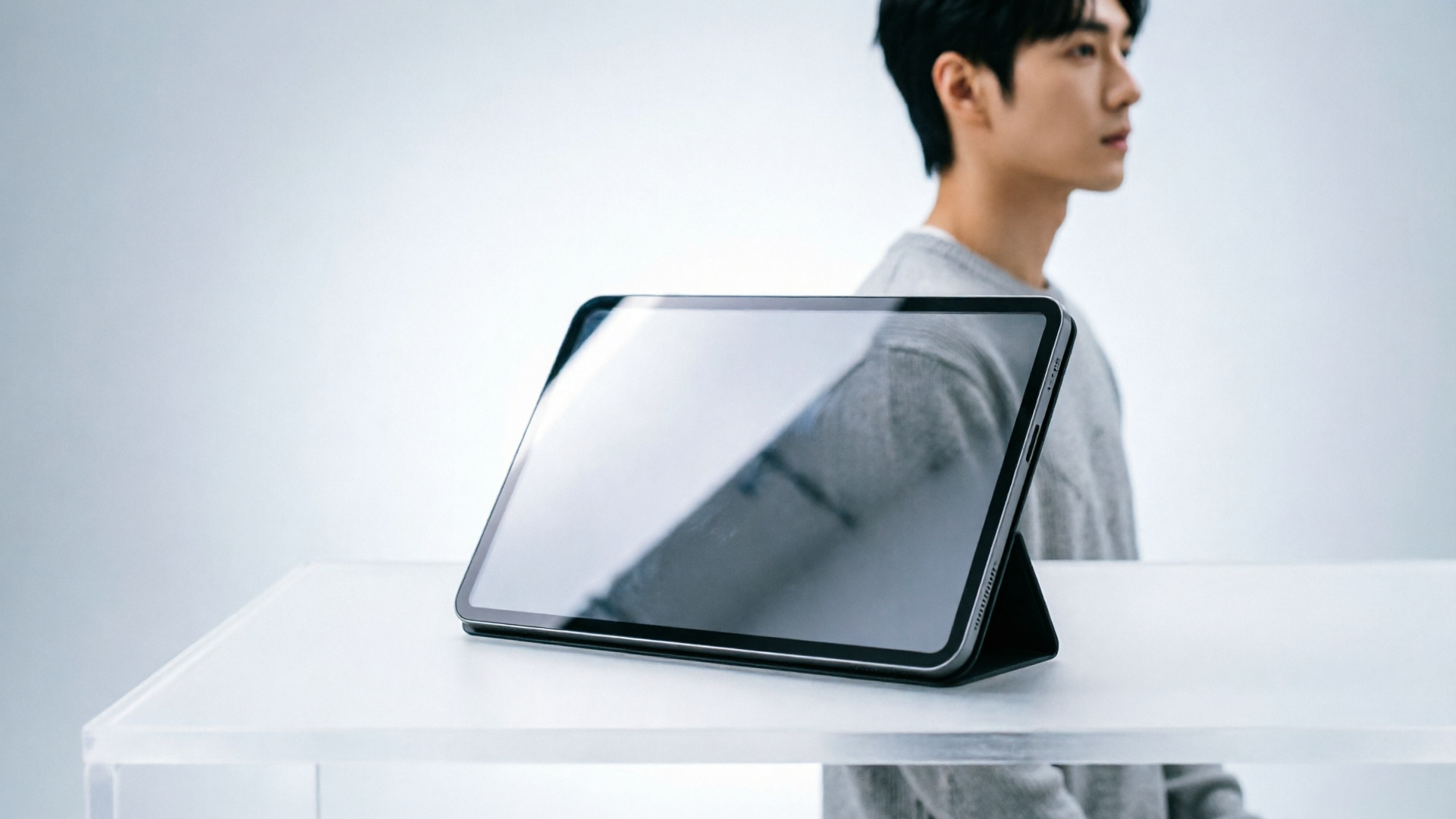
Measuring success and scaling: file-size, load time, CTR, and when to bring a photographer back
You need measurable criteria to know when the AI workflow is working and when to invest in a photographer again.
Key metrics to track:
- Click-through rate (CTR): run A/B tests on thumbnails and hero images; measure lift after changing composition, face crop, or text treatment.
- Page load time and Core Web Vitals: use WebP/AVIF to lower payloads; measure before-and-after with your analytics. Faster images reduce bounce and can improve search rankings.
- File-size targets: thumbnails under 2 MB (YouTube best practice), hero images optimized to balance quality and size for your site’s layout. Use avif/webp for best compression and provide JPEG fallback where partners require it.
When to bring a photographer back:
- Brand-defining campaigns: hero images that will be used in high-visibility channels or large offline placements.
- Complex scenes: product shots requiring accurate color, reflective surfaces, or complex lighting that the AI struggles to simulate.
- Legal/model fidelity: when you need signed model releases attached to specific original session images.
Scale up by turning your best prompts into templates. Save successful prompts and variation presets in PlayVideo.AI’s library, so your team can reproduce a campaign’s look. For motion, feed winning frames into the PlayVideo.AI AI Video Generator to create short animated pieces for promos where stills alone don’t perform—learn more at /create-video. For audio beds and narration on those video cutdowns, pair with the AI Music Generator (/create-music) and AI Voices (/ai-voices) to keep the entire asset pipeline inside PlayVideo.AI.
Frequently Asked Questions
Can I keep the subject’s expression exactly when changing backgrounds?
Yes. Use the PlayVideo.AI AI Image Generator edit-in-place feature: upload the original and apply a restyle prompt. It preserves pose and expression while changing background, lighting, or wardrobe.
Which format should I upload as a master file?
Start with a high-quality JPEG or TIFF as a master. From that master, export WebP/AVIF for web and a JPEG fallback for legacy tools.
Will AI retouching create unnatural skin textures?
Prompt carefully and use subtle retouch commands (e.g., “soften skin while keeping pores”). Iterate on small adjustments; PlayVideo.AI saves variations so you can pick the most natural result.
Conclusion
An AI-first image workflow lets creators iterate fast, keep brand consistency, and ship platform-optimized assets without repeated shoots. Start with PlayVideo.AI AI Image Generator to generate, retouch, and export matched aspect ratios from one reference photo and a compact set of prompts. Save your best prompts as templates, export WebP/AVIF plus JPEG fallbacks for distribution, and feed winning frames into the PlayVideo.AI AI Video Generator when you need motion. Spin up your first frame in the AI Image Generator — you can keep refining the same prompt until the look is yours.