A Creator’s Playbook: Turn One Image into Cinematic Short Videos with Image Animation AI
Practical guide to turning a single image into attention-grabbing short-form video using image animation AI and PlayVideo.AI AI Video Generator.

If you want to turn a single product photo or piece of art into a scroll-stopping short, image animation AI is the fastest shortcut you can learn. This playbook walks creators and teams through why image→video matters, how modern models generate believable motion from one still, and — crucially — how to use PlayVideo.AI AI Video Generator to ship vertical openers, product demo loops, and cinematic B‑roll without an editor.
You’ll get actionable guidance on motion prompts, aspect ratios, and two concrete workflows: one to make a 6–8s TikTok/Reels opener from a product photo and one to produce cinematic animated B‑roll from a tutorial screenshot. The guide keeps the focus on rapid iteration so you can test different camera moves, pacing, and grades in minutes with PlayVideo.AI AI Video Generator.
Why image-to-video (art-to-video) is the missing shortcut for short-form creators
Short-form platforms reward a single clear idea executed fast. Shooting, rigging, or hiring motion designers for every hook is expensive and slow. Image-to-video — often called image→video or I2V — turns a still photo or artwork into a short, temporally coherent clip that can include camera moves, parallax, and stylized motion. That capability is the missing shortcut for creators who need many variants of the same shot: different camera speeds, crop shapes, and color grades for A/B testing.
For product teams and social marketers, the value is straightforward: create multiple 4–12 second ad hooks from one hero image, test which camera move or crop delivers the best CTR, and iterate without a reshoot. For indie filmmakers and motion designers, I2V provides rapid prototyping — you can test mood and motion before committing to a full animation pass or live shoot. Practical benchmarks published in 2023–2025 show I2V is already production-ready for short ads, micro‑animations, and B‑roll that need 3–12 second clips.
PlayVideo.AI AI Video Generator focuses on this exact use case: animate a still image into motion, render vertical and horizontal outputs, and iterate on the same prompt using credits. That combination of speed and export flexibility makes it the go-to tool when speed and simplicity matter.
How modern image-animation AI works (quick tech primer creators can actually use)
Under the hood, modern image-animation AI conditions a generative model on a reference image and a motion or text prompt, then synthesizes intermediate frames that keep the subject on-model while adding coherent temporal changes like perspective shifts or parallax. Recent model families (Step‑Video‑TI2V, Gen‑4 style releases, and others) expanded length, control, and fidelity; the underlying pattern is the same: use the image as a strong spatial prior and generate motion trajectories consistent with that image.
From a creator’s perspective, you need three inputs: the reference image, a concise motion prompt (2–3 phrases), and an output spec (aspect ratio and duration). Many tools run in-browser and return a preview in roughly 30–90 seconds depending on resolution and length — which is fast enough to iterate multiple variants in one session.
If you want to read the technical background, the Step‑Video‑TI2V paper is a clear reference on modern text-driven image-to-video techniques: https://huggingface.co/papers/2503.11251. Practically, the takeaway is that I2V systems are designed to preserve the look of your original image while letting you control camera moves, speed, and style with short prompts.
When to choose image→video vs. full text‑to‑video: creative tradeoffs and best use cases
Image→video is faster and more predictable when you already have a hero asset you want to use. It keeps the subject on-model and preserves exact product details, textures, and composition. Choose image→video when you need: product demo loops, a consistent brand shot across multiple clips, or quick B‑roll for tutorials.
Full text‑to‑video (or text-driven generation from scratch) is better when you need entirely new scenes, characters, or narrative sequences that aren’t tied to a specific photo. It offers broader creative freedom but often requires more iteration to reach a consistent on-model result — which matters if you want your product to look exactly like the real object.
Tradeoffs in short: image→video gives fidelity and speed; text‑to‑video gives coverage and concept flexibility. For most social hooks and e‑commerce ads, image→video is the more practical starting point because you keep the visual identity of the product while adding motion that increases engagement. That's where PlayVideo.AI AI Video Generator is explicitly positioned: animate a single still image into a social-ready clip with control over framing and duration.
3 real-world hooks that work: product demo loops, shorts openers, and animated B‑roll
Here are three proven hooks you can make from one still image.
- Product demo loop. Take a high-resolution product shot, create a slow 3D-like parallax and a 6s rotation or reveal. Use a short motion prompt like “slow reveal, 30° orbit, subtle bounce” and export 1:1 for Instagram or 9:16 for Reels. Product loops keep the item on-model and show details without a full video shoot.
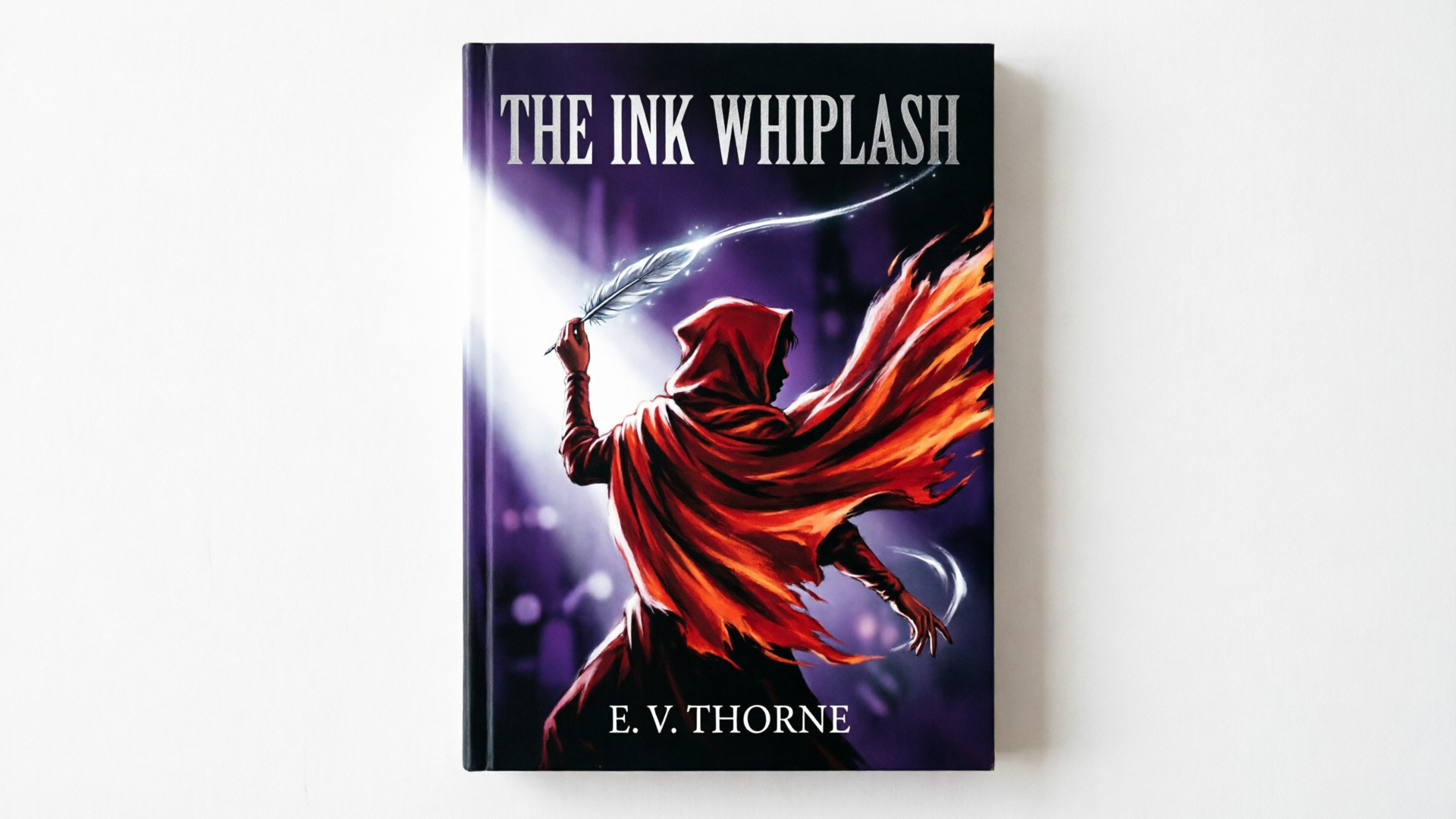
- Shorts opener. Crop your artwork to a 9:16 vertical frame, then add a punchy first 1–2 seconds motion: “fast camera whip in, dramatic scale up, lens flare.” Short-form viewers decide in the first second; the opener must promise the payoff. Export 6–8s with a clear visual hook and a bold first-frame composition.
- Animated B‑roll. For tutorial videos, animate screenshots or diagrams with subtle camera moves and depth: “gentle dolly back, parallax foreground elements, cinematic teal‑orange grade.” The animated B‑roll reads as production-level motion but takes minutes to create.
These examples map directly to PlayVideo.AI AI Video Generator use cases: product demo loops for landing pages, TikTok/Reels hooks from a single photo, and animated B‑roll for tutorials. Each one benefits from quick iteration — generate variants with different speeds or crop and A/B test which version performs best.
Workflow — Turn one product photo into a 6–8s TikTok/Reels opener with PlayVideo.AI AI Video Generator
This walkthrough shows a concrete step-by-step using PlayVideo.AI AI Video Generator.
1) Prepare the image: choose a clean hero photo with the product centered or with negative space on one side. Export at the highest resolution you have.
2) Upload and pick framing: in the AI Video Generator, upload the image and select 9:16 vertical. Use the crop tool to ensure key product details are within the safe action area.
3) Write a concise motion prompt: keep it to 2–3 phrases that describe camera and mood. Example prompt: “fast whip-in, 20% scale up, cinematic depth, warm highlights.”
4) Choose duration: set 6–8 seconds. Shorter durations increase replays; longer gives more breathing room for a call-to-action.
5) Preview and iterate: render a quick preview (the platform typically renders short clips in minutes). Compare two variants: one with a slow dolly and one with a quick whip. Export the best-performing option in 9:16.
6) Add audio: either upload a licensed track or generate a short loop in PlayVideo.AI AI Music Generator to match the tempo. Sync the downbeat to the camera stop for impact.
This workflow demonstrates practical speed: from upload to export in a few minutes, letting you produce multiple hook variations for tests without editing skills. For price and plan details, check PlayVideo.AI pricing to understand credits and throughput.
Workflow — Create cinematic animated B‑roll from a tutorial screenshot (step‑by‑step)
Animated B‑roll adds polish to tutorials and explainer videos. Use this step-by-step process to convert a static screenshot into cinematic motion.
1) Select the screenshot: pick a clean screenshot with distinct foreground and background elements. If necessary, use the PlayVideo.AI AI Image Generator to touch up or remove clutter before animation.
2) Upload and tag layers: in the AI Video Generator, upload the image and optionally mark focal areas if the tool allows keeping subject alignment.
3) Motion prompt for subtlety: aim for understated moves that don’t distract. Example prompt: “gentle dolly out, subtle parallax, slow vignette, cinematic grain.” Keep wording focused on motion and mood.
4) Set pacing and easing: choose 8–12 seconds for a relaxed tutorial segment; use ease-in on the first second and ease-out at the end so cuts align with voiceover cues.
5) Render low-res previews: generate two preview variants with different parallax strengths. Typical in-browser previews take under 90 seconds, enabling quick comparisons.
6) Export and integrate: export the finished clip in 16:9 for the tutorial timeline, then drop it into your edit. If you need background music, the PlayVideo.AI AI Music Generator produces short loops that avoid copyright issues; for narration, consider PlayVideo.AI AI Voices.
This workflow turns a dry screenshot into a cinematic moment without manual keyframing — ideal for solo creators or small teams who need consistent production value across lessons.
Prompt engineering for motion: how to write motion prompts that avoid the ‘wiggle’ and feel cinematic
The common problem with naive image animation is ‘wiggle’ — unnatural jitter from too much frame-by-frame variation. Fix that with prompt discipline and framing rules.
- Use camera verbs first: start prompts with verbs like “dolly,” “whip,” “orbit,” or “tilt.” This biases the model toward coherent camera motion instead of element-level noise. Example: “dolly back 10%, slow ease-in, warm cinematic color.”
- Specify magnitude, not micro detail: say “gentle parallax” or “30° orbit” rather than “move layer A 4px.” Models better interpret coarse motion descriptions.
- Control timing explicitly: include “ease-in 0.5s” or “hold first frame 0.8s” to lock the hook. For short-form, the first 1–2 seconds are critical — use “instant hook” or “fast intro” if you want a quick punch.
- Anchor with artistic adjectives sparingly: add words like “cinematic,” “film grain,” or “soft flare” when you want a mood, but don’t overload the prompt. Too many style words can create unpredictable artifacts.
- Iterate with small deltas: generate a baseline, then change only one motion term (speed or orbit) for the next variant. This yields testable A/B pairs without confounding variables.
Apply these rules inside PlayVideo.AI AI Video Generator by keeping prompts short (2–3 phrases) and rendering quick previews. The platform’s keep-iterating model means you can hold visual identity while testing different motion parameters.
Quality checklist: choosing the right image, aspect ratio, pacing, and export settings for platforms
A short checklist saves wasted renders and keeps your content platform-ready.
- Image quality: high resolution, minimal compression, subject sharply lit. Avoid busy backgrounds or extreme perspective unless that’s the point.
- Aspect ratio: 9:16 for TikTok/Shorts/Reels; 1:1 for Instagram feeds; 16:9 for YouTube and tutorials. PlayVideo.AI AI Video Generator exports all three from the same prompt so you can reuse a single creative across platforms.
- Hook timing: design the first 1–2 seconds to show action or a reveal. For ads, a strong visual promise in the opening frame increases watch-through.
- Motion intensity: subtle parallax for B‑roll, stronger whip or orbit for openers. If you see jitter, reduce parallax strength or slow the motion.
- Export settings: pick the platform recommended bitrate and H.264 or H.265 as needed. Short-form platforms compress aggressively; prefer simpler color grades and avoid tiny high-frequency details that compress poorly.
- A/B testing plan: generate 3–5 variants per hero image: different crops, two camera speeds, and one color grade change. Use short renders to evaluate performance quickly.
Following this checklist with PlayVideo.AI AI Video Generator reduces rework and produces consistent outputs across delivery formats.
Next steps and scaling: batch workflows, A/B testing hooks, and where PlayVideo.AI fits in your pipeline
Once you’ve mastered single-image experiments, scale by batching and systematic tests.
- Batch creation: prepare a folder of hero images, create one base prompt, and export three motion variants per image (slow, medium, fast). Many creators build simple spreadsheets that map image → prompt → output filename so rendering can be automated or done in parallel sessions.
- A/B testing plan: test hook length (3s vs 6s), first-frame crop, and camera move type. Use platform analytics to measure lift in watch time, CTR, and conversions. Because image→video renders are fast, you can iterate weekly rather than monthly.
- Integration with assets: if you need new imagery before animation, use PlayVideo.AI AI Image Generator to edit or create consistent product shots. Add background music from PlayVideo.AI AI Music Generator and narration from AI Voices if you need speak-outs.
- Cost and throughput: balance render time and credits against the value of each creative. For teams, review PlayVideo.AI pricing to plan credit spend and parallel renders. The platform’s speed (renders in minutes) and ability to keep iterating on the same prompt make it efficient for production-scale workflows.
PlayVideo.AI AI Video Generator is positioned to be the production hub for these tasks: animate one still into multiple platform-ready clips, keep the subject on-model, and iterate without a video editor. As image-to-video models and tools continue to mature, this workflow will only become more central to fast-moving creators and small marketing teams.
Frequently Asked Questions
How long does it take to generate an image‑to‑video clip?
Most browser tools return previews in roughly 30–90 seconds for short clips; final renders may take a few minutes depending on resolution and length.
Will the animated video keep my product looking accurate?
Yes—image→video systems condition on your photo to preserve the subject’s shape and texture; PlayVideo.AI AI Video Generator is designed to keep the subject on‑model.
What aspect ratio should I choose for TikTok?
Choose 9:16 vertical and design the first 1–2 seconds as a strong visual hook to maximize watch-through on TikTok/Reels/Shorts.
Can I create multiple variants quickly for A/B testing?
Yes—generate variants by changing one motion parameter or crop; fast in‑browser previews make batch testing practical without reshoots.
Conclusion
Image animation AI removes the technical bottleneck between a great photo and a working short video. By focusing on tight hooks, concise motion prompts, and platform-native crops you can produce testable ad hooks and polished B‑roll in minutes. Start small: pick one hero image, export three variants (slow, medium, fast), and run a short A/B test to learn which motion drives clicks and watch time. When you’re ready to convert your photo into a platform-ready clip quickly, open the AI Video Generator, upload a reference image or paste a short prompt, and ship a clip during your next break.