How to create a singing video from a photo in minutes
Turn one photo and an audio track into a vertical singing selfie. A practical walkthrough using PlayVideo.AI AI Video Effects plus tips on voice, format, and rights.
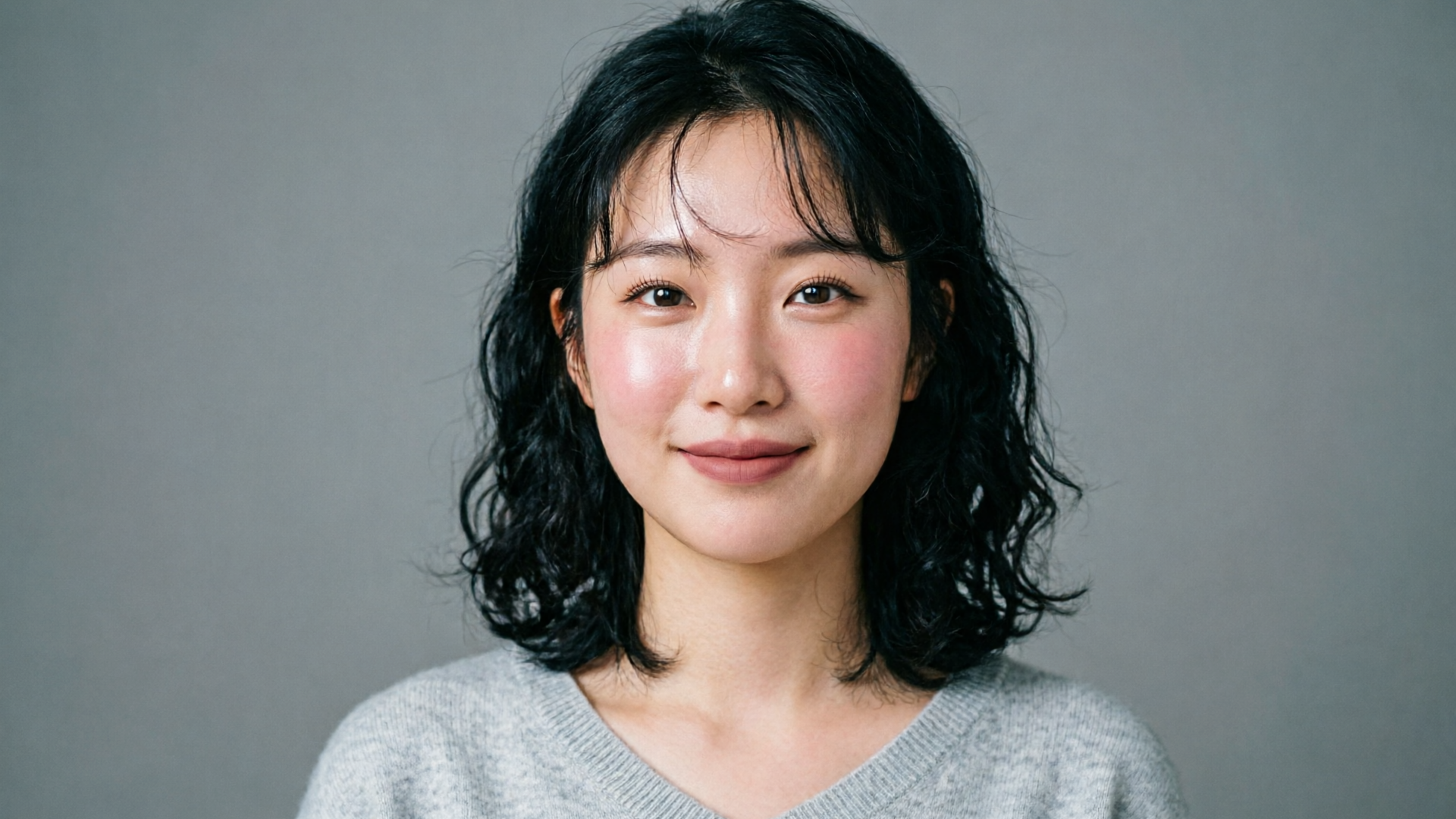
Attention-grabbing singing selfies and lip-sync videos let you turn a single still into a shareable short that performs on TikTok, Reels, and Shorts. If your goal is to create singing video from photo fast — without learning animation or editing — PlayVideo.AI AI Video Effects gives you one-click presets (lipsync, AI singing, dance, news anchor) that render a finished 9:16 clip from one image and one audio track.
This guide explains why photo lip-sync formats still work, how modern AI maps audio to facial motion, and a concrete under-five-minute workflow using PlayVideo.AI AI Video Effects. You'll also get practical tips on matching voice and emotion, and a short legal checklist so your clips are both viral-ready and safe to publish.
Why singing-selfie and photo lip-sync videos work (platform trends and attention mechanics)
Short-form platforms are built around sound. A major analysis found nearly 85% of TikTok videos contain music, which explains why music‑first formats like lip-syncs and covers punch above their weight for discoverability (Digital Music News, Feb 2024). Creators who pair a strong, familiar sound with a tight visual hook often win placement in algorithmic feeds because the platform treats the audio as a primary engagement signal.
Beyond the music signal, format familiarity matters. Platform trend data shows dance and lip‑sync formats still drive engagement—audiences follow pop-culture, dance, and lip-sync clips at scale (Statista/TikTok Year-in-Review). When your content matches a recognizable format, users are more likely to stop, rewatch, and participate via duets or stitches.
Why a single photo can be enough: human attention in short-form feeds favors clear, immediate faces and expressions. A well-executed singing selfie compresses identity, emotion, and a trending sound into three to eight seconds—the sweet spot for loops and shares. That’s why products that convert one photo into a vertical singing clip exist (see consumer tools like bemusic.ai and musci.io): the format is fast, repeatable, and inherently remixable.
Practical takeaway: if your goal is reach, prioritize a compelling sound and a strong visual focal point (a crisp, expressive face). Using a tuned preset, like PlayVideo.AI AI Video Effects, lets you pair that focal photo with an audio file and produce a platform-ready vertical clip in seconds, removing friction so you can iterate on trends.
How modern AI turns one photo + one audio file into a realistic singing clip (technical overview)
At a high level, one-photo lip-sync systems rely on two capabilities: accurate audio–viseme alignment and realistic image synthesis that preserves identity while generating motion.
1) Audio-to-viseme mapping: Newer models analyze the incoming audio track and predict a viseme sequence—discrete mouth shapes tied to phonemes—plus timing and energy. Research like MILG (audio‑modulated image inpainting) formalizes conditioning frame generation on audio features to improve lip-sync accuracy and natural expressions (ScienceDirect, Sep 2024).
2) Identity-preserving synthesis: Given the viseme plan, the model uses inpainting and motion priors to produce frames that keep skin tone, face shape, hairline, and other identity cues intact. Microsoft’s VASA-1 demonstrated this pipeline clearly: one photo + one audio track can create synchronized, realistic motion across a short clip (Ars Technica, Apr 2024).
How presets simplify things: PlayVideo.AI AI Video Effects packages these steps into tuned presets. Each effect is a tuned preset (lipsync, AI singing, dance) that applies trained mappings and rendering parameters so creators don’t need to adjust low-level prompts or frame-level settings. The system outputs a 9:16 vertical render ready for TikTok and Reels, and it queues jobs with the rest of PlayVideo.AI so you can batch multiple photos or variations.
Limitations to expect: single-photo outputs are most convincing for short clips (3–12s), frontal or near-frontal faces, and moderate head motion. Extreme profile turns, heavy occlusions, or highly stylized images may produce artifacts. Still, the latest academic and consumer models have made large strides—enough that many creators now use one-photo lip-syncs as part of their trend playbook.

Step-by-step workflow: create a singing selfie in under 5 minutes with PlayVideo.AI AI Video Effects
This walkthrough gets you from a photo and audio file to a vertical singing clip in under five minutes using PlayVideo.AI AI Video Effects.
Prep (1 minute)
- Choose a clear photo: frontal or slight three-quarter face, good lighting, and minimal motion blur. Crop to a head-and-shoulders composition for strongest results. If you need a quick retouch, use PlayVideo.AI AI Image Generator to remove background or adjust brightness (/create-image).
- Pick your audio: a 6–12 second excerpt of a song, a sung hook, or a short scripted line. Remember rights (see checklist section). If you need original backing, generate an instrumental or short hook with PlayVideo.AI AI Music Generator (/create-music).
Create (2–3 minutes)
- Open PlayVideo.AI AI Video Effects (/effects). The AI Video Effects library contains a lipsync and AI singing preset built for single-photo input.
- Upload your photo and select the AI singing or lipsync effect preset. The presets are tuned — no prompt engineering required.
- Upload your audio track and set the output length (6–12s recommended for hooks). Choose 9:16 vertical output for TikTok/Reels.
- Optionally pick a motion intensity or head-turn slider (if offered). For a first pass, use the default tuned preset.
- Submit the job. Effects render in the platform queue; when finished you’ll get a vertical MP4 ready to preview and download.
Quick optimization loop (1 minute)
- If the mouth looks off, try a slightly different crop or a different audio clip with clearer phonemes. Re-run the lipsync preset; each run is fast enough to iterate.
- For cleaner assets, export the raw clip and add a caption, trending hashtag, or a quick visual overlay in your social app.
Worked example
Here’s a concrete mini-run: I upload a high-quality selfie, pick the “AI singing” effect in PlayVideo.AI AI Video Effects, upload a 9‑second chorus hook I recorded, set the output to 9:16, and hit render. In under two minutes I receive a vertical MP4 where the photo’s mouth and subtle head motion sync to the chorus. No manual frame edits, no complex prompts — just one photo in, finished vertical clip out.
Why this workflow is fast: the presets are tuned to typical creator needs (dance, lipsync, AI singing), so you spend time choosing the right sound and face rather than wrestling with technical parameters. If you need a custom background or image fixes before the effect, visit PlayVideo.AI’s image editor (/create-image) first.
Advanced hands-on tips — matching voice, emotion, and platform format for shareability
To move from an ok clip to a shareable one, treat voice, emotion, and format as your optimization levers.
Voice and audio choices
- Pick a hook: short, memorable audio increases loop rate. Trending hooks work because users already recognize and reuse the sound.
- Use clear phonemes: audio with strong, isolated vocal consonants helps the model predict accurate visemes. If a sung line is muddy, try a clean a cappella take or a higher-frequency excerpt.
- Consider generating custom backing with PlayVideo.AI AI Music Generator for original covers or instrumental beds when you need copyright-safe audio (/create-music).
Emotion and expression
- Match the photo expression to the song: energetic pop hooks pair with wide eyes and slight smile; melancholic ballads need softer expression and slower head motion. If your original photo doesn’t match, retake a photo with the intended emotion.
- Use subtle motion settings: a little natural head bob and eyebrow movement adds realism; exaggerated motion can look synthetic. Presets in PlayVideo.AI AI Video Effects are tuned to safe defaults, but small adjustments can help experienced creators.
Format and distribution
- Keep it short: 6–12 seconds works well for TikTok loopability. Longer clips are fine for stories and longer Reels, but short equals more loops.
- Add captions and hashtags on upload: captions increase accessibility and can improve watch time. Use the platform’s native caption tools or add a burned-on subtitle if you want consistent styling.
A quick checklist for testing variations (numbered so you can iterate):
- Run 3 audio variants (original hook, a cappella, instrumental) and compare engagement.
- Try 2 photo crops (tight face vs. head-and-shoulders) to see which gets higher retention.
- Test two motion intensities (default vs. +10%) to find the right realism balance.
These tests can be produced quickly because each PlayVideo.AI AI Video Effects render is fast and requires minimal setup. For voice cloning or custom narration tracks, consider PlayVideo.AI AI Voices (/ai-voices) to keep a consistent persona across videos.
Rights, safety, and ethical checklist for posting AI-generated singing clips
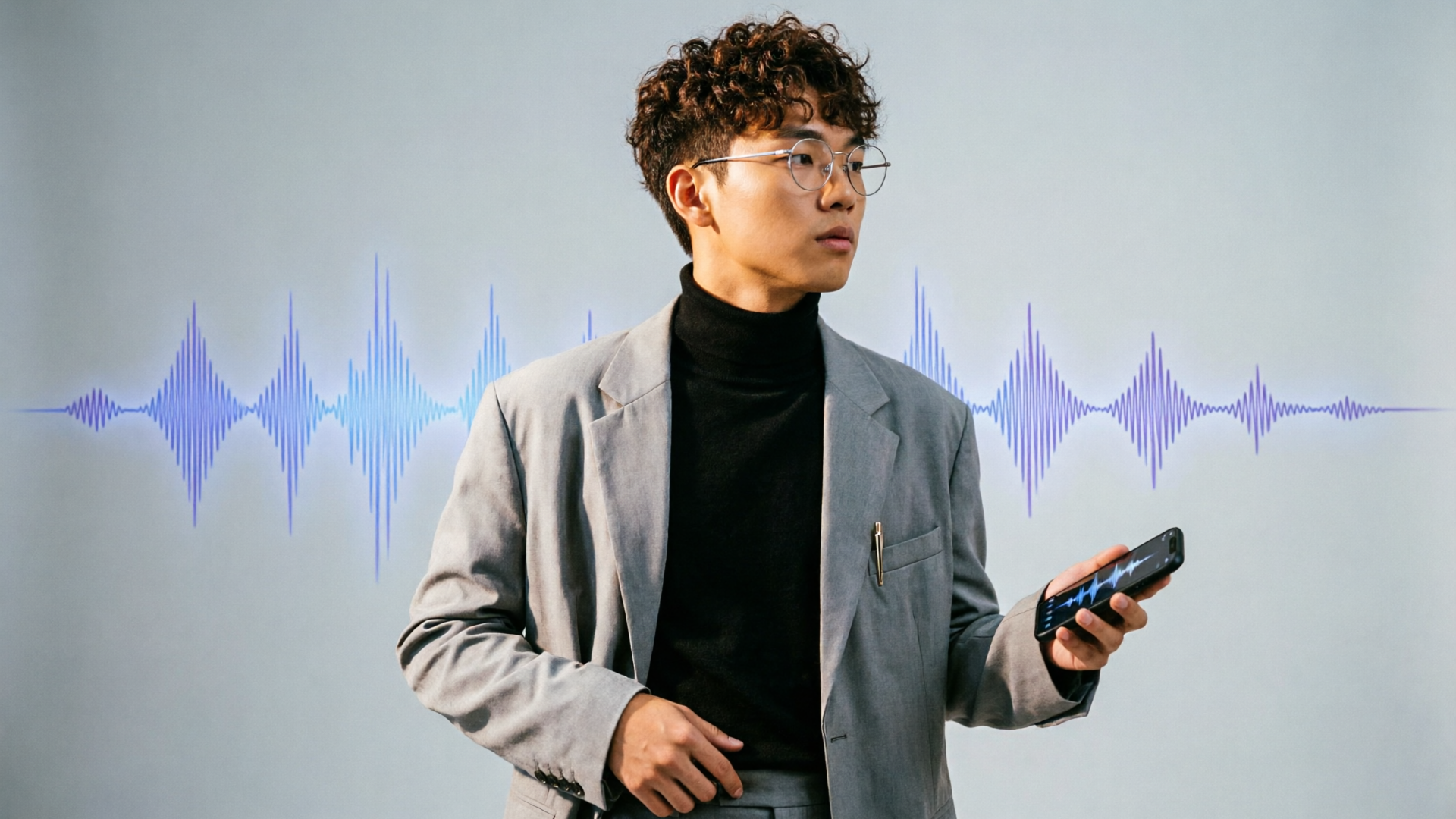
AI-generated lip-sync clips raise practical and ethical questions. Use this checklist before posting to reduce risk and preserve creator trust.
1) Music rights: Confirm you have the right to use the audio. Platform policies and music licensing differ—original recordings, licensed stems, or music generated via a royalty-free AI music generator are safer. If you need new backing, the PlayVideo.AI AI Music Generator can produce copyright-free tracks (/create-music).
2) Consent for likeness: If a photo depicts someone else, get explicit permission before creating and distributing a lip-sync clip. Deepfakes of public figures or private individuals can carry legal and reputational risk; Microsoft’s VASA-1 paper and coverage highlight how realistic single-photo deepfakes can be (Ars Technica, Apr 2024).
3) Disclosure: When a clip is AI-generated, consider disclosing that fact in the caption or comments. Transparent disclosure reduces audience confusion and aligns with platform community guidelines.
4) Harassment and misinformation: Avoid contexts that could misrepresent a person’s views or speech. Don’t use someone’s likeness to make them appear to say something they did not.
5) Platform policy: Check the platform’s latest rules on synthetic media. Policies evolve rapidly; when in doubt, consult the platform help center.
If you need to produce multiple ad variations from a single photo while remaining compliant, PlayVideo.AI AI Video Effects can generate several tuned presets (dance, lipsync, AI singing) from the same asset, letting you iterate without extra photo shoots. For questions about pricing or plan limits when scaling outputs, check PlayVideo.AI Pricing (/pricing).
Frequently Asked Questions
Can I use copyrighted songs in a photo lip-sync video?
You can use songs only if you have the right to do so—via the platform’s licensed library, a cleared use, or original/royalty‑free audio. When in doubt, use an original track from PlayVideo.AI AI Music Generator (/create-music) or get a license.
How long should a singing selfie be for best performance?
6–12 seconds is a good target for loopability and shareability on TikTok and Reels; it highlights a hook and encourages replays.
Will one photo always look realistic when animated?
Single-photo outputs are best for short clips with frontal faces and minimal occlusion. Complex poses or heavy profile turns can produce artifacts—try a fresh photo or minor crop adjustments.
Conclusion
If you want to create singing video from photo with minimal friction, tuned presets are the practical route: they remove prompt engineering and deliver vertical MP4s ready for social. PlayVideo.AI AI Video Effects turns one photo into a finished singing or lipsync clip, with tuned presets for AI singing, lipsync, and dance, and renders in 9:16 for TikTok/Reels. For creators who need more control over visuals or audio first, combine the effects workflow with PlayVideo.AI AI Image Generator (/create-image) and the AI Music Generator (/create-music) to produce original backgrounds and copyright-safe tracks.
Ready to ship a trend-format clip from a single photo? Browse the AI Video Effects library and ship a viral-format clip from a single photo today.