Build a Distinct Sonic Brand Fast: AI Theme Music for Creators
Learn how creators can craft short, copyright-safe AI theme music, jingles, and loopable intros with PlayVideo.AI AI Music Generator. Step-by-step workflows and legal tips.
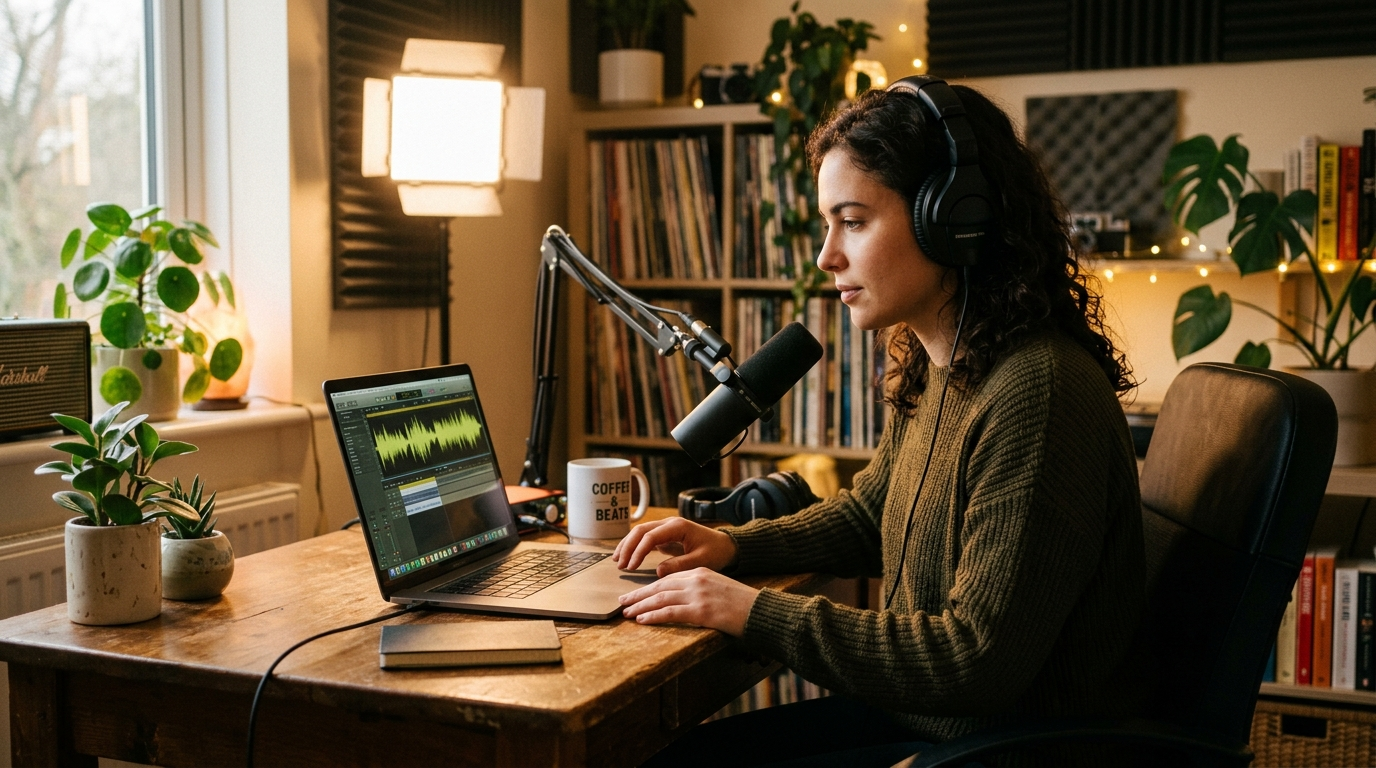
Short, memorable music gives a channel personality before a single word is spoken — that’s the power of AI theme music for creators. If you want a compact, copyright-safe intro that listeners instantly recognize, this guide lays out how to design, generate, and deploy short theme loops and jingles using PlayVideo.AI AI Music Generator.
You’ll learn why sonic branding matters, the legal realities around AI-generated audio, creative rules for 3–10 second hooks, and two hands-on workflows: (1) generating a 5–10s channel intro, and (2) producing loopable variations and stems for editing. Throughout, PlayVideo.AI AI Music Generator is the practical tool I recommend because it creates original tracks from prompts, lets you set style/tempo/mood, and exports files ready for your editor.
Why sonic branding matters for creators (and the psychology behind short theme loops)
Sonic branding is the audio equivalent of a logo: it primes attention, signals context, and speeds recognition. Academic research on sonic branding finds that very short sonic logos — often 2–3 seconds — and slightly longer intros in the 3–10 second range reliably increase brand recall when used consistently. For creators who publish multiple short videos a week, a 3–10 second hook works better than a long theme because it fits the viewer’s attention span and stacks across episodes.
Practically speaking, a short theme loop accomplishes three things: it creates a predictable entry point for your content, it strengthens memory through repetition, and it simplifies transfer across platforms (YouTube, short-form social, podcast clips). Use cases vary: YouTube creators typically aim for 5–10 seconds so the hook can breathe with a quick visual intro, while podcasters lean longer (15–30s) for full themes. Short loops (2–10s) pair well with a visual logo or voice tag; the music becomes a mnemonic shorthand.
For creators on a schedule, AI theme music removes the friction of hiring a composer or digging through stock libraries. Using PlayVideo.AI AI Music Generator you can iterate multiple hooks in minutes, keeping consistent instrumentation and tempo so your sonic brand stays cohesive across formats.
Legal realities and licensing: when AI music is safe to use and what to watch for
The legal landscape for AI-generated music remains unsettled. U.S. authorities and courts have been actively engaged in questions about whether training data and outputs are subject to existing copyright law; the U.S. Copyright Office and a series of high-profile lawsuits in 2023–2024 have created real uncertainty around ownership and training use. At the same time, industry data shows rapid adoption: a 2024 IMS report found roughly 10% of consumers used generative AI to create music, which explains why creators are both eager and cautious.
Surveys underline that caution: about 79% of musicians report worry that AI music competes with human creators. Those concerns translate into practical advice for independent creators: always check a platform’s licensing terms, export provenance (stems and source metadata), and prefer services that explicitly grant commercial rights or provide clear export licensing. Some platforms restrict commercial use to paid tiers — that matters if you monetize on YouTube, sell tracks, or use music in ads.
PlayVideo.AI AI Music Generator is built to address these concerns: it generates original tracks and its outputs are export-ready, letting you use the music without library licensing headaches. Still, creators should confirm the exact commercial rights tied to their plan and keep copies of exported stems and timestamps as proof of provenance. For a broader industry perspective on copyright suits and reporting, see this coverage on the legal disputes around AI music: https://arstechnica.com/information-technology/2024/06/music-labels-sue-ai-music-generators-for-copyright-infringement/.
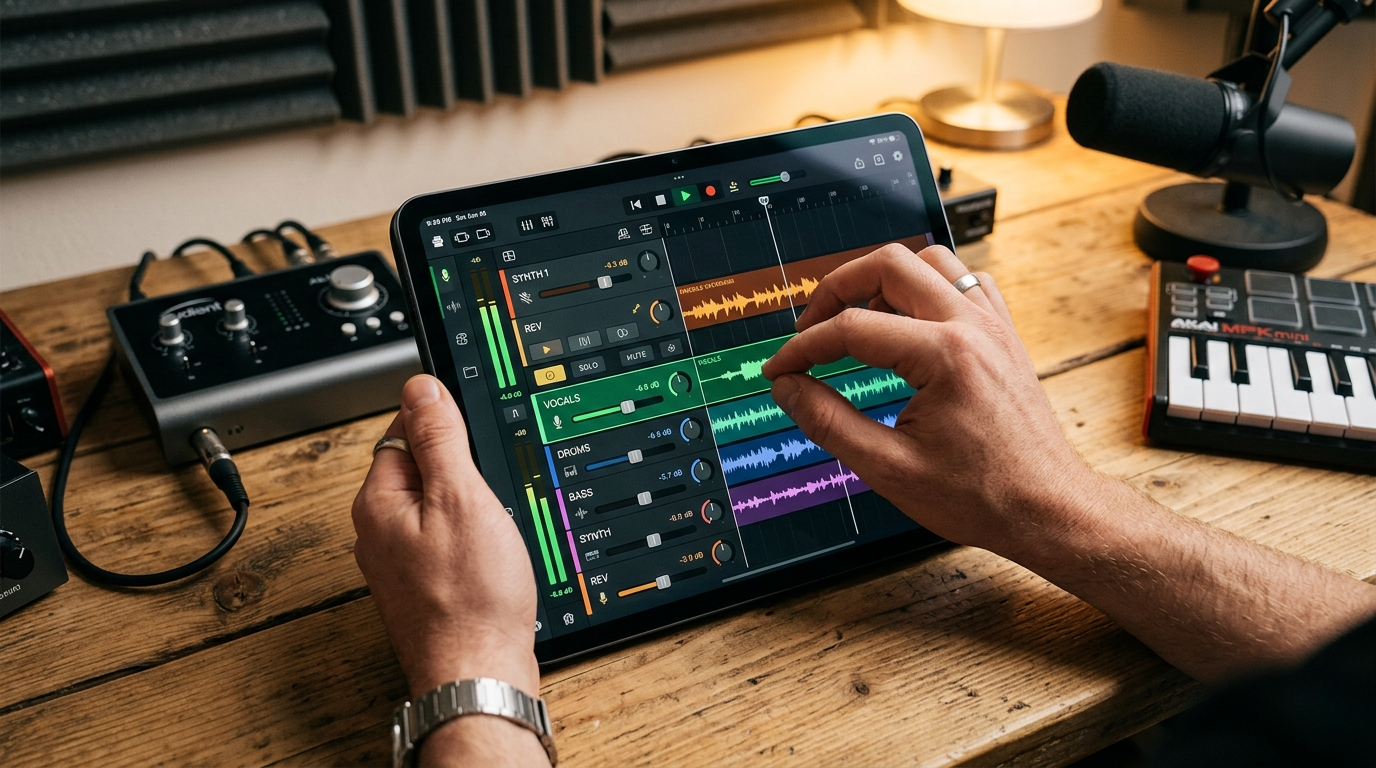
Designing a channel intro or jingle that hooks in 3–10 seconds (creative rules and examples)
Designing a short intro is a design task, not a production problem. Keep these practical rules in mind:
- Lead with a sonic identity: choose one defining element (a synth stab, plucked guitar, or vocal hum) that will appear in variants. Consistency in timbre helps recognition.
- Keep it simple: 3–4 musical events are enough. Think attack, motif, resolution, and optional tag.
- Match tempo to energy: fast-paced vlog -> 120–140 BPM; calm explainer -> 80–100 BPM. Tempo sets perceived pacing and should match your on-screen edits.
- Use a two-part structure where useful: a 2–3s sonic logo followed by 2–7s musical motion gives you a short and extended version for different platforms.
- Design for loopability: ensure the end of the clip resolves in a way that can repeat without sounding cut-off. A fade or overlapping sustain works well.
Examples:
- Tech explainer (5s): bright synth stab, rhythmic 16th hi-hat, short bass pulse, finish on a vocal whisper — energy 110 BPM.
- Travel vlog (7s): ukulele motif, clap on beat 2, cymbal swell into open interval — energy 95 BPM.
- Podcast bumper (15s recommended): slow cinematic pad, woodblock marker, small melodic figure repeated twice.
These creative rules map directly to PlayVideo.AI AI Music Generator controls: you can specify style (e.g., lo-fi, cinematic, electronic), tempo, and mood, then iterate until your hook is both distinct and reproducible across episodes.
Hands-on: Prompting PlayVideo.AI AI Music Generator to create a 5–10s channel intro — step-by-step workflow
This walkthrough shows how to get a camera-ready 5–10 second YouTube intro using PlayVideo.AI AI Music Generator.
1) Define the brief (30–60 seconds): pick your mood, tempo, and a defining instrument. Example brief: "Bright electronic hook, 110 BPM, 5 seconds, plucky synth lead, warm sub-bass, light hi-hat groove, optimistic mood." Write the core keyword "AI theme music" into your prompt so you keep the sonic branding goal front-and-center.
2) Open PlayVideo.AI AI Music Generator (/create-music) and paste the brief into the prompt box. Select tempo = 110 BPM, style = electronic, length = 6s. Toggle "instrumental" if you want no vocals.
3) Generate 3 variants. Use the generator’s style/tempo/mood sliders to nudge differences: variant A (brighter synth), variant B (organic pluck), variant C (vocal chop tag). Keep the motif consistent across variants so you can choose a family.
4) Review and pick a base. Listen for how each ends — pick the one that loops cleanly. Use the generator’s quick-export to download an MP3 and WAV for your editor. If you plan to adapt the hook into a longer bumper, export a 15s version as well.
5) Minor edits and provenance: if you need stems for later mixing, request separate exports (lead/stem/bass/drums) if the tool supports stems; otherwise export WAV and a normalized MP3. Save the generation prompt text and timestamps in a project note as provenance.
Worked example (concrete prompt): "Create a 6s AI theme music intro. Style: upbeat electronic. Tempo: 110 BPM. Instruments: plucky synth lead, warm sub-bass, light brushed hi-hats, soft vocal chop tag. Mood: optimistic, energetic. Loopable ending. No lyrics. Export WAV."
Within a single session you’ll have 3–5 original tracks to audition. That speed matters when you need to iterate with thumbnails or intros. If you later need a visual to match, generate a thumbnail or short opener with PlayVideo.AI AI Image Generator (/create-image) or assemble a 3–4s visual loop with the AI Video Generator (/create-video) to test sync.
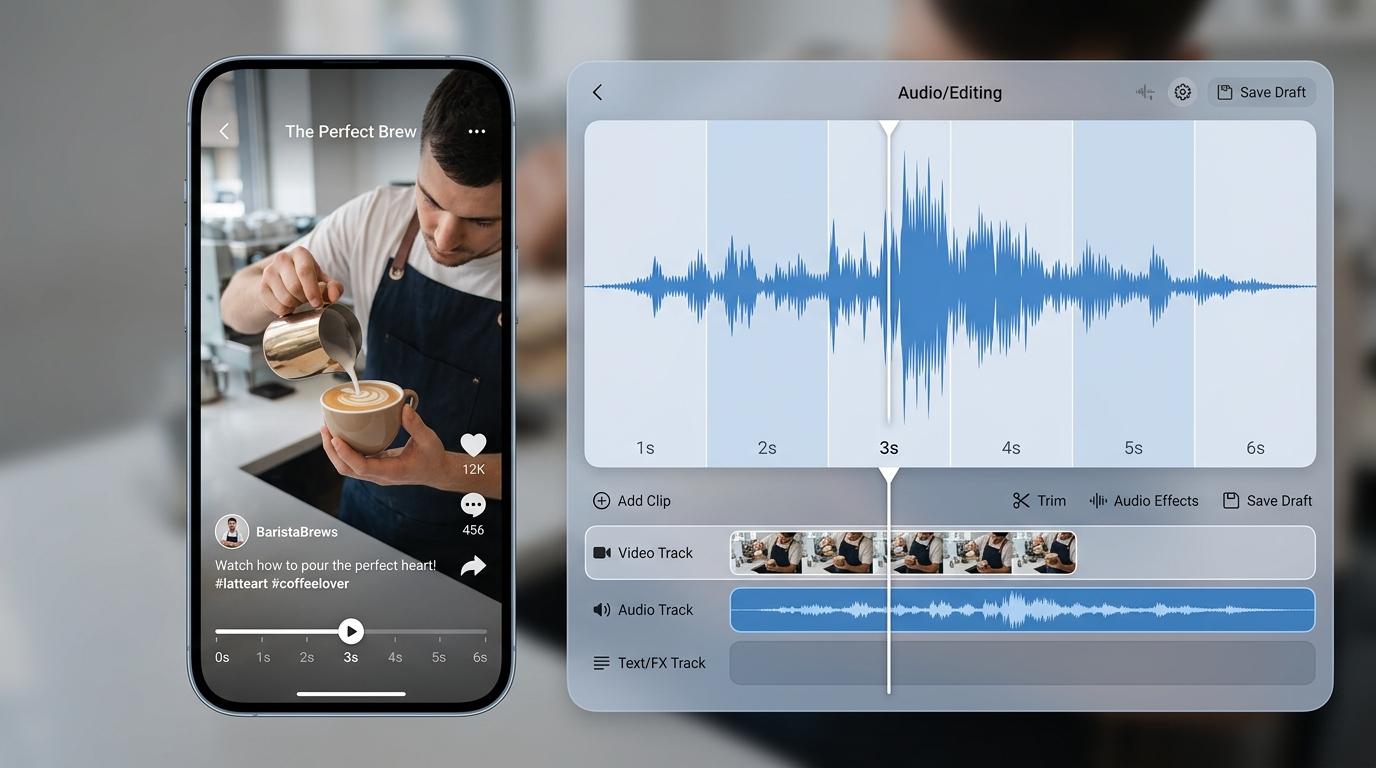
Hands-on: Generating a set of loopable theme variations and exporting stems for edits and episode use
A single hook is useful, but a small family of related loops makes a channel feel polished. Here’s how to produce variations and stems you can remix across episodes.
1) Create a master prompt family: keep the core motif and change one variable per generation — tempo, instrument, or mood. Example set: (A) original 6s hook, (B) soft variant with acoustic guitar, (C) punchy variant with tighter drums, (D) ambient loop for lower-energy segments.
2) Use PlayVideo.AI AI Music Generator to export stems. When your plan allows stem exports, request separate lead, bass, percussion, and ambient stems. Stems let you duck, re-balance, or add dialog under the same theme without losing the sonic identity.
3) Build loop lengths for context: create a 3s sonic logo for episode openers, a 6s main intro for YouTube, and a muted 10–12s version that acts as background bed under voiceover. Keep versions in a labeled folder with file names like shownameintro6slead.wav and shownamebed10sstems.zip.
4) Test edits in your NLE: import stems, lay the lead and bass for >6s visuals, then mute or lower percussion for voiceover sections. Export a few pre-synced versions so editors or collaborators can drag-and-drop without re-editing.
5) Practical tips on consistency: lock a key (e.g., A minor) for all variants to avoid audible clashes when you switch between episodes. If you need a vocal tag, generate a short spoken line using PlayVideo.AI AI Voices (/ai-voices) and place it over the same stem family to strengthen identity.
This method ensures that whether you need a fast 3s sting or a 30s theme for a special episode, all pieces sound like they belong to one brand, and you retain full control thanks to the generator’s control over style, tempo, and mood.
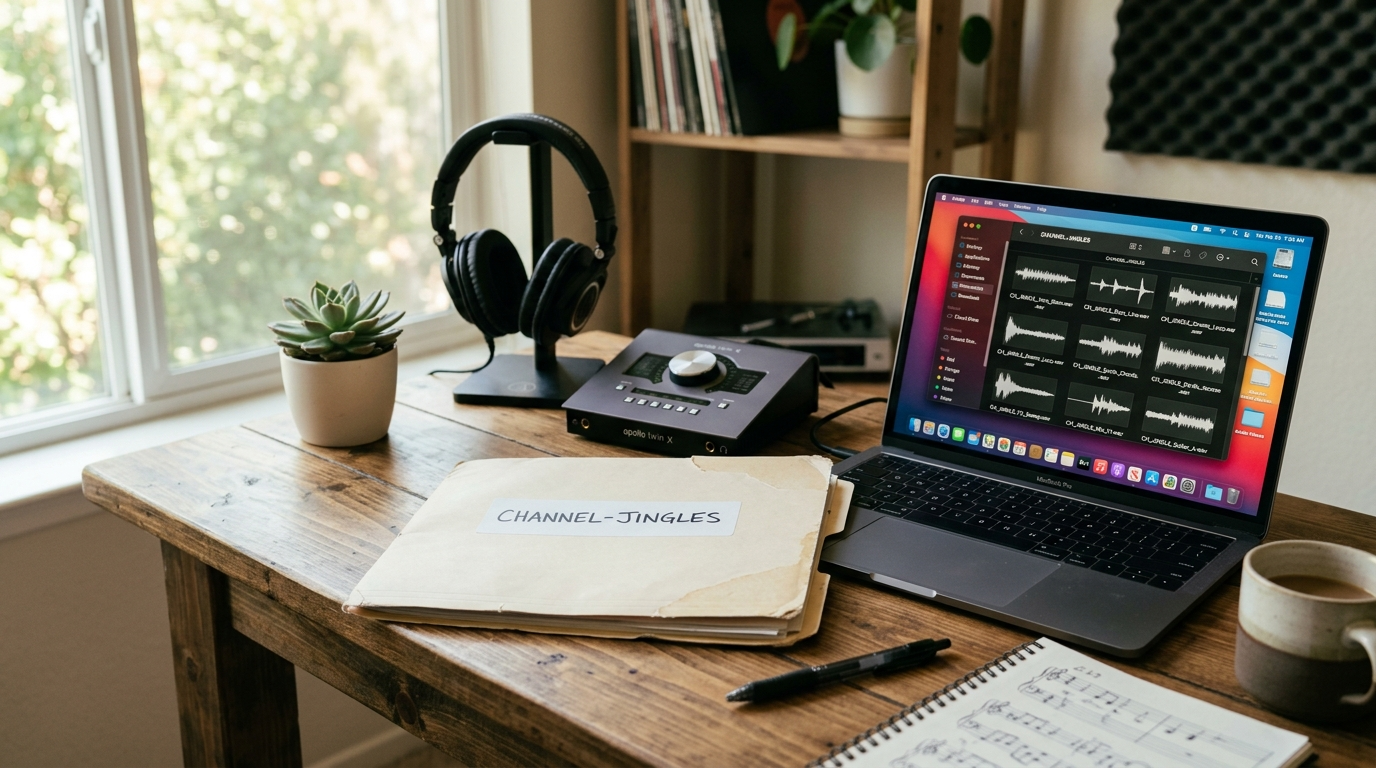
From idea to upload: integrating your AI-generated jingle into a video workflow and testing audience response
Integration is where the creative work turns into measurable results. A compact workflow keeps friction low:
- Export clean files: always export a high-quality WAV for upload and one low-bitrate MP3 for draft sharing. Keep stems for emergency edits.
- Sync to your edit: place the 5–10s intro at the head of your timeline and adjust cuts so the first visual beat lines up with the musical attack. For looped content, use the stem with a loop-friendly ending and crossfade 50–100ms to avoid clicks.
- Platform considerations: short intros work best on YouTube and short-form social; for podcast hosting, use the 15–30s format. Be wary of content ID automated matches — platforms differ, so test uploads privately first.
Testing audience response:
- A/B small samples: publish two episodes with slightly different hooks (same visual, different intro) and compare retention metrics for the first 15 seconds and view-through rate. Use this data to pick the better-performing variant.
- Survey and qualitative feedback: include a pinned community post or a short poll asking which intro viewers prefer. Keep changes minimal — the goal is incremental improvement.
- Consistency window: play a single chosen hook across 8–12 episodes before judging long-term recognition. Sonic branding compounds over time.
If you need matching visuals or automated edits, PlayVideo.AI tools can help: use the AI Video Generator (/create-video) to create short visual stingers that match tempo, or the AI Image Generator (/create-image) to generate thumbnail elements that echo the jingle’s mood. For narration or taglines, use AI Voices (/ai-voices) to record consistent spoken IDs.
Commercial note: confirm the rights in your plan on PlayVideo.AI Pricing (/pricing) so you understand export limits and commercial permissions before wide distribution.
Frequently Asked Questions
Is AI-generated music safe to use commercially?
It depends on platform terms. Many services (including PlayVideo.AI AI Music Generator) provide exportable, original tracks intended for commercial use, but you should confirm rights on your specific plan and save exported files as provenance.
How long should a YouTube intro be?
Aim for 5–10 seconds for most channels. Shorter 2–3s sonic logos work as stings, while 15–30s is better for full podcast themes.
Can I get separate stems from PlayVideo.AI AI Music Generator?
Yes — when available on your plan, export stems (lead, bass, percussion, ambience) so you can remix, duck for voiceover, and repurpose across episodes.
Conclusion
AI theme music is a practical way for creators to establish a consistent sonic brand quickly and legally — provided you follow licensing best practices, design short loopable hooks, and test them with your audience. PlayVideo.AI AI Music Generator is the pragmatic tool in this workflow: it generates original tracks from prompts, lets you control style, tempo, and mood, and exports files that integrate directly into your editor. Start by generating a family of 3–5 variants, export stems for flexibility, and run simple A/B tests across a few episodes. Open the AI Music Generator and pop a vibe into the generator to score your next clip in minutes.