Sketch to Video: Turn Concept Art and Product Photos into Social-Ready Clips
Learn how to turn sketches and concept art into 15–30s social clips using PlayVideo.AI AI Video Generator. Step-by-step workflow, prompts, and integration tips.
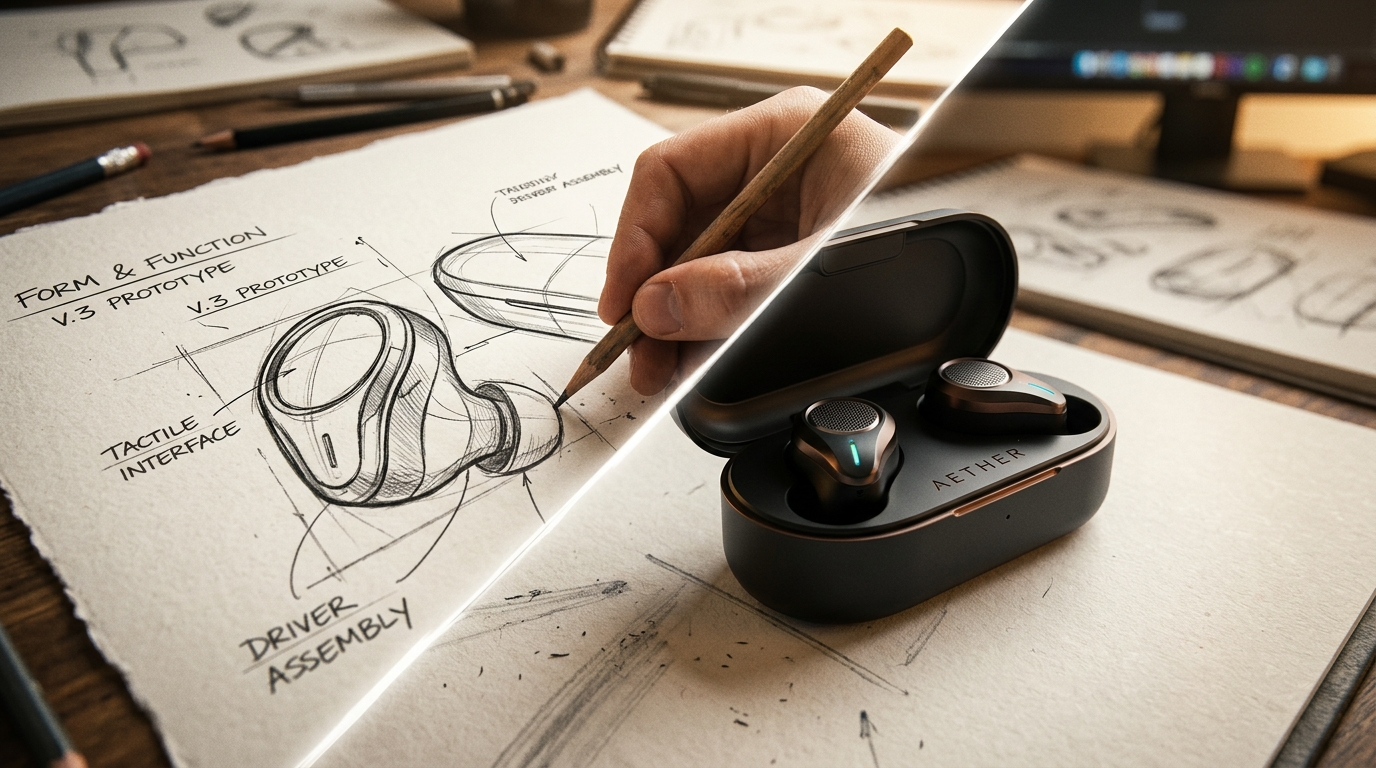
If you want to test product ideas, promote a prototype, or turn a single concept sketch into a social-ready clip, sketch to video workflows cut the time and cost of animation dramatically. In this guide I’ll show how indie creators and small product teams can convert sketches, concept art, or a product photo into a 15–30 second teaser suitable for TikTok, Reels, or a landing page using PlayVideo.AI AI Video Generator.
You’ll get a practical, hands-on workflow, technical expectations for modern image-to-video models, six ready-made prompt+style recipes, and actionable tips for embedding animated concept clips into ads and launch pages. The PlayVideo.AI AI Video Generator—Turn a text prompt or a still image into short cinematic AI video without any editing skill—is introduced early and used in a step-by-step example so you can ship a clip in minutes.
Why 'sketch-to-video' and image-to-motion teasers are the fastest way to test creative concepts
Short experiments beat long bets when your goal is to validate creative concepts and message-market fit. Sketch-to-video and image-to-motion teasers let you produce dozens of variant hooks from one idea: different camera moves, mood, and pacing without hiring an animator or booking studio time. Industry analyses show short-form platforms like TikTok and Instagram Reels capture the largest share of short-video attention—TikTok generally leads engagement metrics—so a concise animated loop often produces faster feedback than static images or long edits (see the Rival IQ short-form benchmark).
For product teams and indie creators the advantages are practical: cost, speed, and iteration cadence. Where traditional animation requires days or weeks and specialized skill, modern image-to-video generators render 15–30s clips in minutes. That speed lets you A/B test multiple visual concepts and captions across ad sets or Reels hooks with a fraction of the cost. PlayVideo.AI AI Video Generator is built precisely for that use case: it generates short-form videos from text prompts and animates a single still image into motion, outputting vertical 9:16, square, and horizontal 16:9 framing so the same asset can be pushed to TikTok, Reels, and Shorts.
Because these clips are short and modular, you can rapidly swap audio, captions, or pacing to test engagement. As a benchmark, "The average brand in our 2024 TikTok benchmark study earns an engagement rate by view of 3.4%," which gives you a target when testing animated product loops. Short-form testing plus rapid content generation equals more learning per dollar spent—exactly what small teams need.
How modern image-to-video models handle sketches and concept art (what to expect technically)
Expectations matter. Recent model generations (2024–2026) significantly improved motion coherence and style consistency compared with earlier experimental tools. Modern systems take a still—whether a rough line drawing, a refined concept sketch, or a product photo—and add motion constraints like parallax, camera dolly, or small character gestures while keeping the subject on-model. That’s why these tools are useful for product demos, story openers, and animated B-roll.
Technically, image-to-video generators typically use a combination of image-conditioned diffusion or latents plus motion priors. Practically, you should expect three limitations: clip length caps, a need for iterative prompting, and occasional instability in complex articulated motion. Many tools impose limits on how long a coherent clip can remain without manual input, and reliable character motion often benefits from providing additional reference frames or simple motion anchors (for example: a two-frame storyboard or a masked region to preserve the subject).
A useful way to manage expectations: treat the generator as a fast prototyping engine rather than a final VFX pipeline. Use it to produce 15–30s cinematic hooks and concept loops, then move to more intensive tools if you need photoreal VFX or frame-by-frame control. PlayVideo.AI AI Video Generator explicitly supports image-to-video animation and outputs multiple aspect ratios from the same prompt, which removes the need to re-render for each platform and speeds up iteration. If you need voiceover, narration, or soundtrack, consider pairing clips with PlayVideo.AI AI Voices or the AI Music Generator to keep production in one ecosystem.
Workflow: From sketch or product photo to 15–30s social hook — step‑by‑step (hands-on)
Below is a practical, repeatable workflow that gets a social-ready clip from a sketch or single product photo in under an hour.
1) Prepare one clear reference image
- If you have a concept sketch, clean contrast and isolate the subject. For product photos, use a well-lit cutout with neutral background. The image will be your anchor so make the subject visible and centered.
2) Write a focused prompt
- Start with a short scene description and two style cues: motion and mood. Example: "Close-up of a brushed-metal gadget rotating slowly, subtle camera push, warm cinematic rim light, soft film grain, 9:16 vertical."
3) Open PlayVideo.AI AI Video Generator and select image-to-video
- Upload the reference image, paste your prompt, choose aspect ratio (9:16 for TikTok/Reels), and pick duration (15–30s). PlayVideo.AI renders short clips in minutes; outputs include 9:16, 1:1, and 16:9 from the same prompt so you can re-export for other platforms.
4) Add motion anchors and iteration notes
- If your subject needs a predictable move (rotate, float, or push forward), add a short instruction: "apply a slow clockwise rotation to the product, 10-degree tilt, gentle parallax on background." If the first render drifts off-model, lock the subject area with a mask and re-run.
5) Swap music and voice
- Drop a short instrumental from PlayVideo.AI AI Music Generator or add a short narration from PlayVideo.AI AI Voices. Keep audio under 20 seconds for hooks.
6) Export and test
- Export the 9:16 master, then generate 1:1 and 16:9 variants for ads and the landing hero. Run two or three variants against a short ad test—different openers or color grading—and measure engagement against a 3.4% view-by-engagement benchmark.
Concrete worked example (walkthrough):
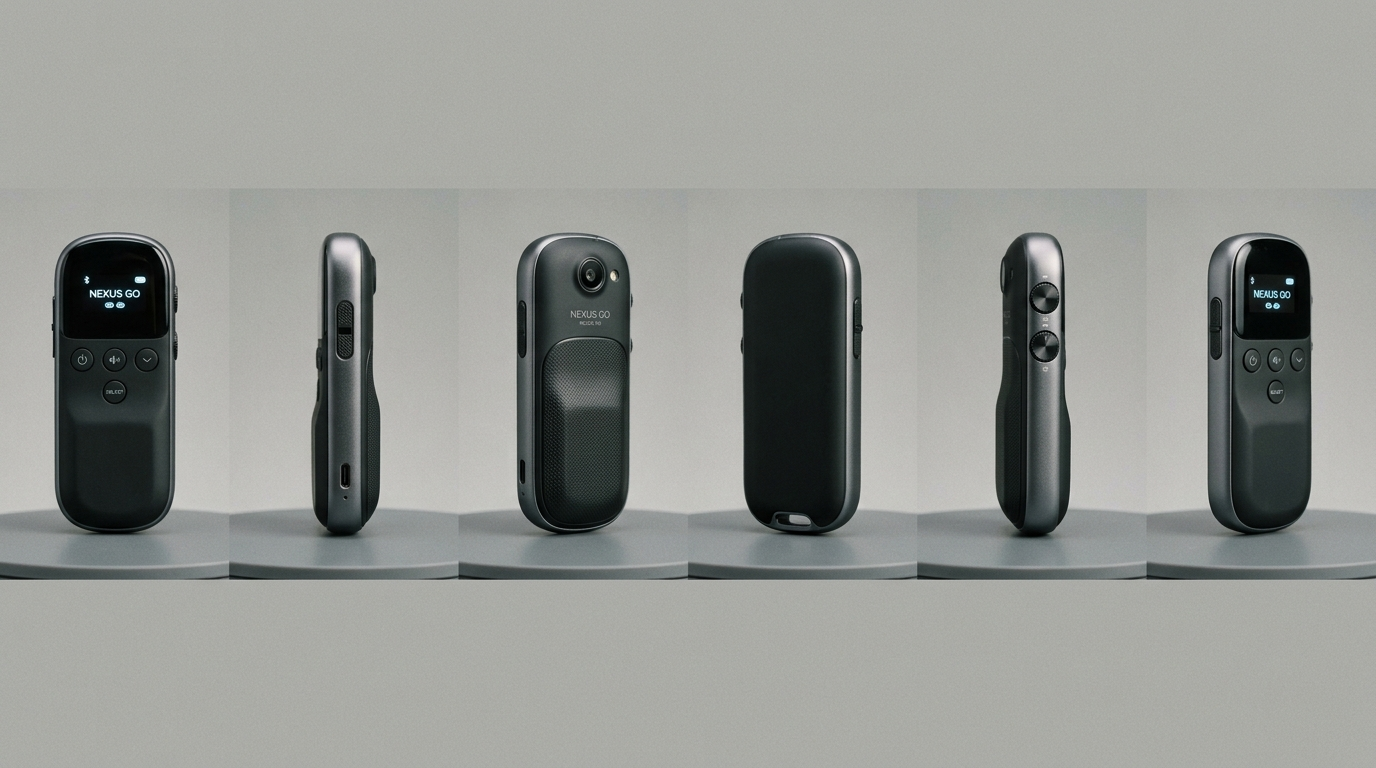
- Objective: 20s TikTok hook from a concept sketch of a handheld tracker.
- Step A: Upload the sketch into PlayVideo.AI AI Video Generator, aspect 9:16, 20s.
- Step B: Prompt: "Handheld tracker concept sketch becomes polished brushed-steel gadget; slow upward dolly, soft backlight, subtle glow from status LED, cinematic color grading."
- Step C: Set a motion anchor on the gadget (mask) to keep it on-model and request "gentle rotation on Z-axis, 8 degrees."
- Step D: Render (minutes). Review and tweak: if LED glow is weak, add "increase LED bloom, small lens flare." Re-run and export.
This process turns one sketch into an ad-ready clip without an editor or keyframe animation. If you need faster image edits before animation, use the PlayVideo.AI AI Image Generator to refine or colorize the sketch before animating (see linked tool).
Creative recipes: 6 practical prompt+style combos for product demos, Reels hooks, and story openers (hands-on)
Here are six tested prompt recipes you can copy, adapt, and run. Each recipe includes the image type, the motion cue, and the style treatment.
1) Product demo loop — "Polished rotate"
- Image: product photo (isolate on neutral bg)
- Prompt snippet: "360-degree slow rotate, shallow DOF, studio rim light, subtle vignette, 9:16"
- Use: landing page hero or product carousel clip
2) Story opener — "Sketch reveal"
- Image: line drawing or concept sketch
- Prompt snippet: "line drawing morphs into textured painted render, camera push through layers, parchment to polished metal, warm cinematic tones"
- Use: YouTube Shorts opener or designer showcase
3) Feature highlight — "Macro motion"
- Image: close-up detail photo
- Prompt snippet: "subtle macro dolly left to right, focus rack to emphasize detail, motion blur, ambient bokeh"
- Use: short ad highlighting a feature
4) Reels hook — "Quick tension"
- Image: product in context (hand or user)
- Prompt snippet: "fast 3-second whip pan, then freeze on product, dramatic highlight, high contrast, punchy color grade"
- Use: hook in first three seconds of Reels/TikTok
5) Cinematic reveal — "Light bloom"
- Image: moody concept art
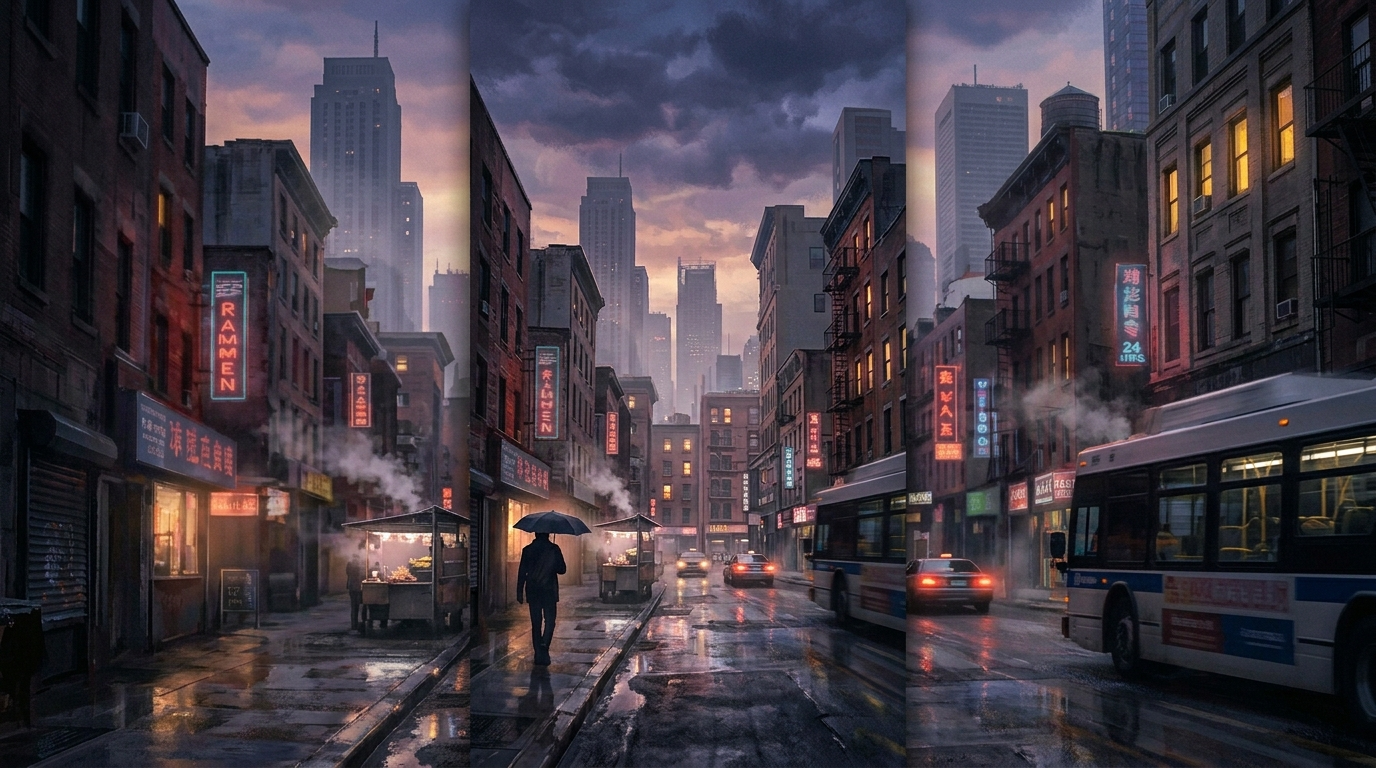
- Prompt snippet: "slow reveal from shadow, rim light bloom, soft film grain, 24fps cinematic motion"
- Use: teaser or narrative opener
6) Animated B-roll — "Parallax depth"
- Image: landscape or UI mock with layers
- Prompt snippet: "parallax multilayer push, slight camera yaw, smooth easing, neutral colorgrade"
- Use: background loop for tutorials and explainers
For each of these, PlayVideo.AI AI Video Generator will accept the image plus the prompt and output vertical or horizontal variants. If a first pass leans off-model for sketches, add a masked motion anchor or provide a second reference frame showing the final look. Iterative prompting—tweaking one element at a time—works far better than long, compound edits. You can also combine the outputs with the AI Music Generator for scoring, and AI Voices for short narration.
How to integrate animated concept clips into launch pages, Shorts, and ad tests to boost engagement
Integration is where the ROI happens. Short animated teasers are versatile: use the 9:16 render for TikTok/Reels, a cropped 1:1 for Instagram feed ads, and a 16:9 for the landing page hero or YouTube Short. The PlayVideo.AI AI Video Generator’s multi-aspect outputs remove redundant re-renders—create once, publish everywhere.
Landing pages
- Use a looping 10–15s product demo as the hero background or an inline explainer. Keep the loop subtle—small rotations, gentle parallax—so it does not distract from CTA buttons. Export a high-quality 16:9 master for desktop and a 1:1 or 9:16 for mobile hero blocks.
Shorts and Reels
- Lead with your strongest visual hook in the first 2–3 seconds. Test two hooks: one emphasizing motion (camera whip or reveal) and one emphasizing product benefit (close-up macro rack). Run short ad tests against a baseline and track engagement. Compare view-through and swipe metrics to the 3.4% engagement target from the Rival IQ benchmark.
Paid ad tests
- Keep each ad unit focused: one creative change per variant (color grade, opening camera move, or call-to-action overlay). Because PlayVideo.AI renders clips in minutes, you can generate five variants before the ad budget warms up. Measure cost-per-click and engagement and pause the lowest performers quickly.
Measurement and iteration
- Use the first 48 hours of ad data to kill or scale variants. Short-form platforms reward early retention; if your animated loop keeps viewers past 2–3 seconds, that’s often a leading signal for higher click-throughs. Replace weaker openers with new renders using a different prompt recipe from the earlier section. Over several iterations you’ll discover which motion and style combinations resonate with your audience.
Choosing the right tool: When to use PlayVideo.AI AI Video Generator vs. full VFX or traditional animation
Not every project needs the overhead of a VFX studio. Use PlayVideo.AI AI Video Generator when speed, cost, and rapid iteration are the priority. It’s ideal for indie creators, marketers, and founders creating product demo loops, quick Reels hooks from a single product photo, story-mode openers, or animated B-roll for tutorials. The generator renders short clips in minutes, outputs 9:16, 1:1, and 16:9 from the same prompt, and keeps the subject on-model during image-to-video passes—features that directly support quick tests and multi-platform distribution.
Choose traditional animation or VFX when you need full frame-by-frame control, long-form continuity, or complex character rigs and photoreal compositing. Typical signs you should upgrade: required runtime beyond the tool’s clip limits, exacting lip-sync for long dialogue, or heavy scene-specific physics (destruction, cloth sims) that current image-to-video models handle poorly.
A hybrid approach is common: prototype fast with PlayVideo.AI AI Video Generator to validate the concept and emotional tone, then brief a VFX vendor using the generated clip as a visual spec. This reduces iteration time and gives vendors a clear starting point. If you need supporting assets—cleaned versions of your sketch, alternate colorways, or higher-resolution stills—use PlayVideo.AI AI Image Generator to prepare reference frames and the AI Music Generator to produce test scores. When you need narration or a quick voiceover, PlayVideo.AI AI Voices integrates smoothly so you can keep the whole workflow in one platform.
The decision ladder is simple: validate quickly with AI-generated clips, then scale with a human-driven pipeline only when the concept proves effective and budget allows.
Frequently Asked Questions
How long should my sketch-to-video clips be for social testing?
Aim for 15–30 seconds. Shorter clips (10–15s) work well as loops and Reels hooks; 20–30s gives a bit more narrative space for product demos.
Will the generator keep my product on-model from a rough sketch?
Yes—image-to-video modes are designed to keep the subject on-model. If the first pass drifts, use a mask or add a second reference frame and re-run with a motion anchor.
Can I export the same render for TikTok and a landing page?
Yes. PlayVideo.AI AI Video Generator can output 9:16, 1:1, and 16:9 from the same prompt so you can produce platform-specific masters quickly.
Do I need to add audio inside the tool?
No—you can add tracks produced by PlayVideo.AI AI Music Generator or upload your own audio. Short voiceovers can be generated with PlayVideo.AI AI Voices for fast narration.
Conclusion
If you want fast validation and platform-ready clips without an animation team, use the PlayVideo.AI AI Video Generator to convert a sketch or single product photo into a cinematic social hook. Start with a clean reference image, pick one motion cue, and iterate—render times are minutes, not days. For score and voiceover, pair the clip with AI Music Generator and AI Voices as needed. Open the AI Video Generator, drop in your prompt or a reference image, and ship your first clip during your next break.