Video editing macros for short-form AI workflow: a hands-on guide
Combine macros, keyboard shortcuts and AI to produce daily Shorts faster. Templates, macro recipes, AI clip-selection tips, and scaling steps for creators.
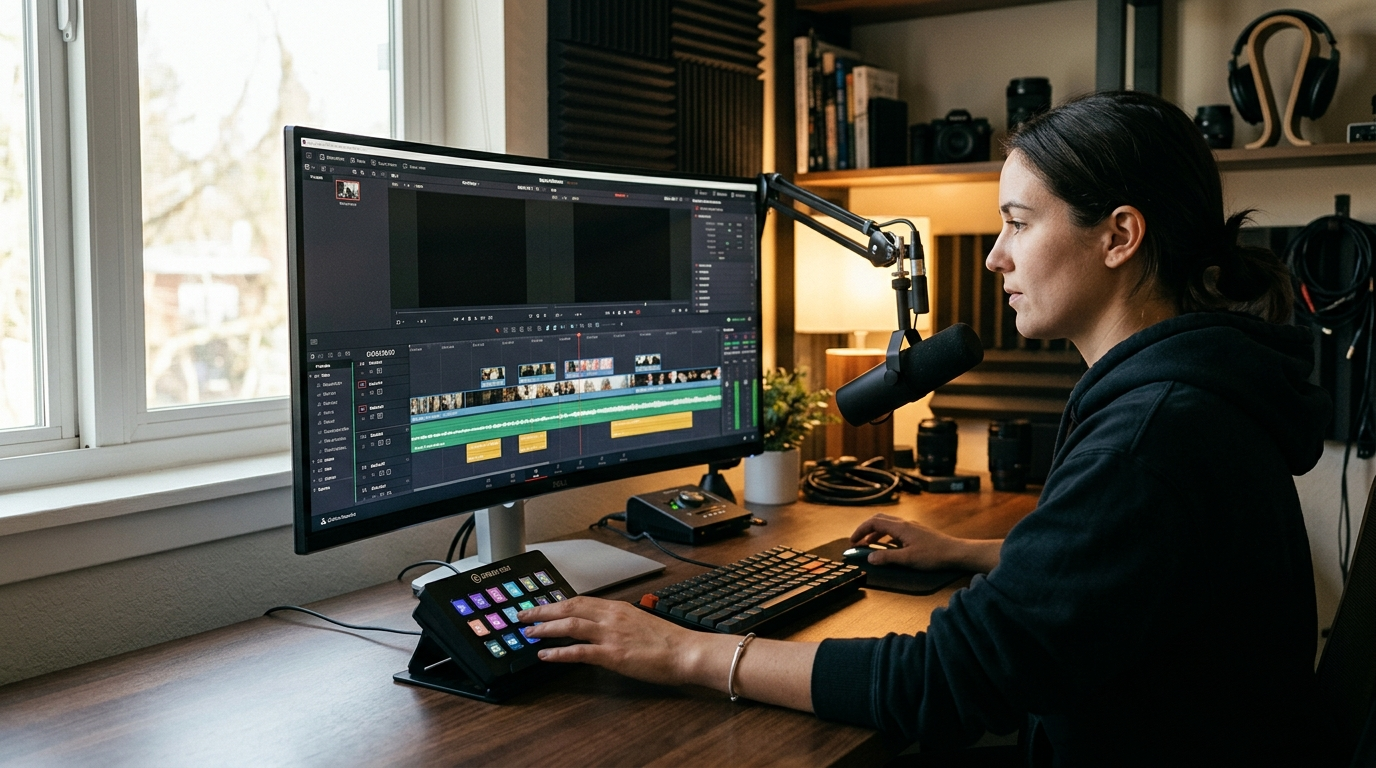
You want to publish more short-form videos without doubling your editing hours. This guide shows how video editing macros for short-form AI workflow combine traditional macros and keyboard shortcuts with modern AI automation to turn long-form source footage into platform-ready TikToks, Reels, and Shorts faster and more reliably. Read on for concrete project templates, macro recipes, AI clipping prompts, keyboard mappings, and scaling steps you can implement today.
Why combining macros, keyboard shortcuts and AI is the fastest way to produce daily shorts
The productivity gains come from two complementary strengths: macros and keyboard shortcuts encode repeatable human decisions as deterministic actions, while AI handles variable, high-effort tasks like highlight detection, reframing, and speech enhancement. Creators who pair both report dramatically higher outputs — industry reports and creator case studies show that using AI clipping tools frequently yields 10–15 shorts per long-form video versus the 2–3 clips typical of manual editing (sources: TikTube.ai, FindAIVideo, ToolNest).
Macros lock down the parts of the workflow you want identical every time: sequence settings, proxy paths, export naming, and common transitions. Keyboard shortcuts map those macros to single keystrokes or Stream Deck buttons so you avoid menu digging. AI fills the unpredictable parts: picking the best moments, generating captions, reframing for 9:16, and improving audio. Modern short-form platforms benefit from this hybrid approach because many AI tools now combine highlight detection, transcript-based editing, auto-captions, reframing, and templates — making near end-to-end repurposing possible (sources: PostEverywhere.ai, Vizard user reports, FlowShorts reviews).
The combination also reduces context-switching. When a macro does the repetitive setup and an AI module suggests candidate clips, your job becomes fast human verification and creative finishing rather than repetitive trimming. This is why creators using a 4-phase automation framework — content extraction, auto-editing, caption generation, and distribution — achieve steadier publishing cadences and higher throughput (sources: Rajat Gautam automation guide).
Project structure & templates that make macros reliable (presets, naming, and sequence templates)
Macros only behave predictably when the project layout is standardized. Start by defining a small set of conventions and codify them into templates and presets so macros can run deterministically.
Key elements to standardize:
- Naming conventions: filenameshortnameversionv001.mp4, transcriptmaster.txt, audio_clean.wav. Keep names predictable so macros can locate files with pattern-matching.
- Folder structure: /project/raw_longform, /project/proxies, /project/sequences/9x16, /project/exports/shorts. Point macros to the proxy folder to speed every operation and avoid file-lock issues.
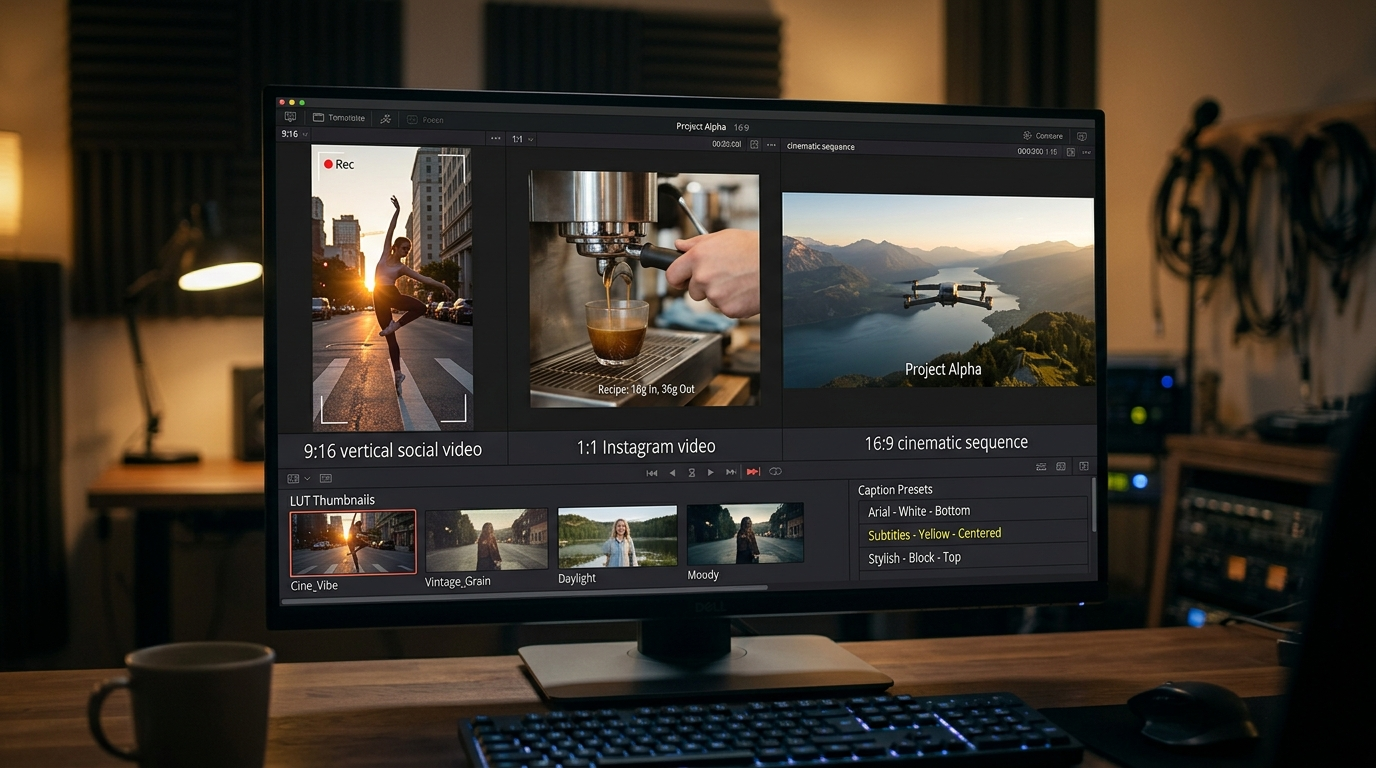
- Sequence templates: create locked sequences for 9:16, 1:1, and 16:9 with correct safe-action areas and title-safe guides. Include prebuilt caption tracks and motion presets in each sequence.
- Presets: export presets, LUTs, caption styles, and loudness targets (e.g., -14 LUFS) as named files your macro can call.
Practical setup: make a project template in your NLE (or as a starter folder) that includes the three sequences, a proxy-import macro, and an export macro. When you instantiate the template, all macros can assume the same paths and sequence names — that determinism is the difference between a macro that works on one project and a macro that works across 50.
If you need to generate thumbnails or still assets, tie your image generation flows to the project structure. For example, export a 9:16 frame to /project/assets/thumbs and call an image generator to produce variants. PlayVideo.AI’s /create-image workflow is useful here if you need quick branded thumbnails or variant images.
Automating highlight detection and clip selection with AI: tools, prompts and heuristics
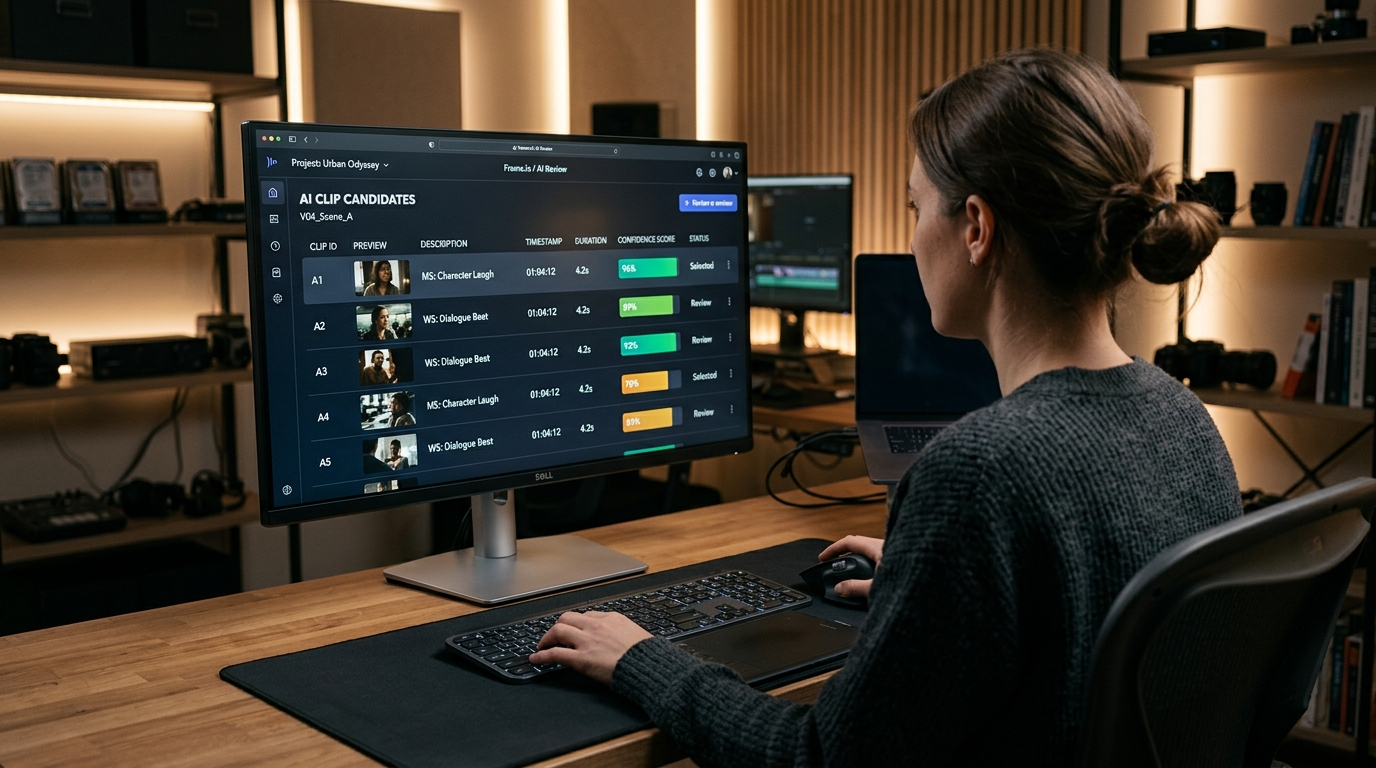
AI clipping is the biggest multiplier for volume. Multiple tools and reports show creators repurposing one long-form talk or podcast into 10–15 usable shorts when they rely on AI to detect highlights (sources: TikTube.ai, FindAIVideo, ToolNest). Use this approach:
1) Choose tools that produce scores and metadata: pick an AI that outputs timestamps, confidence scores, speaker labels, and topical tags. This makes it easy to sort clips. Tools in the market bundle transcript-based editing, sentiment, and engagement heuristics (sources: PostEverywhere.ai, Vizard, FlowShorts).
2) Prompts and heuristics for better selection:
- Use transcript prompts that ask for "narrative hooks" or "provocative one-liners" to surface moments with high share potential.
- Prefer clips with clear semantic endpoints (question→punchline) and duration between 10–40 seconds as primary candidates.
- Weight speaker energy and audience reaction if available (applause, laughter) higher — they correlate with engagement.
3) Reframe and clip-variant generation: once a clip is chosen, generate 9:16 and 1:1 reframes automatically using face/subject tracking models; produce a shorter 15s cut using a summarized version or a tighter crop. Recent research shows hierarchical summaries and multimodal models can automatically summarize, select, and reframe video segments effectively (arXiv hierarchical summaries 2024; AutoVFX/AutoCut preprints 2024–2026).
4) Human-in-the-loop checkpoints: present AI candidates in a review bin sorted by confidence. Your macro should have a "batch accept" and "quick edit" mode: batch accept when confidence and heuristics pass thresholds, quick edit when fine adjustments are needed. This balances speed with quality.
For creators who want integrated generation, PlayVideo.AI’s /create-video features provide text-to-video and clip assembly capabilities you can call after selection to produce alternative variants or graphics overlays.
AI effects automation: color, motion, captions and audio-cleanup without breaking the edit
Automating effects saves hours, but it must be constrained. Use guardrails: color-lock presets, motion-stabilization profiles, caption templates, and automated QA.
Color and LUTs: create a small library of color-lock presets tied to project types (interview, vlog, product demo). Automate batch LUT application in your macro, but include a "color-lock" step that prevents a macro from overwriting manual color corrections. This avoids repetitive mistakes at scale.
Motion and stabilization: use motion-tracking scripts to reframe or stabilize clips when the AI detects subject motion. For rapid edits, apply a standard stabilization profile and only escalate to manual tuning for clips flagged by AI as "high motion".
Captions and styling: AI-generated captions are now reliable but style matters. Automate: auto-caption generation → caption style preset → burn-in or sidecar export. Keep caption templates (font, size, background) in your sequence templates so macros can apply them consistently. Automated caption QA should compare transcript vs. closed captions and flag segments where word-error-rate exceeds a set threshold.
Audio clean-up: use speech enhancement models to reduce noise and normalize loudness to a target (-14 LUFS). Batch-run an AI voice enhancer then run a loudness check macro. If a clip fails the check, route it for manual review. For voice or narration work, consider /ai-voices where voice generation and replacement can be automated for language variants or fixes.
Automated visual effects: state-of-the-art models now accept natural-language instructions to generate VFX (AutoVFX preprint). Use these sparingly for high-impact clips (hooks) and keep an approval step. When possible, generate multiple effect variants and let the macro produce A/B candidates for testing. If you use PlayVideo.AI’s /effects library, tie those effects into templates so they’re applied consistently across exports.
Keyboard shortcut strategy: mapping, chord shortcuts, and Stream Deck / macro-pad integration
Keyboard shortcuts are the fastest local multiplier. Your strategy should reduce multi-step macro chains into single-button triggers and incorporate chord shortcuts and hardware macro-pads for complex flows.
Mapping principles:
- Map the most frequent actions to single keys (import proxies, run AI clip detection, insert selected clip to 9:16 sequence, apply caption template, export short). Reserve modifier combos for less frequent actions.
- Use chord shortcuts for conditional actions (e.g., Shift+K runs AI detection; Shift+K then S accepts the top candidate). Chords help when you need two-stage confirmations without letting a single mispress trigger exports.
Stream Deck / macro-pad integration:
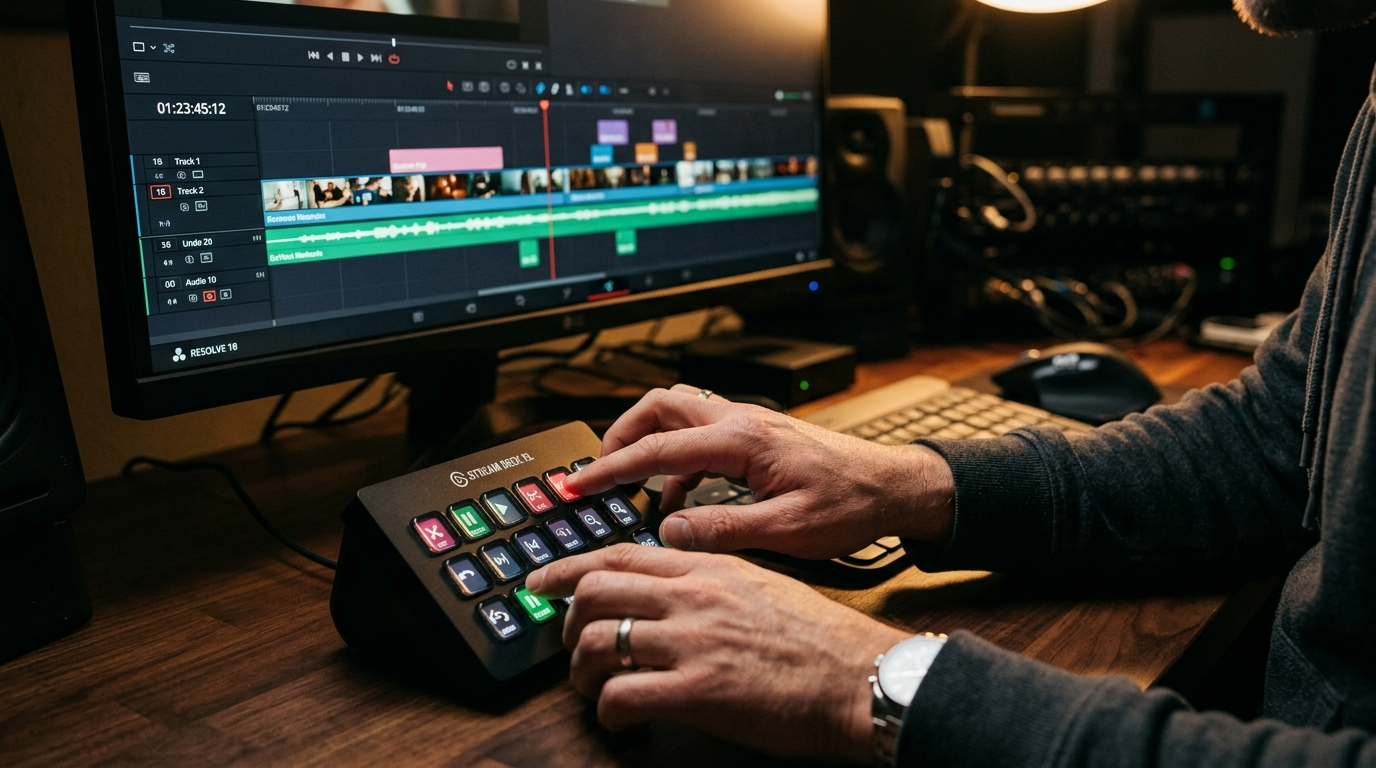
- Map buttons to macro chains: one button for "Generate clip candidates", another for "Apply captions + export". Use multi-action buttons where the first press shows a preview and the second press confirms.
- Use icons that represent the action state (candidate ready, review required, exported) so you can glance at your Stream Deck during review.
Safety and undo: always include an undo checkpoint. For example, map a "stage snapshot" to Ctrl+Alt+S before running any destructive macro. If your NLE supports snapshots, trigger that snapshot via shortcut so you can easily revert.
Real-world results: creator forums and keyboard-mapping write-ups show mapping repeatable macro chains to Stream Deck reduces average short edit time from hours to minutes when combined with AI-assisted clipping and templates. This is because the human only verifies and applies creative decisions rather than executing every mechanical step.
End-to-end short-form edit workflow (60s → 15s): step-by-step macro recipes and timing targets
Below is a repeatable macro recipe that turns a 60s highlight into a 15s platform-ready clip. Timing targets assume you’re using AI clipping + shortcuts; adapt measured times to your environment.
Recipe overview (target time in parentheses): 1) Proxy import + transcript generation (30–90s): run macro to create proxies and generate a transcript via AI. This is mostly automated; confirm proxy path. 2) AI highlight detection (10–30s): run the detection macro. AI returns 3 candidates ranked by confidence and hook strength. 3) Quick review and accept (30–90s): use Stream Deck or shortcut to open the top candidate. If it needs trimming, use a two-key trim shortcut to snap to nearest sentence boundary. 4) Auto-reframe to 9:16 + apply motion tracking (10–20s): macro applies a standard reframe and stabilization profile. 5) Apply caption template + auto-caption QC (20–40s): run caption macro that inserts the captions, applies style, and flags high WER lines. 6) Auto color preset + audio enhancer (20–40s): macro applies the color-lock preset and runs speech enhancement to hit -14 LUFS. 7) Export variants (30–60s): export both 15s and 60s variants and a 1:1 crop for cross-platform testing.
Total target: 3–6 minutes per clip when the AI candidate is solid. If the AI requires adjustments, add a 3–8 minute manual polish. The real time-saver is batching: run steps 1–2 across a full long-form episode, then perform step 3 in a review pass to accept multiple clips rapidly.
Macro examples you can build:
- "BatchClipDetect": import proxies → run AI detection → write candidate CSV to /project/meta.
- "OneClick9x16": open top candidate → reframe to 9:16 → add caption track → apply color preset.
- "ExportVariants": render 15s, 30s, 60s, and 1:1 variants and push exports to /project/exports/auto.
Tie exports into a distribution phase (automated filename templates with platform tag) so you can quickly push to schedulers or publish tools.
Scale and iterate: batch exports, A/B hooks testing, and publishing automation
Scaling moves beyond single-clip speed. It’s about reliable batch processes, testing hooks, and automating distribution.
Batch exports and QA: run export macros overnight that produce platform-specific variants and low-resolution review dailies. Attach automated QA checks: loudness, caption WER, and a visual check that the subject is inside the safe action area. Failed checks should be routed to a "review" folder.
A/B testing hooks: generate multiple thumbnail and opening-hook variants automatically. Use caption generation to produce several hook lines and ask your macro to generate different opening trims (0.5–2s variance at the start). Export A and B to your scheduling tool and monitor short-term engagement. Creators commonly run small A/B batches (4–8 variants) to quickly learn which hooks perform best; tie that data back to your selection heuristics so AI learns which clips to prioritize.
Publishing automation: connect your export macros to a publisher or scheduler. Exports should include metadata files (title, description, hashtags) created from the transcript and the AI caption generator. Many creators follow the 4-phase automation framework — content extraction, auto-editing, caption generation, and distribution — to achieve steady cadence (Rajat Gautam). When discussing platform-native generation or bulk creative generation, PlayVideo.AI’s /pricing page can help you evaluate plan options for higher-volume automated exports.
Iterate with metrics: feed engagement metrics back into your heuristics. If certain AI-selected hooks underperform, adjust your prompt weights and selection thresholds. Maintain a changelog for template updates (LUT changes, caption font tweaks, export settings) so macros remain predictable.
Operational checklist for scale:
- Maintain project templates and proxy hygiene.
- Run nightly batch exports with QA.
- Automate metadata generation and push to scheduler.
- Run weekly A/B tests on hooks and captions and feed outcomes to AI selection heuristics.
When you want to add generated visual assets (thumbnails, social cards), route an export frame to an image pipeline and use /create-image to produce variants, or add music using /create-music for quick background scoring.
Frequently Asked Questions
How many shorts can I realistically produce from one long video using AI clipping?
Creators using AI clipping tools typically produce 10–15 shorts per long-form video versus 2–3 from manual editing, according to tool comparisons and creator reports (TikTube.ai, FindAIVideo, ToolNest). Results vary by content density and the quality of AI prompts.
Will automating captions and color break creative control?
Automation can overwrite creative choices if not constrained. Use color-lock presets, caption style templates, and automated QA that flags failures. Keep a manual review step for high-value clips.
Which parts of the workflow should always be human-reviewed?
Review candidate hooks, motion-intensive reframes, and any VFX or voice replacements. Automate the rest (detection, captions, LUTs) but require human sign-off before publishing when confidence is low.
Conclusion
Start by building a deterministic project template, then instrument three macros: batch clip detection, a one-click reframe+caption macro, and an export-variants macro. Pilot the 4-phase automation framework on one long-form video: extract candidates, auto-edit top picks, generate captions and metadata, and automate distribution for a week. Measure output and engagement, then iterate prompts, thresholds, and templates based on A/B test results. If you want to experiment with AI-generated assets (video, images, music, or voices) during this pilot, use PlayVideo.AI’s /create-video, /create-image, /create-music, and /ai-voices endpoints to produce consistent variants and speed the learning loop. Implement the keyboard shortcuts and Stream Deck mappings next — they convert these macros into reflexes and turn minutes of repetitive work into seconds.
Related on PlayVideo.AI: