AI thumbnail batch generation: scale on-brand YouTube thumbnails and validate winners
How to batch-generate on-brand YouTube thumbnails with PlayVideo.AI AI Image Generator, run A/B tests for CTR and watch-time, and scale production across channels.
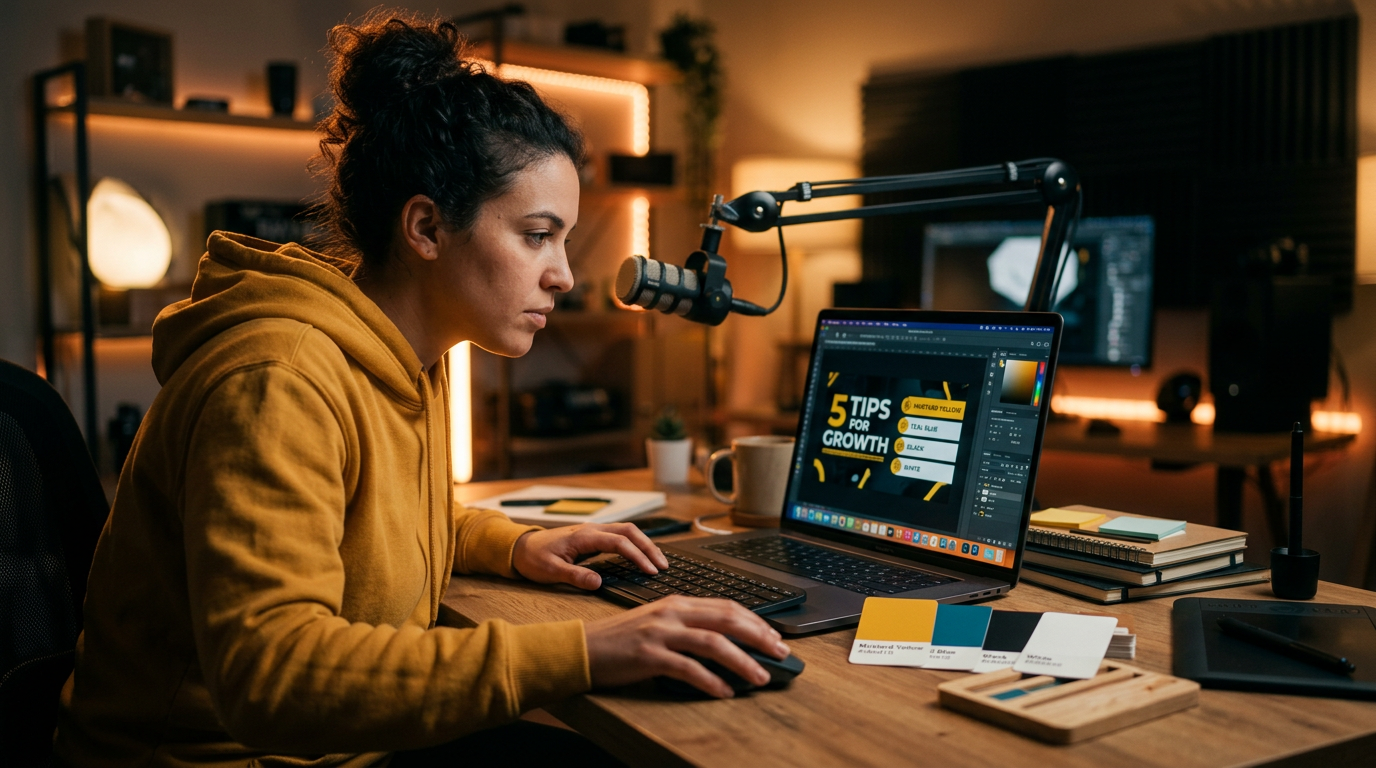
Creators who publish daily or run multiple channels face the same bottleneck: making dozens of on-brand thumbnails quickly without breaking design rules. This guide shows how to use AI thumbnail batch generation to create, remix, and test thumbnails at scale — and why PlayVideo.AI AI Image Generator is the fastest way to go from a brand prompt to dozens of publish-ready images.
You’ll get a repeatable system for templates and prompt architecture, a hands-on walkthrough that batch-generates 30 thumbnail variations with PlayVideo.AI AI Image Generator, a practical A/B testing workflow that measures CTR and watch-time share, and a short iterate-and-export loop for winners. The goal: produce more thumbnail options, learn what actually moves viewers, and lock a master template that scales across campaigns.
Build a repeatable, on-brand thumbnail system: templates, color rules, and prompt architecture
Start with rules that force consistency. A repeatable thumbnail system is a small set of constraints: a master template, color rules, type hierarchy, and a prompt architecture that maps those rules to AI inputs. That structure keeps dozens of AI-generated variations on-brand while letting you test visual variables that drive clicks.
Template and layout: pick 2–3 layouts that work for your niche (face close-up, product shot, or bold graphic). Keep text to 2–4 words and place it in the same safe area across layouts to preserve mobile legibility. Establish a primary focal point (face, product, or graphic) so the AI knows where to place contrast and negative space.
Color and contrast rules: define a primary brand color and two accent colors for background and text. Research shows background color changes produce the largest average CTR swings — roughly 18–25% on average — so treat color as a primary test variable (ThumbnailCreator). Always check mobile contrast: the thumbnail should read at 320px wide.
Prompt architecture: break prompts into consistent parts so you can swap single variables during batch generation. A reliable structure looks like this: [subject] + [mood/lighting] + [composition/layout instruction] + [brand color accents] + [text layout note]. Example parts for a gaming channel: “close-up gamer face, energetic expression, rim light, composition with left-side negative space, bold cyan background, large 2-word headline area.”
Version control and assets: save the master prompt and mask templates. PlayVideo.AI AI Image Generator’s ability to save variations to a library means you don’t start over each time; you iterate from a known-good prompt. That saved state becomes your master template for tests and future videos.
A final rule: map one visual variable to each experiment (color, headline copy, face vs no-face, background photographic style). This discipline keeps results clean and actionable.
Hands-on: Batch-generate 30 thumbnail variations with PlayVideo.AI AI Image Generator
Here’s a short, practical walkthrough to produce 30 thumbnail variations in one session using PlayVideo.AI AI Image Generator. The feature is built for exactly this use case: generate images from text prompts, edit uploaded photos in-place, output multiple social aspect ratios, and save variations to your library.
Step-by-step (30 variations):
1) Prepare your inputs: choose one starter image or decide to go text-only. If you have a hero frame, upload it — PlayVideo.AI lets you edit and restyle uploaded photos with a prompt so you’ll keep content relevance. If not, plan your subject line and brand colors.
2) Build your base prompt using your architecture from the previous section. Example base prompt for a tech review channel: “close-up presenter face, confident smile, high-contrast studio lighting, shallow depth of field, left negative space for headline, brand accent color: electric orange.”
3) Define the batch variables. For 30 variations you might test three background colors × five headline wordings × two face crops (close / medium). Keep other factors constant.
4) In PlayVideo.AI AI Image Generator, paste your base prompt and create the first run. Use the generator’s multi-aspect output to request the YouTube 16:9 aspect and a 1:1 or 4:5 crop for repurposing — the tool supports same prompt, multiple aspect ratios in one pass.
5) Use the generator’s variation/seed controls to produce the 30 images. Save the best variations to your library. Because PlayVideo.AI edits in-place, you can nudge a single result (change background color or crop) without starting from scratch.
Concrete proof points you’ll notice: per-image production time drops from minutes to seconds when you batch run; files export at the exact dimensions YouTube needs; and saved variations let you iterate immediately.
Practical checks after generation: ensure each thumbnail follows your text-length rule (2–4 words), verify face placement aligns with your safe area, and export at 1280×720 for YouTube. If a thumbnail looks visually irrelevant to the video topic, discard it — content relevance explains the majority of CTR variance and prevents misleading thumbnails (TubeBuddy/industry writeups).
Design experiments that measure what matters: A/B testing thumbnails for CTR and watch-time share
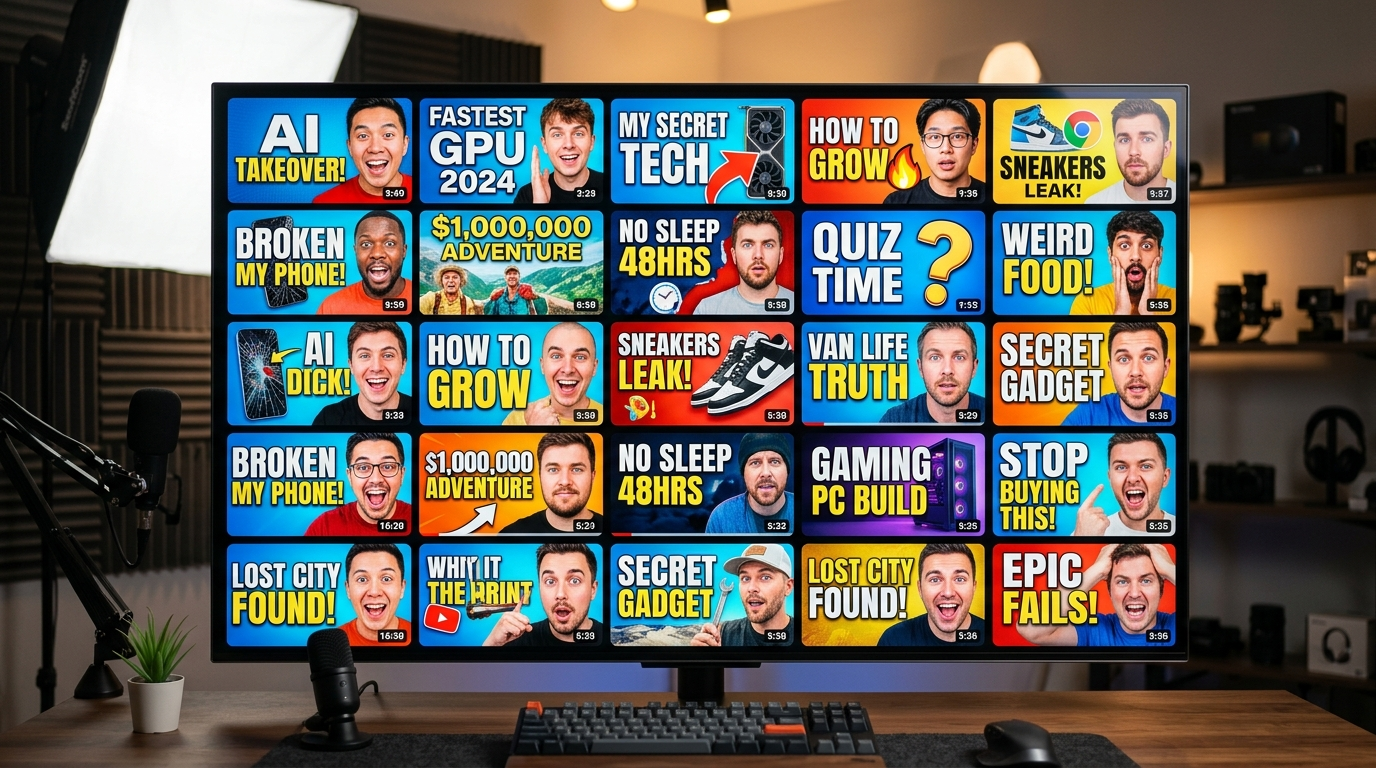
Getting dozens of variations is only half the job; you need a test plan that isolates variables and measures metrics that matter. For YouTube, CTR and watch-time share are the two signals you should track. Many creator tools and YouTube’s Test & Compare emphasize watch-time share because it captures audience retention and the algorithmic value of the click (TubeAnalytics).
Test one variable at a time: run color tests separately from headline text tests and face vs no-face layouts. Splitting multiple variables in the same experiment makes results noisy and harder to action. Use your saved prompt versions in PlayVideo.AI AI Image Generator to re-create exact test conditions when you need confirmatory runs.
Run time and sample size: tests should run long enough to gather stable CTR and watch-time share signals. For small channels this may be several days; for larger channels or promoted videos, you can reach significance faster. TubeAnalytics and other creator guides recommend multi-day minimums and warn against early stopping when variance is still high.
Metrics to capture:
- Click-through rate (CTR): primary short-term signal. Thumbnails often move CTR faster than titles. Use CTR lifts to select shortlist winners.
- Watch-time share / retention: YouTube’s reports prioritize watch-time share alongside clicks. A thumbnail that drives clicks but loses viewers will harm long-term performance.
- Conversion of intent: if possible, measure second-click actions (playlist adds, likes) to ensure relevance.
Statistical sanity: don’t call winners off a dozen impressions. Use rolling windows and compare variants with enough sample size to reduce noise. If you need a simple calculator, many creator toolkits provide sample size guidance; otherwise, opt for longer test windows and repeat the test on a new video to confirm.
Design decisions based on prior analyses: ThumbnailCreator’s analysis shows background color swaps produce some of the largest CTR changes (18–25%), while headline text shifts produce smaller but meaningful changes (8–15%). Prioritize testing color first, then text, then composition. ChannelBoost and ThumbMentor also find that fewer words and higher contrast generally win across niches — use that as a default guardrail when building AI prompts and variations.
Practical workflow with PlayVideo.AI: pull your 30 AI-generated variations into your analytics experiment, run the A/B test for a sufficient period, and then lock the highest watch-time share winner as the new master template in your PlayVideo.AI library for future runs.
Hands-on: Iterate and remix winning thumbnails — from prompt tweak to final export for YouTube
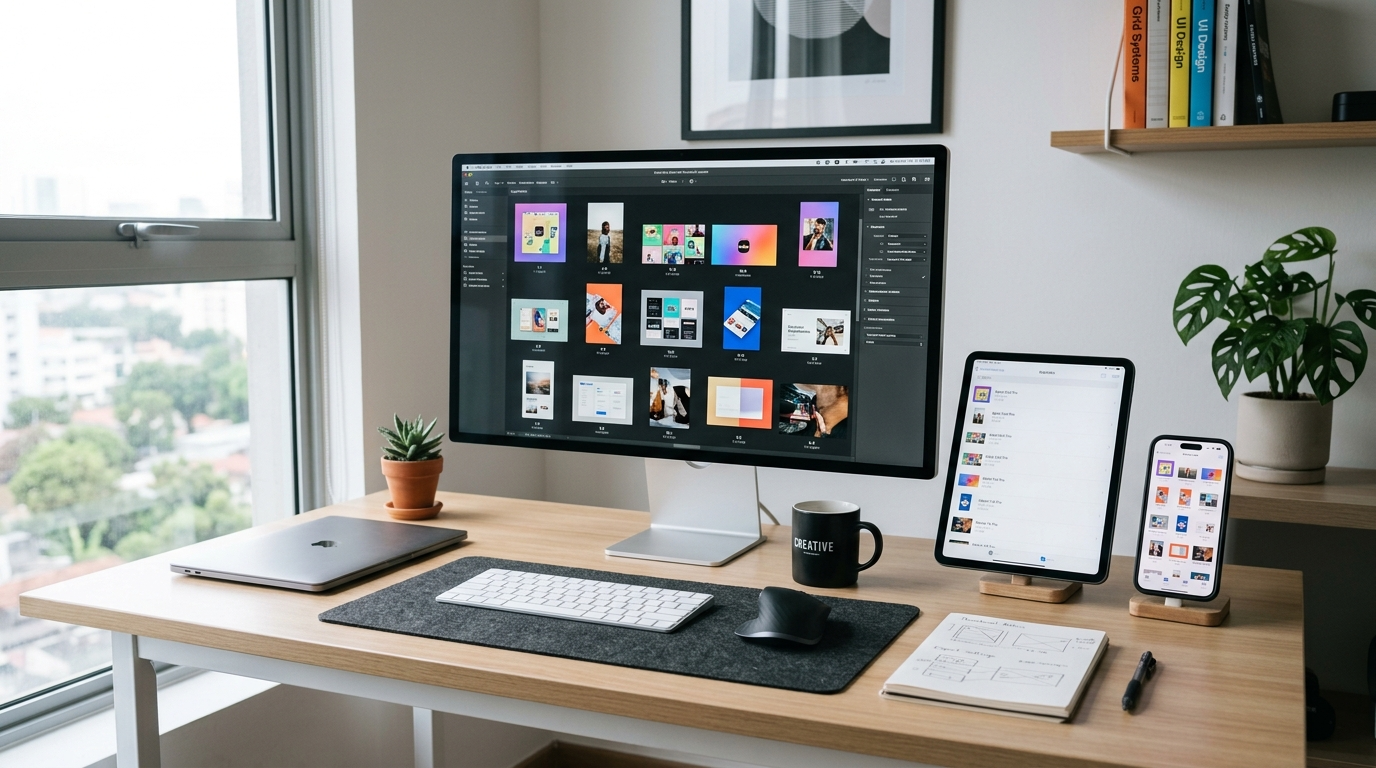
After you identify a winning thumbnail, the next step is iteration: refine the visual to squeeze more CTR and retention while keeping brand consistency. PlayVideo.AI AI Image Generator makes this loop fast because it edits in-place and preserves variations in your library.
Iterate with a purpose: start by asking what changed between the baseline and the winner. Was it color, a tighter face crop, or a shorter headline? Use that insight to create a new set of micro-variants that keep the winning variable locked and tweak secondary factors.
Concrete remix workflow using PlayVideo.AI AI Image Generator:
1) Open the winning image from your library and choose edit-in-place. This preserves the subject and composition so you don’t lose content relevance. 2) Apply a precise prompt tweak. Example: if the winner had a teal background, test “teal gradient background with stronger rim light” or “teal background with subtle vignette and 2-word bold headline.” 3) Produce 6–12 micro-variants. Use the same aspect outputs (16:9 primary) and export sizes. Because the tool supports same-prompt multiple aspect ratios, you can immediately create the social-size derivatives you’ll need for repurposing. 4) Run a short A/B test between the original winner and the best micro-variant. Focus on CTR lift and watch-time share. If the micro-variant improves both, lock it into the master prompt.
Export and downstream workflow: once the refined image wins, export final assets at YouTube spec (1280×720) and create the alternate aspect ratios for Instagram and the thumbnail preview. You can drop the final image into your video editor or use it as a starting frame in the AI Video Generator if you want a short clip built from the thumbnail frame (/create-video).
Notes on ethics and relevance: don’t let aesthetic-only iteration stray into clickbait. Industry writeups emphasize that relevance to viewer intent explains a large portion of CTR differences; if your AI thumbnails are visually compelling but unrelated, you’ll damage long-term trust and channel performance (TubeBuddy/industry writeups). Keep a relevance checklist before publishing: does the thumbnail match the video’s primary topic? Is any text accurate and not misleading?
For creators who add voice or music to short promos of the same content, the PlayVideo.AI AI Music Generator (/create-music) and AI Voices (/ai-voices) can help you build matching audio branding quickly.
Scale thumbnail production across channels and campaigns while preserving brand consistency
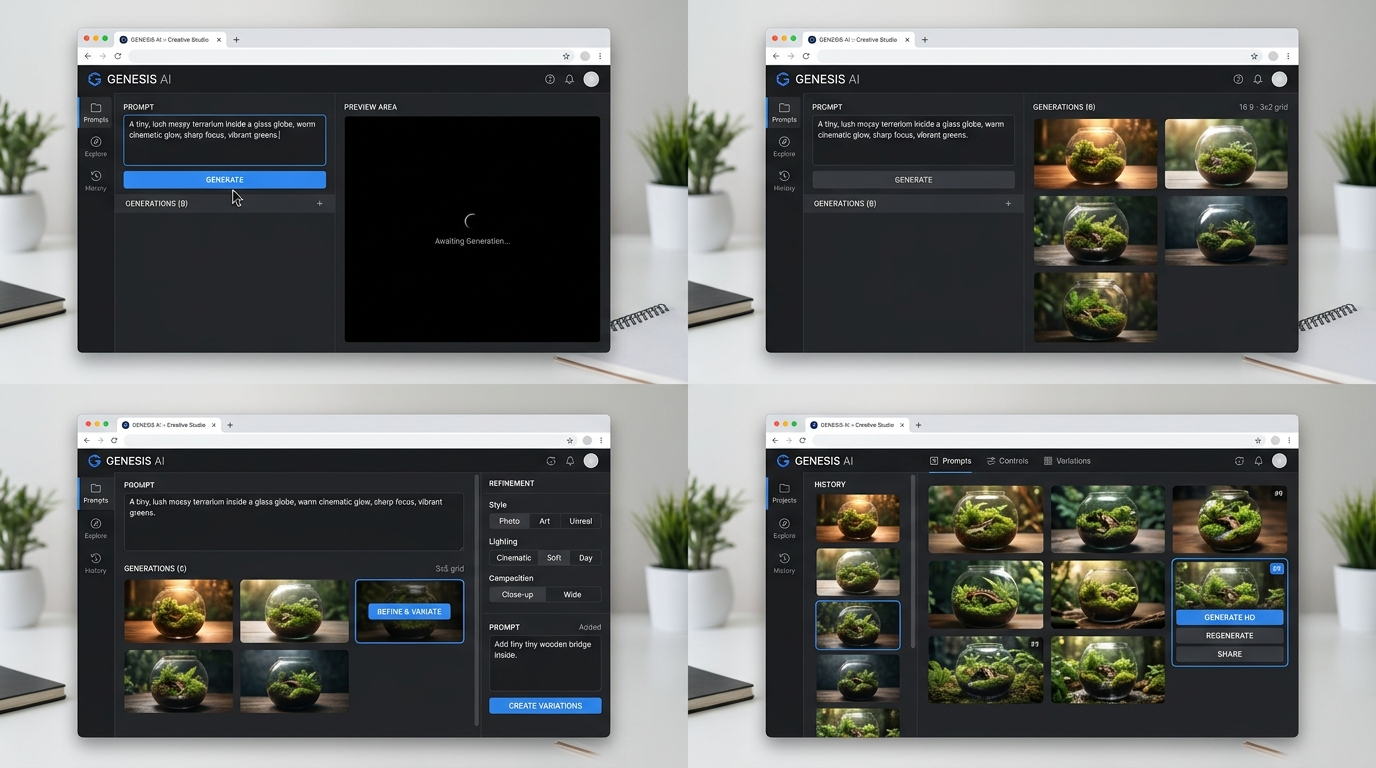
When you have a winning master template, scale by combining saved prompts, batch generation, and a consistent review process. High-volume publishers can reasonably produce hundreds of variations a week with AI — modern bulk tools reduce per-image production time from minutes to seconds and cut costs for scale (VidNo).
Operational rules for scale:
- Centralize your master prompt library: store templates with notes about the tested variables and the date the test ran. PlayVideo.AI AI Image Generator’s library of saved variations is the right place to keep those assets and prompts.
- Use naming conventions: include video ID, test variable, and version (v1, v2) so anyone on the team can re-run the exact prompt.
- Automate exports and aspect ratios: always generate the primary YouTube 16:9 and the most-used repurpose sizes in the same batch. The AI Image Generator produces multiple aspect ratios in one pass so teams don’t need separate jobs for each platform.
- Quality control checklist: verify text length (2–4 words), contrast, face safe area, and content relevance before queueing thumbnails for publishing.
When to involve designers: Use AI for first-pass variations and for high-volume low-margin work (daily thumbnails, ad tests). Bring a designer in for hero campaigns or when brand guidelines require custom typography or bespoke illustrations.
Cost and workflow note: batch generation lowers cost per thumbnail dramatically and speeds iteration cycles. If you evaluate pricing tiers, match your expected monthly thumbnail volume to the plan that includes the right number of generation credits — see PlayVideo.AI Pricing for plan details (/pricing).
Cross-channel consistency: lock the visual system (color, headline size, face placement) and reuse it across YouTube, short-form social, and podcast covers. The same saved prompt can yield a YouTube thumbnail and a square podcast cover in one session. If you need a short promo video built from the thumbnail frames, export the image into the AI Video Generator and create a short clip for social (/create-video).
Governance and measurement at scale: keep a living test dashboard that records which prompt/template is live on each video, the variant performance, and rollout date. That dataset lets you iterate globally: when a color wins in one vertical you can test it quickly across other shows.
Conclusion
Batch generation plus disciplined A/B testing lets creators produce more thumbnails, learn faster from real viewer behavior, and scale without sacrificing brand. PlayVideo.AI AI Image Generator is designed for this workflow: generate or edit on-brand images from prompts, output multiple aspect ratios in one pass, and save variations you can iterate on.
Open the AI Image Generator and spin up your first set of 30 thumbnail variations — refine the winning prompt until the look and results are yours.