From Selfie to Dance Hit: Turn One Photo into a Viral AI Dance Effect
Learn how to create 15–30s dance clips from a single photo using motion-transfer and PlayVideo.AI AI Video Effects. Practical workflows, ethics, and testing tips.
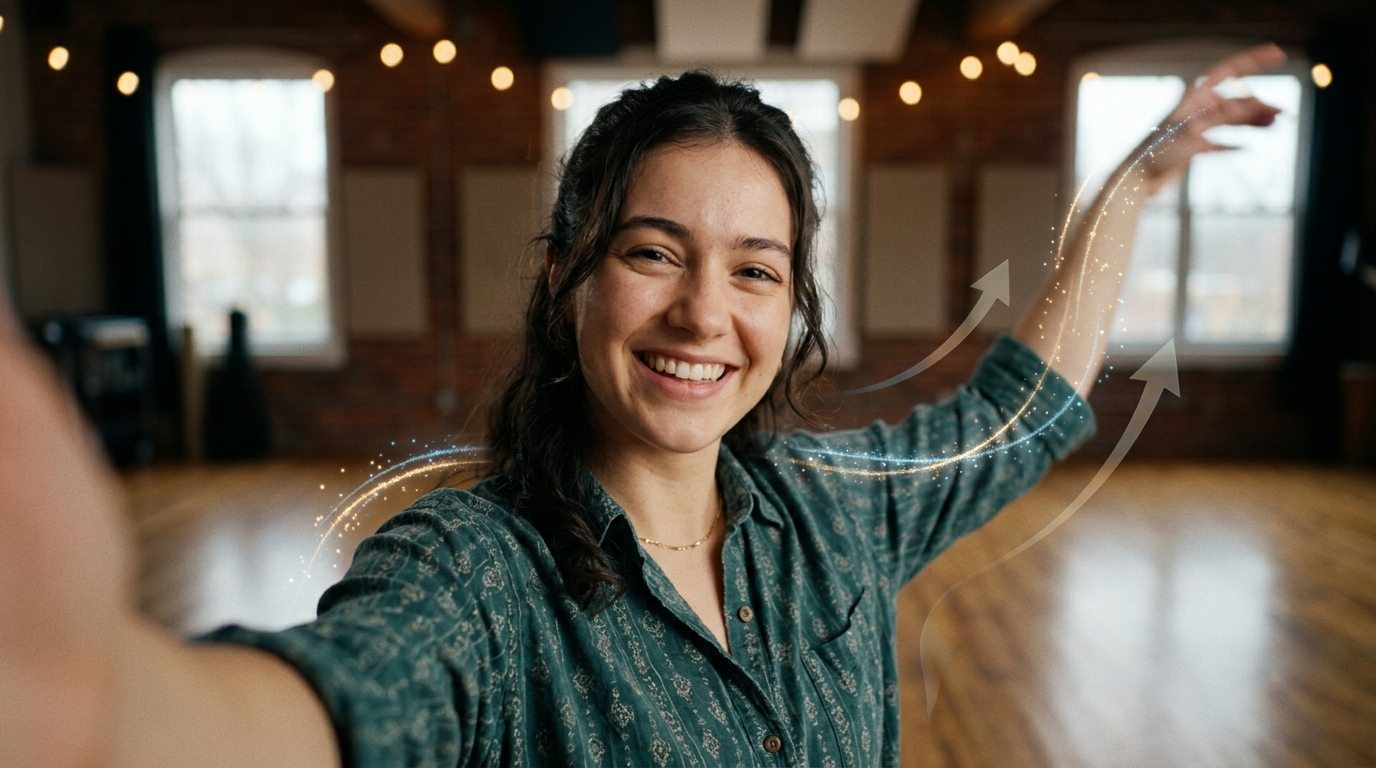
Short-form platforms are built for quick, repeatable hooks — and nothing spreads faster than a dance challenge that’s easy to join. If you’ve got one good selfie, you can turn it into a 15–30s dance clip that fits TikTok and Reels formats using an AI dance effect. This guide shows exactly how.
You’ll learn why single-photo dance videos work, the simple tech behind motion-transfer, how to pick the right photo, two hands-on workflows (one for a pure dance clip and one that adds lipsync and custom song timing), and how to measure and iterate. Along the way I’ll show how PlayVideo.AI AI Video Effects makes this process fastest — it applies tuned dance, avatar, and lipsync presets so a finished vertical clip is one upload away.
Why single-photo dance videos work on short-form platforms (what the data and research say)
Dance content remains central to short-form virality because it’s replicable, visual, and driven by sound — perfect for algorithmic surfacing. Multiple 2024 analyses highlight that dance challenges are among the highest-engagement formats on TikTok, where choreography becomes a social template people imitate and remix. That repeatability is the core reason a single photo can seed dozens of variations: if viewers see a compelling motion hook and a recognizable face (even a stylized or animated one), they’re likely to duet, stitch, or recreate.
From a creator’s perspective, single-photo formats lower the production barrier. Instead of blocking time for a full shoot, you can produce campaign assets from a single selfie: different dances, varied songs, or multiple languages simply by reapplying motion and audio. For marketers and indie musicians this means you can generate A/B variations quickly and cheaply.
PlayVideo.AI AI Video Effects is built around that workflow: one photo in, finished vertical clip out. Its tuned dance presets are optimized for 9:16 output and short run times typical of viral formats, so creators can experiment with multiple hooks without heavy editing. That speed is why trend-chasers and social teams choose effects-based approaches when testing new choreography.
How modern image-to-video and motion-transfer models enable photo-to-dancing-video effects (tech explained, simply)
At a high level, modern photo-to-video animation separates content into three parts: the source appearance (your photo), the motion signal (a driving video or keypoint set), and a rendering step that blends appearance with motion. Research-grade motion-transfer techniques — for example, the First Order Motion Model — extract pose and keypoint motion from a reference video and apply those movements to a still image. The result is a still photo that behaves like a live performer.
Beyond keypoint transfer, recent industry models (like Microsoft’s VASA-1 and research from major labs) show that audio can directly drive facial motion and broader body dynamics. That means a single photo plus an audio track can produce synchronized lipsync and gestural motion in the output. These advances reduce uncanny artifacts and improve temporal consistency compared with earlier methods.
Consumer apps have adopted these research advances at scale — Wombo-style lip-sync apps and avatar makers proved there’s a market for lightweight face animation. PlayVideo.AI AI Video Effects packages motion-transfer and audio-driven presets into one-click effects: dance, avatar, and lipsync modes are pre-tuned so you don’t need to manage keypoints or low-level parameters. The engine handles rendering to vertical 9:16, so outputs are ready for TikTok and Reels without extra cropping or re-encoding.
Choosing the right source material: how to pick or shoot the perfect selfie or photo for motion transfer
Not every photo will animate well. Motion-transfer relies on a clear subject and consistent visual cues. For best results, pick or shoot images that meet these practical criteria:
- Clear framing and subject separation: A head-and-shoulders or half-body selfie on a plain or softly blurred background lets the model focus on the person, not background detail.
- Neutral but expressive base pose: A relaxed face with slightly open eyes and visible jawline is easier to animate for both dance movement and lipsync. Extreme expressions in the source can exaggerate artifacts when motion is applied.
- Good lighting and resolution: Even though AI can compensate, higher-resolution photos with even lighting reduce blur and prevent washed-out facial detail.
- Clothing and hair considerations: Simple, non-reflective clothing and hair that isn’t wildly obscuring the face make motion mapping cleaner.
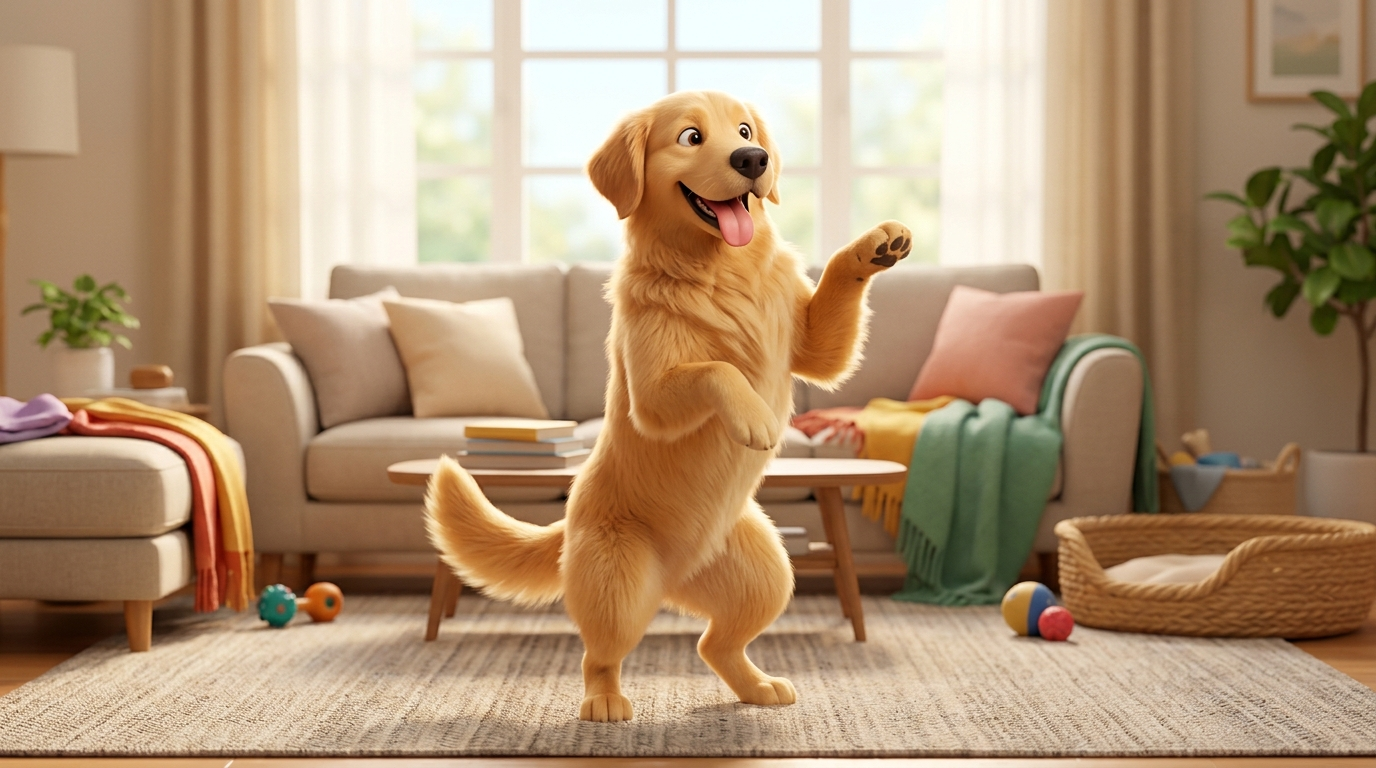
If you’re animating a pet, use a front-facing photo with the pet centered and eyes visible. PlayVideo.AI AI Video Effects supports pet-dance presets, but the same framing rules apply. When in doubt, shoot multiple quick photos with incremental changes — the platform’s tuned presets make it cheap to test variations. If you need to recompose or fix background issues before animation, use the AI Image Generator to create a cleaner source image first (/create-image).
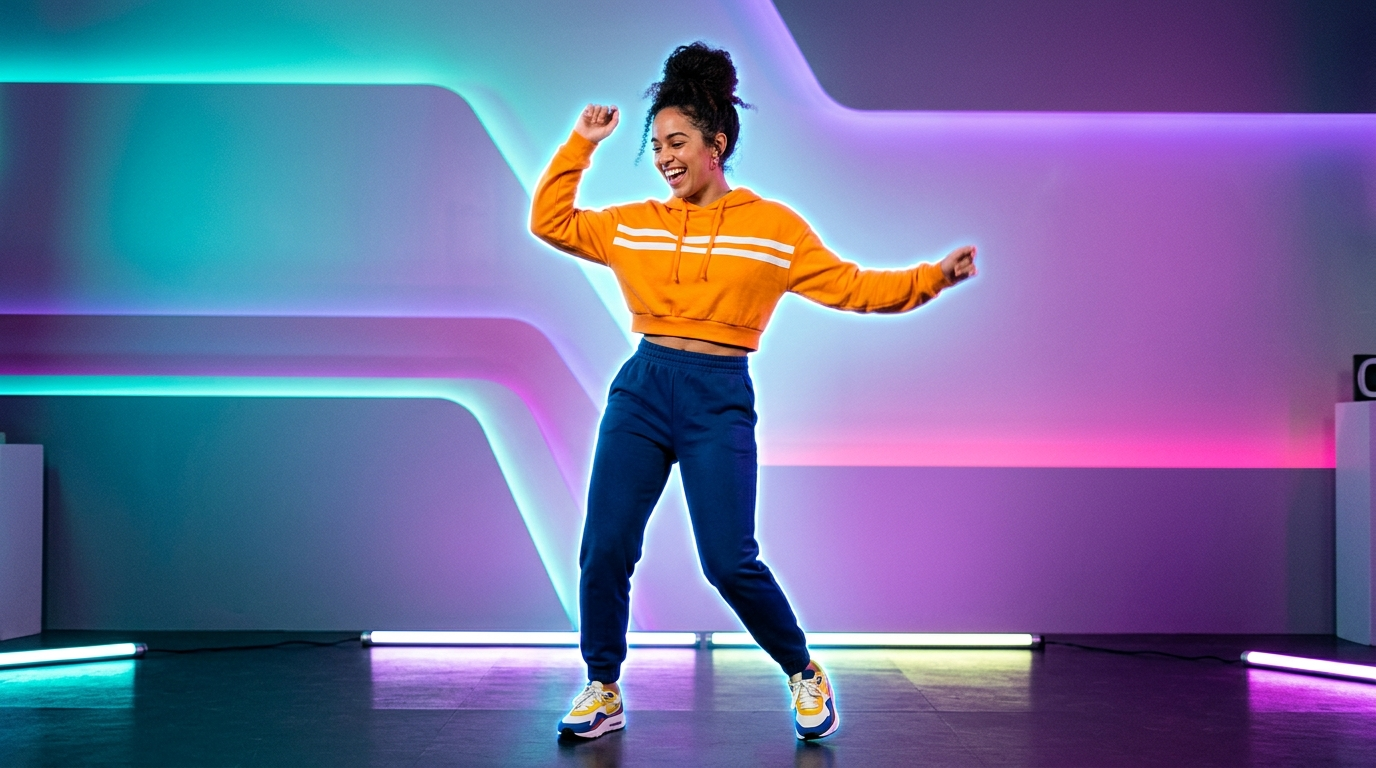
Hands-on workflow: Create a viral 15–30s dance clip from one selfie (step-by-step, asset-to-export)
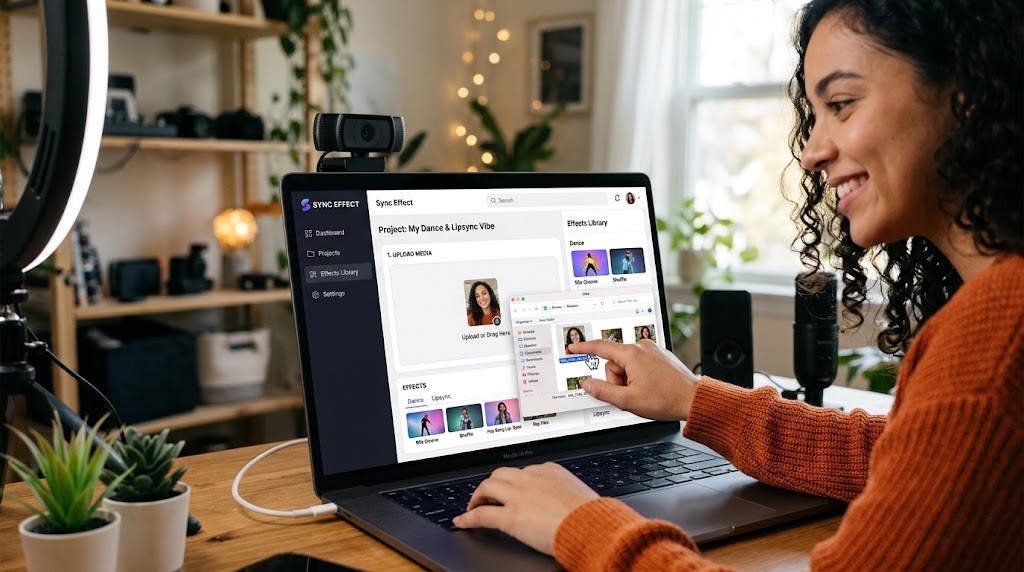
This step-by-step shows how to go from a single selfie to a finished 15–30s dance clip using PlayVideo.AI AI Video Effects.
1) Prepare your source photo: choose a head-and-shoulders or half-body selfie with good lighting. Export as JPG/PNG.
2) Pick a driving motion or preset: In PlayVideo.AI, open the PlayVideo.AI AI Video Effects library and select a "Dance" preset that matches the energy you want (slow groove vs. high energy). These effects are tuned presets, so no low-level parameter work is required.
3) Upload the photo and select 9:16 output: Upload your selfie, select the vertical format, and choose a clip length (15 or 30 seconds). The effects engine will queue the job and apply motion-transfer to your photo.
4) Choose a soundtrack or placeholder beat: For initial testing, use a royalty-free beat or short loop. If you plan to use a specific song, consider timing (see next workflow). PlayVideo.AI renders output with the chosen audio track embedded.
5) Preview and tweak: After the render finishes, preview the clip. If the head motion needs refinement, try a different dance preset or a new source photo. Because each effect is a tuned preset, iteration is fast — you can queue multiple variants with different presets.
6) Export and post: Export the finished 9:16 MP4 and upload to TikTok or Instagram Reels. Add captions and a trending sound label to increase discoverability.
Worked example: I used a half-body selfie, chose the "Street Pop" dance preset, set the clip to 15s, and attached a 15s beat. The effect produced a finished vertical clip with motion-matched arm and torso movements and a clean head turn — ready for upload without additional editing. That one-photo workflow demonstrates the promise: one photo in, finished vertical clip out, as the PlayVideo.AI AI Video Effects one-liner promises. If you want to create original background art or refine the face before animation, consider using the AI Image Generator to iterate on the input image (/create-image).
Hands-on workflow: Add lipsync, avatar, and custom song timing to maximize shareability
Adding lipsync and precise song timing increases the chance your clip will be used in a trend or duet. Here’s a focused workflow that layers audio-driven motion and avatar modes.
1) Choose the audio and define timings: Pick the target song section and decide on the vocal phrase you want to lip-sync (usually 8–16 seconds). Use the AI Music Generator to create custom intros or instrumentals if you need copyright-safe options (/create-music).
2) Use a lipsync or avatar preset: In PlayVideo.AI AI Video Effects, pick a lipsync preset for close facial animation or the avatar preset for full-head and torso renderings. These presets are tuned for audio-driven facial motion and will align mouth shapes to the incoming audio.
3) Upload the photo and the trimmed audio: The engine maps phoneme timing from the audio to the mouth shapes. For better results, choose a photo with a neutral closed mouth or slight smile so mouth shapes are consistent.
4) Fine-tune timing and expression: If the lipsync is slightly off, adjust the audio trim or pick a different lipsync preset. PlayVideo.AI’s presets minimize prompt engineering — you only swap presets or change the audio clip.
5) Combine with dance motion if desired: Many presets support layered motion — apply a dance preset for body movement and a lipsync preset for facial sync. That combination is especially effective for short-form trends where both body choreography and a punchline lyric matter.
Worked example: I uploaded a selfie, chose the "Lipsync Pop" preset, and uploaded a 12s vocal clip. Then I layered the "Groove" dance preset at low intensity. The result synchronized mouth shapes to the vocal clip while preserving torso motion — perfect for a duet-ready post. If you need a matching voice for a scripted line instead of a song, PlayVideo.AI AI Voices can clone or supply a stock voice to match your character (/ai-voices). Use the AI Music Generator to build a supportive backing track if licensing is a concern (/create-music).
Creative guardrails: ethics, consent, and platform policies when animating faces and pets
Animating someone else’s face or a public figure raises ethical and platform risks. Always secure consent before animating a person’s likeness for public posts or ads. For celebrities and public figures, check platform policies — many short-form platforms restrict manipulated media that misleads viewers or impersonates real people.
When working with pets, keep it clearly playful and avoid implying the animal said something it didn’t. For human subjects, include captions that disclose the clip is AI-generated when the output could be mistaken for real footage. This transparency reduces the risk of strikes and keeps your audience trust intact.
From a technical perspective, higher realism increases responsibility. As motion-transfer and image-conditioned video models improve, so does the potential for misuse. Use presets like the avatar mode if your goal is stylized content rather than photorealistic impersonation — stylization reduces the chance of misinterpretation. PlayVideo.AI AI Video Effects provides both stylized and realistic presets; choose the level of realism that fits your ethical stance and platform rules.
Finally, keep a simple consent checklist for collaborations: written permission, agreed usage terms (platforms and ad use), and a retained original photo. That makes it straightforward to repurpose content for paid ads or localized variants.
Measuring success and iterating — how to test formats, hooks, and which PlayVideo.AI AI Video Effects to try next
Measure results with the same KPIs you use for other short-form tests: view-through rate, shares, comments, saves, and creation rate (how many people duet or reuse your sound). For dance-based tests, track creation rate specifically: if people reuse your sound with their own moves, you’ve achieved a core indicator of virality.
A practical test matrix looks like this:
- Variant A: Same photo + different dance preset (compare view-through and creation rate).
- Variant B: Same preset + different audio clips (compare shares and duet counts).
- Variant C: Add lipsync vs. no lipsync (measure comment and share differences).
Run each variant for at least 48–72 hours on the same posting window and measure relative lift. Because PlayVideo.AI AI Video Effects renders quickly, you can produce multiple variants and run controlled tests without a big time investment.
Which effects to try next: start with the core "Dance" presets, then experiment with "Avatar" for stylized characters and "Lipsync" when a catchy lyric is the hook. If you need supporting assets, the AI Video Generator helps produce cinematic introductions or transitions for campaign pillars (/create-video). For custom music beds or stems, use the AI Music Generator to create license-safe tracks tailored to tempo and mood (/create-music).
Remember: iterative improvement is about small changes. Swap the dance preset, nudge the audio selection, or change the opener caption. Each small change reveals what your audience prefers, and PlayVideo.AI’s queue-based rendering makes that iteration cheap and fast.
Frequently Asked Questions
Can I animate any single photo into a dance video?
Technically many photos can be animated, but best results come from clear head-and-shoulders or half-body shots with good lighting and neutral expressions. Complex backgrounds and extreme facial poses may produce artifacts.
Do I need to own the song I use for lipsync?
For commercial use check licensing. For trend testing, use short clips under platform rules or generate copyright-safe tracks with the AI Music Generator (/create-music). Always review platform music policies before running ads.
Will audiences think the video is real?
Higher realism can blur perception. If the clip could mislead, disclose it’s AI-generated. Using stylized avatar presets reduces the chance viewers mistake it for real footage.
Conclusion
Single-photo dance content is a fast, scalable way to participate in trends and test hooks. The combination of motion-transfer research and consumer-ready effects means creators no longer need a full shoot to produce multiple trendy variations. PlayVideo.AI AI Video Effects turns a single selfie into a finished vertical clip with tuned presets for dance, lipsync, and avatar modes — a practical shortcut for creators and marketers who need multiple short-form assets quickly.
If you want to test this now: upload your best selfie, pick a dance or lipsync preset in the PlayVideo.AI AI Video Effects library, choose 9:16, and render a 15s clip; iterate quickly on presets and audio to find the highest-performing variant. Browse the AI Video Effects library and ship a viral-format clip from a single photo today.