AI thumbnail generator workflows: make high-CTR YouTube thumbnails and podcast covers at scale
Use AI image generation to produce on-brand YouTube thumbnails and podcast covers fast. Workflows, A/B testing, remixing photos, and PlayVideo.AI examples.
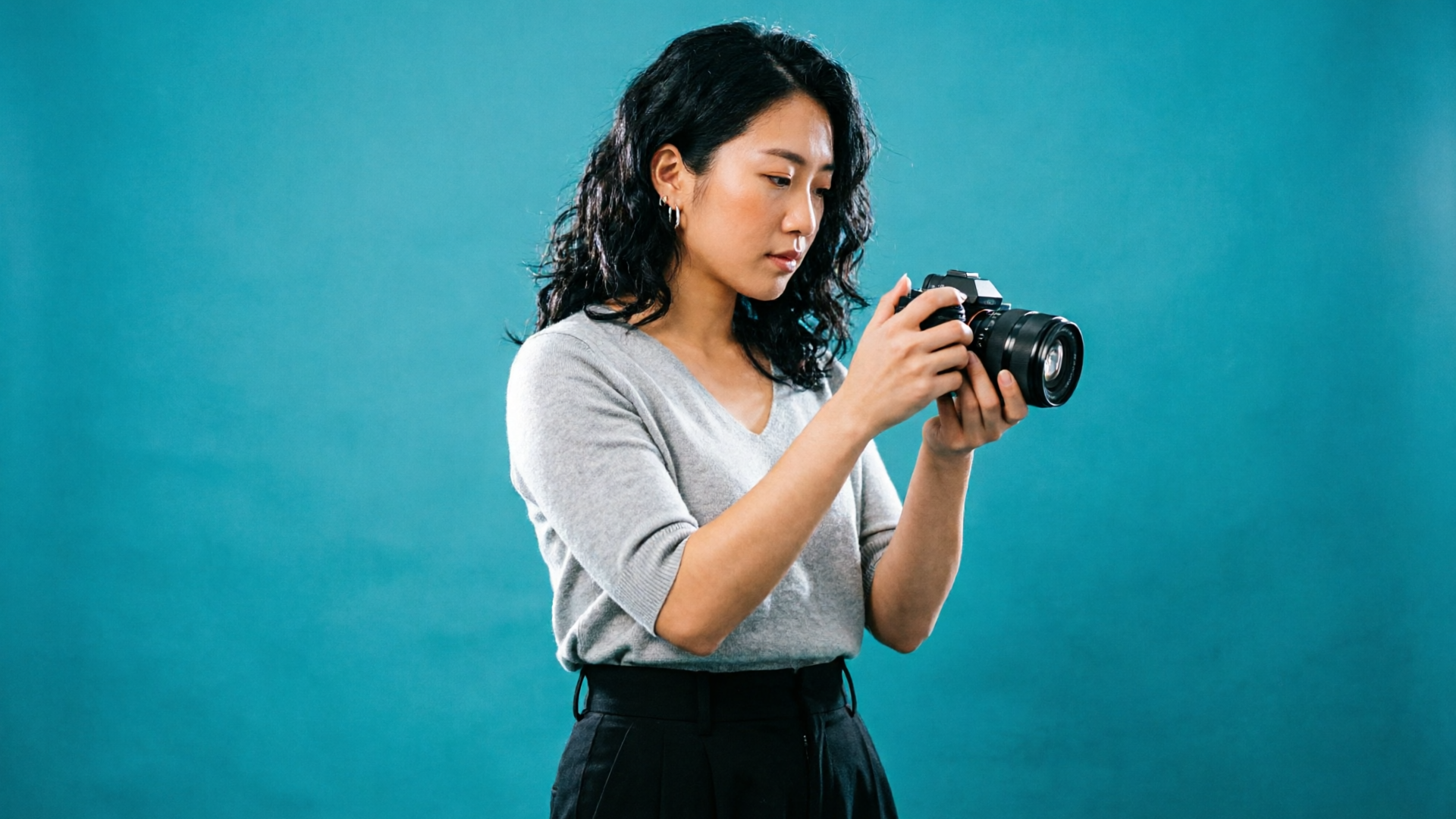
Imagine sitting down to batch-create thumbnails for a month of uploads and turning a single idea into ten clickable images in 20 minutes — each with the right crop, color, and face expression for YouTube and podcast stores. That speed is exactly why more creators pair human judgement with an AI thumbnail generator. In this guide you'll learn why custom thumbnails still win, the design moves that actually lift CTR, and step-by-step workflows to produce on-brand thumbnail variants at scale. I'll show concrete PlayVideo.AI AI Image Generator examples for generating concepts from one prompt, remixing a photo into multiple styles, and running focused A/B tests so your next thumbnail change isn't guesswork. Along the way you'll get practical rules (how many words of overlay text, what contrast to aim for, target preview sizes) and safety guidance so your use of generative tools respects creators and photographers. If you want speed without sacrificing brand control, the PlayVideo.AI AI Image Generator will be the practical tool we return to throughout these workflows.
Why custom thumbnails and covers still win: data-driven reasons creators should invest in image design
Creators who invest in custom thumbnails and covers consistently see measurable gains. Across large creator datasets, analyses show custom thumbnails outperform auto-generated frames — one platform's study of over 10,000 accounts found roughly a 30% higher CTR for custom artwork versus default video frames. That kind of lift compounds over many videos and episodes, which is why thumbnails remain a top lever for discovery and growth.
There are two practical takeaways from the data. First, small visual changes often produce outsized results. Aggregated A/B-test analyses report that changing background color produced the largest average CTR change (18–25%), which means fast, low-effort variants can be a reliable optimization path. Second, consistency scales attention: viewers learn to recognize your thumbnails when you hold a consistent palette, face framing, and type treatment.
An AI thumbnail generator like PlayVideo.AI AI Image Generator helps here by converting a few brand rules into repeatable outputs. Instead of hiring a designer for every episode, you can produce a set of consistent thumbnails that follow your brand tokens, then test small variations. That maintains quality while letting you iterate rapidly across dozens of videos or podcast episodes.
Thumbnail design principles that actually move the needle (size, contrast, faces, text)
Good thumbnail design solves one simple problem: make the click decision obvious at a glance. Several best practices repeatedly recommended by creator research align on four priorities.
- High contrast and bold colors: Use a limited palette with one dominant background color and a contrasting accent for text or borders. Contrast makes thumbnails pop in feeds and increases legibility at small sizes.
- Readable type and minimal copy: Limit overlay text to 3–5 words and use large, heavy type. The goal is quick comprehension — viewers shouldn't need to squint at 120x90 px previews.
- Single focal point and expressive faces: A clear subject (face or object) gives the eye somewhere to land. Expressive faces with clear emotions are especially effective at driving curiosity and clicks.
- Compositional clarity for small sizes: Design for how thumbnails actually appear on platform previews, not full-size canvases. Test your design at preview sizes and remove fine details that blur into noise.
These rules are not subjective — they're echoed across creator research and practical A/B testing reports. The PlayVideo.AI AI Image Generator supports them directly: you can request specific compositions, color palettes, and aspect ratios in one pass (same prompt, multiple outputs). When you build templates in the generator, you preserve those design principles across every thumbnail without re-teaching a contractor.
When to use AI image generation vs. traditional design — pros, cons, and ethical pitfalls
AI image generation fits best when you need speed, scale, and lots of controlled variants. Use it to produce rapid concepting, explore visual directions, or generate multiple background-color variants for A/B tests. Hybrid workflows — generate, then refine in an editor — are now commonly recommended in reviews from 2024–2026: AI accelerates idea iteration, human designers confirm brand fit.
Pros:
- Speed: Generate dozens of unique concepts from a handful of prompts.
- Scale: Produce multiple aspect ratios and save variations to a library for reuse.
- Cost: Lower per-image cost than hiring a designer for every small change.
Cons and ethical pitfalls:
- Attribution and mimicry: Naive prompts can create outputs that imitate a specific photographer’s or artist’s style, which has led to community backlash. Document prompts and avoid requesting "in the exact style of" living creators.
- Quality ceiling: AI excels at concepting; some images still need human retouching for perfect compositional clarity.
- Ownership ambiguity: Double-check platform terms and ensure you have the rights you need for commercial use.
One practical policy: prefer remixing owned photos (upload a headshot or scene) and use the AI Image Generator to restyle and recompose. That keeps the subject authentic, reduces ethical friction, and gives you direct permission to use the result. For broader context on AI tooling in creative workflows, see this guide on AI thumbnail makers: https://thumblr.io/blog/ai-thumbnail-maker-guide.
How to generate on-brand thumbnail concepts from a single prompt (workflow + PlayVideo.AI example)
Generating consistent, on-brand thumbnail concepts from one prompt is about codifying your brand tokens (palette, face framing, typography rules) into the prompt and letting the generator produce multiple crops and styles.
Step-by-step workflow (3 steps): 1) Define brand tokens: a primary background color, two accent colors, face framing (close-up, shoulders), and text rules (3–5 words, font weight heavy). 2) Write one prompt that includes tokens and desired composition. Example prompt for PlayVideo.AI AI Image Generator: "Close-up of a smiling presenter, warm teal background, high contrast, dramatic rim lighting, bold overlay space at top-right, minimal text area, cinematic 16:9 — retain face detail and allow tight 4:3 and 1:1 crops." Save that prompt. 3) Generate variations and export the same prompt to multiple aspect ratios in a single pass. Use the generator's edit-in-place when a variant needs micro-adjustment.
Here's a concrete PlayVideo.AI AI Image Generator walkthrough:
- Upload a headshot or skip the upload to generate a new face.
- Paste the brand prompt above into the "Text prompt" field.
- Select outputs: 16:9 for YouTube, 1:1 for social, and 3:4 for podcast cover thumbnails.
- Tick "Save variations" so all promising options live in your library for iteration.
The generator will return multiple concept images that follow the same compositional rules. Pick the strongest and use the edit-in-place feature to nudge color, brightness, or facial expression without starting over. That single prompt approach keeps the look cohesive across every episode while giving you enough visual diversity to A/B test.
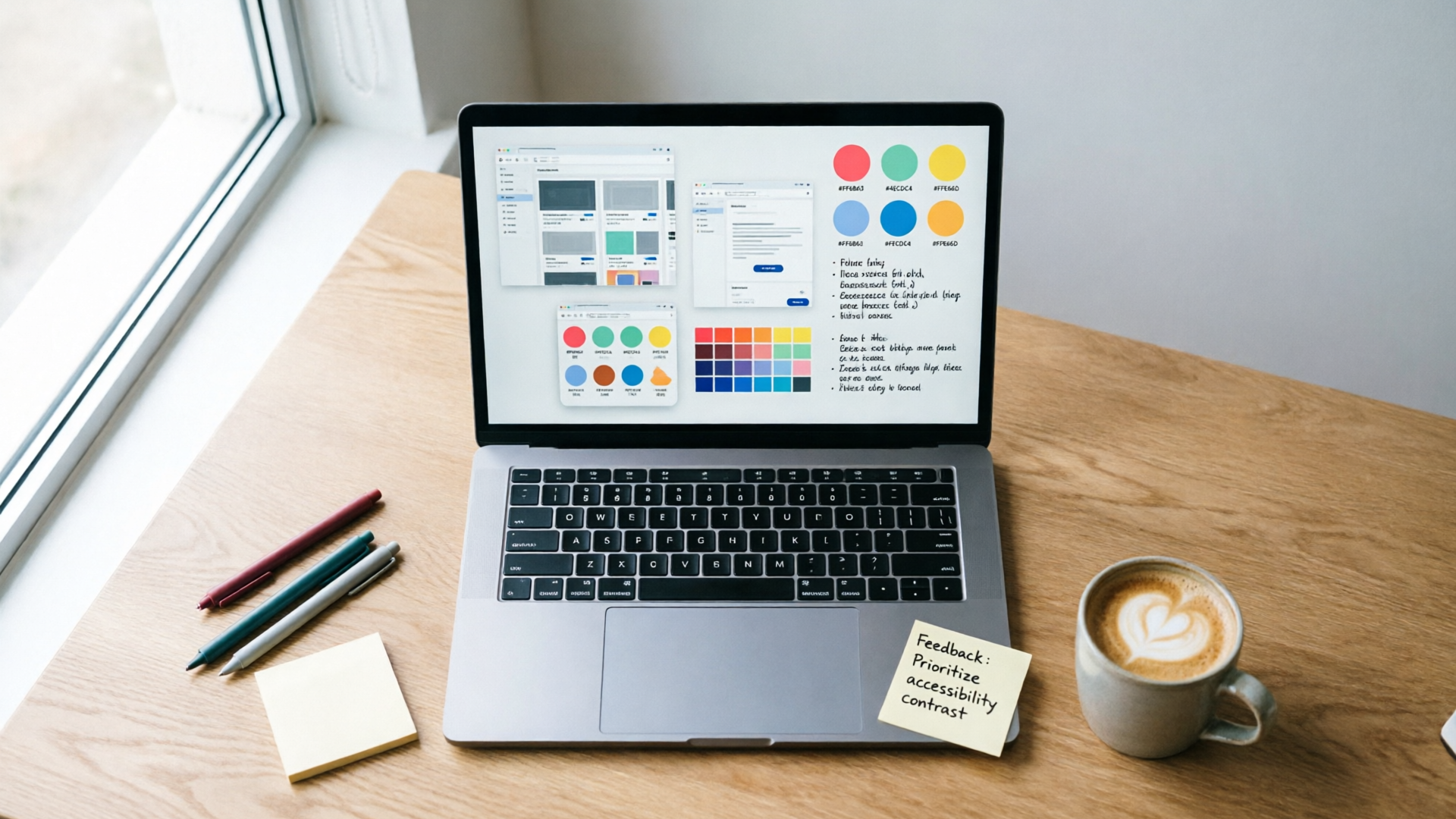
Creating fast thumbnail variants for A/B tests: a step-by-step workflow using PlayVideo.AI
If changing background color can move CTR by 18–25%, then generating variants that target that variable is a high-reward, low-effort experiment. Below is a practical workflow to create thumbnail variants and run A/B tests quickly using PlayVideo.AI.
Step-by-step (numbered):
- Pick a control thumbnail: choose your current best-performing thumbnail or a freshly generated base from PlayVideo.AI AI Image Generator.
- Identify one variable to change: color, text wording, face crop, or expression. Focus on only one variable per test to keep results interpretable.
- Use the AI Image Generator to create 6 color variants: in the prompt, specify identical composition and typography but change the background color token (teal, orange, purple, dark blue, bright yellow, neutral gray). Output all ratios needed in one pass.
- Export and upload to your A/B testing tool (YouTube experiments, third-party A/B services, or in-channel experiments if supported). Run each variant against the control with equal distribution.
- Measure CTR and view-through metrics over a statistically meaningful window (see the metrics section below). If a variant wins by your significance threshold, adopt it as the new control and iterate on the next variable.
PlayVideo.AI helps because it saves variations to your library so you can rerun the same test later, and it outputs multiple aspect ratios in one generation. If you need a hero image for an ad or landing page after a winning test, the same prompt can produce the larger hero size, ensuring the winning thumbnail aesthetic stays consistent across channels. For guidance on pricing and plan choices when running lots of variants, check PlayVideo.AI Pricing at /pricing.
Remixing an existing photo into multiple thumbnail styles (hands-on PlayVideo.AI demo)
Remixing owned photos is one of the safest and most effective ways to use generative tools. Start with a single high-quality headshot or set photo and let the AI Image Generator restyle it into multiple thumbnails that all respect your brand.
Hands-on demo (practical steps):
- Step 1: Upload the source photo (a well-lit headshot with clear expression).
- Step 2: Create three short prompts describing different moods: "urgent investigative look, deep navy background, white bold text area"; "friendly tutorial look, warm orange background, soft vignette"; "dramatic reveal look, high-contrast teal, heavy rim light".
- Step 3: Use PlayVideo.AI AI Image Generator's edit-and-restyle feature to apply each prompt to the uploaded photo. The tool preserves the subject while changing background, lighting, and color grading.
Practical tips: keep the subject's face proportion and position consistent so overlays and templates remain reusable. Save each restyled image as a variant in your library and export cropped versions for the preview sizes you'll need. Because you're starting from an owned photo, you avoid many of the ethical issues raised when models generate faces that mimic a living photographer's signature style. If you later want to convert the winning thumbnail into a short clip or promo, the output flows directly into PlayVideo.AI's AI Video Generator at /create-video.
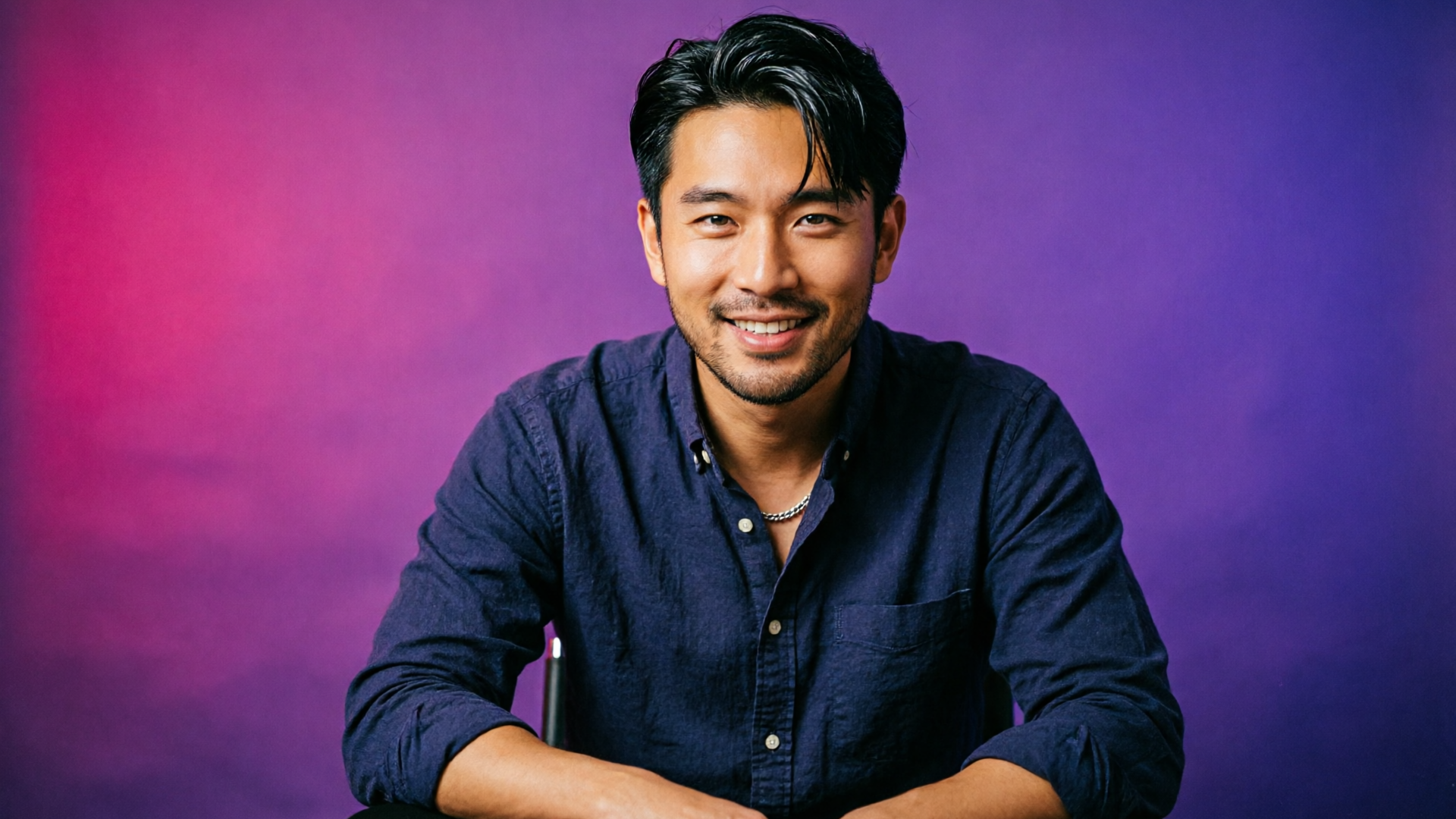
Optimizing thumbnails for platforms: YouTube, podcast directories, social previews and ad hero images
Different platforms surface thumbnails in different sizes and contexts, so plan your assets to scale. Here are platform-specific constraints and how to prepare images from your generator outputs.
YouTube: thumbnails are displayed in many sizes — the key is readability at small preview sizes. Test designs at 120x90 px and ensure text remains legible. Keep a 16:9 master image and export a high-contrast 16:9 JPG at 1280x720 for uploads.
Podcast directories: many podcast apps show square crops. Prepare 1:1 versions at 3000x3000 px for stores that request large cover art, but design with bold typography since many directory previews are small.
Social previews and ads: social platforms and ad networks require different aspect ratios (1:1, 4:5, landscape). The PlayVideo.AI AI Image Generator can output multiple aspect ratios from the same prompt, saving time when you need an ad hero or social square built from a winning thumbnail concept.
Cross-platform rule: start with a clear focal point centered or slightly offset so auto-cropping doesn't remove faces or key text. When you generate assets, export the aspect ratios you'll actually upload — the generator supports that in one pass, preventing last-minute composition issues. If you need a soundtrack or voiceover for a converted video ad, consider pairing the image with music from /create-music or narration from /ai-voices for a cohesive promo.
Measuring success: what to test (metrics, targets, and statistical significance for thumbnail A/Bs)
Thumbnail experiments should focus on a small set of measurable outcomes.
Primary metric: Click-through rate (CTR). This is the direct measure of a thumbnail's attention-grabbing power. Secondary metrics: watch time per impression, view-through rate, and average view duration — these reveal whether clicks translate into meaningful engagement.
Targets and statistical guidance:
- Start tests with a clear minimum detectable effect (MDE). For thumbnails, an MDE of 5–10% relative lift is a practical target; larger effects are possible (color changes have shown 18–25% average changes), but expect smaller gains for mature channels.
- Run the experiment long enough to gather a sensible sample. Small channels will need longer test windows; larger channels can reach statistical significance faster. Use a standard A/B significance calculator or an internal analysis script to compute p-values and confidence intervals.
What to record: the exact prompt and any edits, the control thumbnail, test dates, sample sizes, and all aspect ratios used. Recording prompts and versions is especially important when using generative tools — it makes results reproducible and addresses ethical transparency. If a winning variant underperforms on secondary metrics (e.g., high CTR but low watch time), investigate whether the thumbnail created a misleading expectation and refine accordingly.
Scaling a thumbnail system: naming, templates, brand tokens, and handing off to teams or contractors
A reliable system prevents chaos as you scale from a few episodes to hundreds of assets.
Start with a lightweight naming convention: ProjectEpisodeVariantColorAspect (e.g., "ScienceShowS05E03V2Orange16x9"). This keeps library searching and A/B reporting straightforward. Use templates in PlayVideo.AI AI Image Generator that encode brand tokens (primary color, accent, face crop) so anyone on the team produces consistent outputs.
Brand tokens checklist to store and share:
- Primary and secondary colors (hex values)
- Font family and size rules (headlines only, max 3–5 words)
- Face framing rules (close-up, shoulders, negative space)
- Typical expression guidelines (surprised, happy, serious)
Handoffs: save and export a short prompt guide and a sample set of assets for contractors. When contractors use the PlayVideo.AI AI Image Generator, they can load the template and generate variants that already match your tokens — fewer review cycles and less back-and-forth. For teams running volume, coordinate usage and budget via the /pricing page so you can estimate monthly generation volumes and credits.
Frequently Asked Questions
Can I legally use AI-generated thumbnails on YouTube and podcast stores?
Generally yes, but check your generator's license terms and avoid prompts that explicitly mimic a living artist's style. Remixes of your owned photos are the safest route.
How many thumbnail variants should I test at once?
Keep tests focused: 3–6 variants against a control is practical. Test one visual variable at a time to attribute causation.
Will AI make my thumbnails look generic?
Not if you encode brand tokens in prompts and use edit-in-place to refine. PlayVideo.AI AI Image Generator saves variations so you can enforce a coherent brand look.
Do I need a designer if I use an AI thumbnail generator?
For many creators, no — AI handles concepting and scaling. For high-stakes campaigns, a designer adds polish and ensures creative strategy aligns with brand positioning.
Conclusion
Building a high-CTR thumbnail system is both creative and methodical: follow proven design rules, run tight A/B tests on single variables, and use an AI thumbnail generator to produce consistent, repeatable variants fast. PlayVideo.AI AI Image Generator is designed for this workflow — generate multiple aspect ratios in one pass, restyle your own photos with edit-in-place, and save variations to a shared library so your team can iterate without losing brand control. Ready to stop guessing and start iterating? Open the AI Image Generator and spin up your first thumbnail set during your next break.