How to Create Music‑Driven Videos with an AI Music Generator for Videos
Practical workflows to score, beat‑sync, and iterate music‑driven videos using PlayVideo.AI AI Music Generator. Beat sync, stems, and export tips for higher retention.
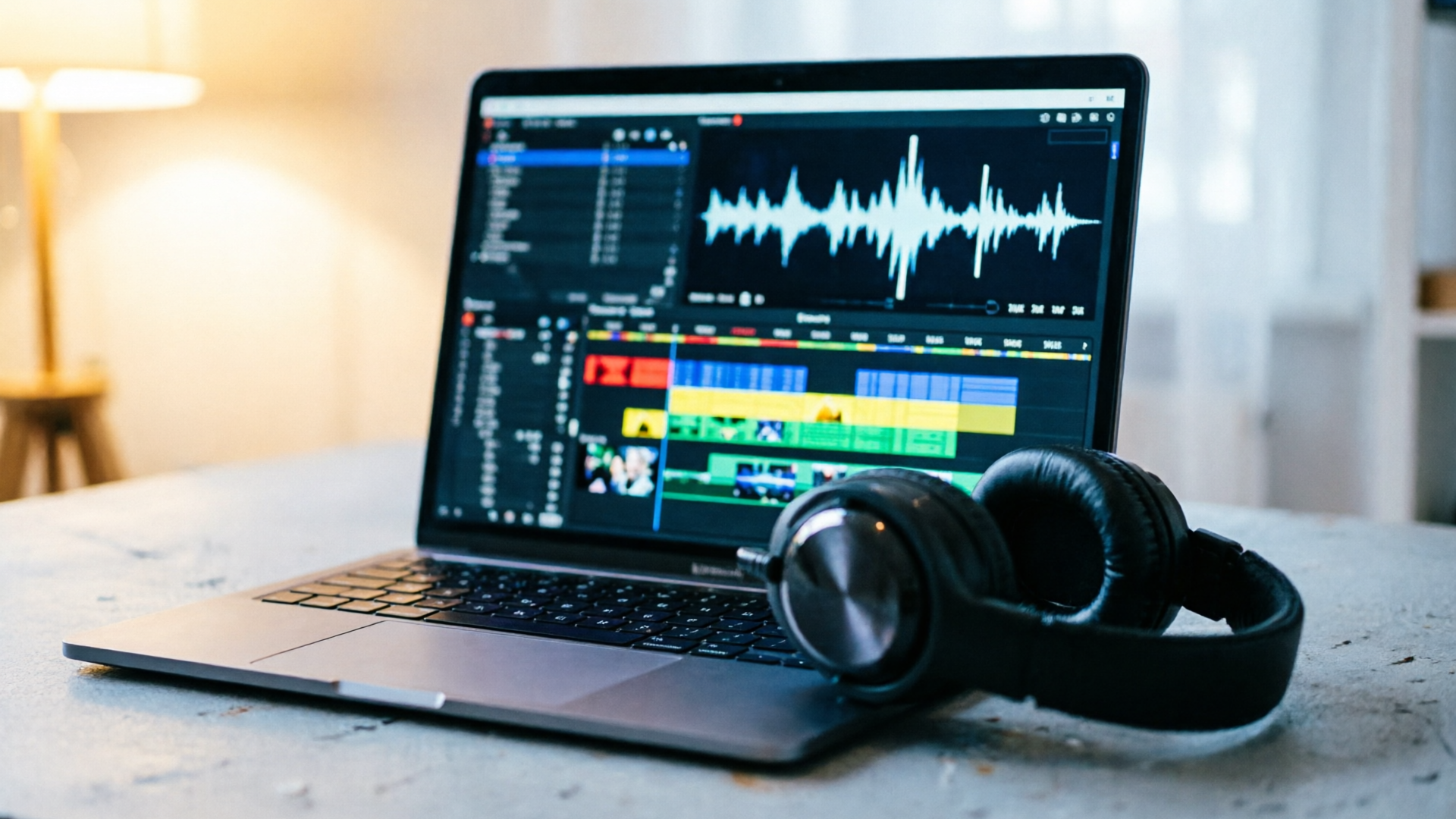
Sound-first edits lift watch time — when music matches rhythm and mood, viewers stay. This guide shows creators how to use an AI music generator for videos to quickly produce original, copyright‑safe tracks, export stems, and build frame‑accurate edits. We focus on practical workflows with PlayVideo.AI AI Music Generator so you can generate instrumentals, guide tempo and mood, and drop a polished track into your next social clip.
Why sound-first videos perform better (and what the research says)
Creators increasingly design videos around audio because sound drives attention and emotional pacing. Multiple industry analyses and creator reports show background music influences retention — well‑chosen music can improve passive viewing by noticeable margins depending on format and execution. That doesn’t mean louder or faster is better; it means music must support pacing, clarify emotional beats, and avoid masking speech.
Academic work on video/music alignment highlights why this matters. Recent research like MuVi and related papers demonstrate models that align musical rhythm and semantic mood to visual features: motion, scene changes, and emotional content can be used to generate music that mirrors a cut’s pacing and energy. When music reflects those visual cues, viewers perceive a more coherent narrative and are likelier to watch to the end.
For creators, the takeaway is simple: build the video around a clear audio plan. Use tempo and instrumentation to telegraph transitions and emphasize moments—this is where an AI music generator for videos becomes an efficiency multiplier. Instead of hunting for licensed tracks or awkwardly editing library music to fit, you can generate a custom score designed to match your cut and export stems to keep voice or key effects clear.
How modern AI creates music that understands visuals: a quick technical primer
Modern video-to-music systems use multimodal encoders to extract hierarchical visual features and map them to musical structure. In practical terms, models examine frame-level motion, scene changes, and higher-level semantics (happy vs. tense scenes) and translate those signals into tempo, energy, and instrumentation choices. Papers like MuVi and related AAAI work describe architectures that jointly learn visual and musical representations so rhythms align with edits and emotional arcs.
Two technical ideas are useful for creators:
- Beat/transition alignment: Advanced models include beat aligners and transition adapters that produce music with predictable beat markers tied to detected or supplied edit points. That makes frame-accurate cuts easier because you can snap visual transitions to musical peaks. The underlying research (beat/transition aligners, TB‑As) shows this is feasible at frame level.
- Stems and controls: Practical creator tools expose the model’s controls — promptable style/mood, tempo sliders, and stem exports (drums, bass, melody). These map the research into real workflows: you don’t need to retrain a model to get a high-energy chorus or a sparse ambient verse — you change the prompt, adjust tempo, and export stems for mixing.
Understanding these mechanisms helps you prompt an AI music generator for videos more effectively: describe motion intensity, desired instrumentation, and where you need beat hits (e.g. “snare on scene cut at 0:12”). For deeper reading on alignment approaches, see MuVi (https://arxiv.org/abs/2410.12957).
Workflow A — Generate a custom, copyright‑free background score with PlayVideo.AI AI Music Generator
This workflow shows how to create a background score from scratch using PlayVideo.AI AI Music Generator. It’s built for creators who need a fast, original track without licensing headaches.
Why choose this path: you get a track tailored to tempo and mood, export-ready for any NLE, and royalty-free for monetized content.
Step-by-step example: create a 30‑second upbeat instrumental for a product demo
- Open PlayVideo.AI AI Music Generator (/create-music) and enter a short prompt: “bright, punchy electro-pop instrumental for a 30s product demo — tight drums, short bass stabs, uplifting synth lead.”
- Set tempo to 120 BPM and duration to 30 seconds. Choose “Instrumental” if you want no vocals.
- Use the mood control to push energy toward “energetic” and pick instrumentation tags (drums, bass, synth lead). The generator will use those preferences to shape arrangement and instrumentation.
- Preview a few variants and pick the best take. If you need different emphasis, adjust tempo ±5 BPM or change the lead instrument.
- Export the full mix and also export stems (drums, bass, melody) so you can duck or remix under voiceover.
Worked result: you’ll have a copyright‑free instrumental built to your tempo and ready to drop into the timeline. PlayVideo.AI AI Music Generator’s style, tempo, and mood prompts give real control, so the first render often needs only light trimming or stem mixing.
Tip: keep a short metadata note with each export (tempo, stems included, prompt used) so you can reproduce variations later.
Workflow B — Auto-detect beats and create frame-accurate cuts & motion synced to music
When your edit must hit the beat precisely — think quick montage, product punchlines, or dance edits — combine automatic beat detection with a tempo map and precise cuts.
High-level steps:
- Generate or import a track. Use PlayVideo.AI AI Music Generator to produce a track with clear rhythmic elements (kick/snare). Export the stems if you want separate percussive control.
- Auto-detect beats. Many NLEs and tools can generate a tempo map from an audio file. If your NLE lacks this, import the audio into a DAW or beat-detection tool to create an edit-friendly tempo grid.
- Snap cuts to beats. Use the tempo map to place cuts, motion keyframes, or speed ramps so transitions fall on downbeats or snare accents.
Concrete example: syncing a 60‑second montage
- Generate a track in PlayVideo.AI AI Music Generator with a clear backbeat and request a tempo of 128 BPM. Export the stems and the full mix.
- In your editor, run beat detection or import the track into your DAW to create a tempo map. Most editors will let you align the playhead to the beat grid or produce markers at every bar.
- Place visual cuts or motion keyframes on strong beats (1 and 3) and use snare hits as emphasis points for product reveal frames.
- If a visual moment needs stretching, nudge the edit by one beat or insert a half-bar transition to preserve rhythmic flow.
Pro tip: Exporting percussive stems makes it much easier to craft custom hit points — mute or isolate the drum stem while placing cuts so your visual edits correspond to percussion only.
Using academic and industry insights on beat‑aligned adapters can increase precision: these techniques guide how you set up your tempo map and pick which beats to emphasize.
Practical tips for choosing mood, tempo, and stems so music boosts retention
Choosing the right mood, tempo, and stems is not guesswork — it’s intentional design.
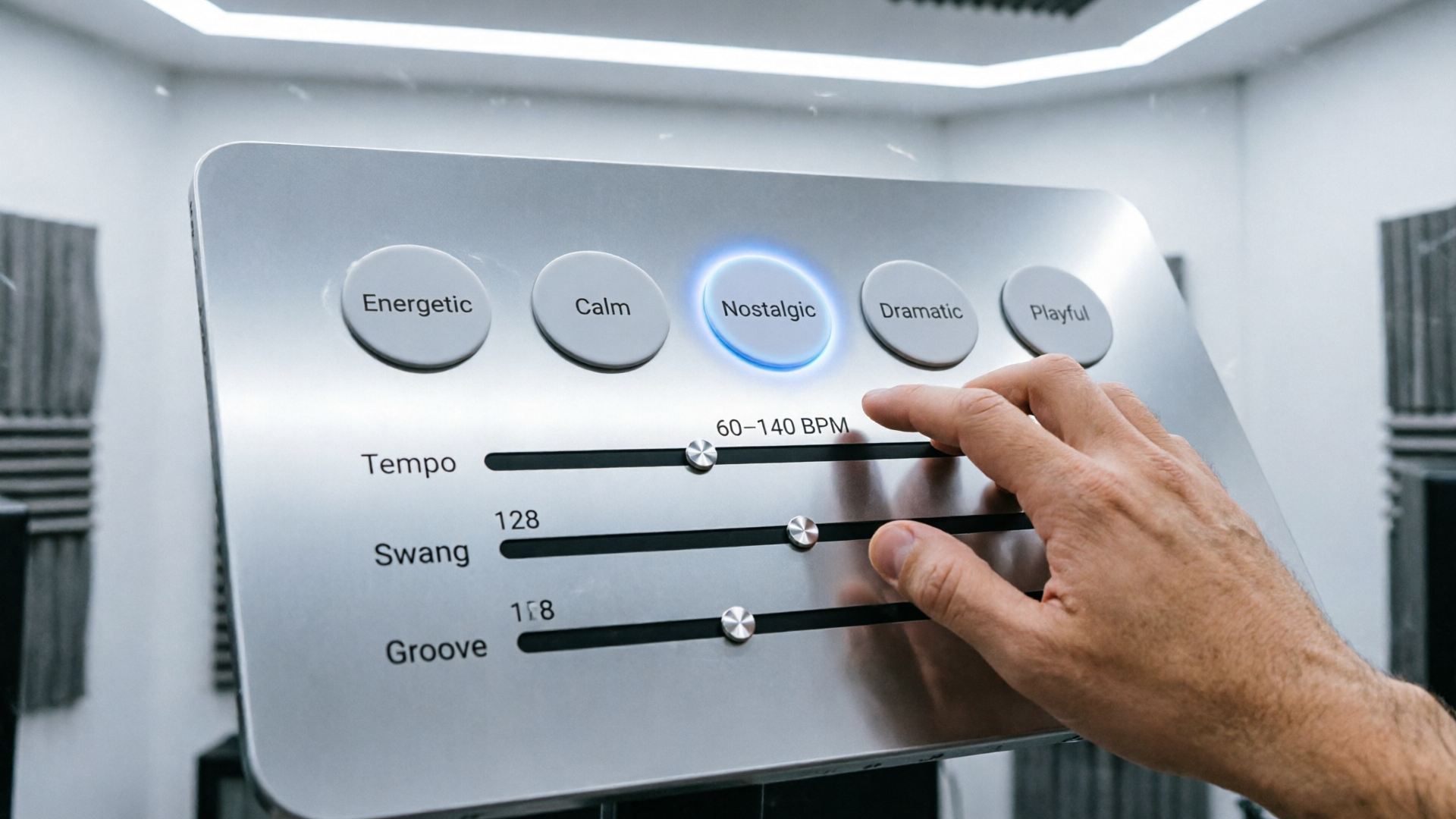
Mood: Match the emotional arc. Use warmer, slower textures for intimate moments and brighter, higher‑energy instruments for action or product demos. Prompt the AI with emotional cues: “nostalgic,” “urgent,” or “playful” so the generator favors appropriate harmonic choices.
Tempo: Anchor pacing. Short social clips often benefit from 100–140 BPM for perceived momentum; slower tempos suit longer, cinematic pieces. If you need tight cuts, pick a tempo that gives you usable subdivision — e.g. 120 BPM yields 0.5s quarter notes at a glance.
Stems: Protect clarity. Always export stems (drums, bass, melody, pad) when voiceover or dialogue is present. Use the drum stem to time cuts; use the melody stem to emphasize emotional peaks; use the pad/ambience stem for long holds without competing with narration. Stems let you duck specific elements instead of the entire track, reducing masking and improving intelligibility.
A/B note: small changes to instrumentation (remove cymbals, thin the midrange) can materially affect watch time because they alter perceived clarity. Stems give you that control without re‑generating the entire track.
Testing, iterating, and A/Bing music-driven edits for higher completion rates
Music-driven edits benefit from systematic testing. Small changes in tempo, instrumentation, or where beats fall can shift completion rates.
Start with a clear hypothesis: “Adding a snare hit on scene change will increase completion by improving perceived punch.” Then produce two variants: one with the snare accent and one without. Use platform A/B testing tools or split campaigns to measure watch time and completion rate.
Iteration cadence:
- Variant generation: Use PlayVideo.AI AI Music Generator to output 2–4 track variants that differ only in one variable: tempo, mood, or drum prominence.
- Quick edits: Drop each variant into the same edit and export short versions for social platforms.
- Measure and repeat: Run short tests (several hundred views) and compare retention curves. Don’t expect huge swings on small samples — look at where viewers drop off and adjust the music or edits there.
Keep experiments small. Swap a stem, re-export, and re-run a test before rebuilding the entire video. Over time you’ll build a set of musical treatments that consistently lift completion rates for your format.
How to integrate PlayVideo.AI into your end-to-end edit (export, stems, and licensing)
PlayVideo.AI AI Music Generator is designed to slot into existing editing workflows. Here’s how to integrate it efficiently and safely.
Export options and stems
- Full mix: Drop the final track into your timeline for immediate use.
- Stems: Export drums, bass, melody, and ambience so you can mix under dialogue or add punchy hit‑points. Use the drum stem to generate beat markers and the melody stem to emphasize story peaks.
Licensing and safe publishing
AI music generators now commonly provide original, royalty-free tracks intended for commercial use. Several major tools explicitly permit monetized content; PlayVideo.AI AI Music Generator produces original tracks with export terms that avoid library licensing headaches, making it safe for TikTok and YouTube uploads without chasing clearances.
Integrations and complementary tools
- If you need visual assets generated alongside sound, combine the music workflow with PlayVideo.AI’s other tools: create background visuals or short scenes in the AI Video Generator (/create-video) and produce thumbnail images with the AI Image Generator (/create-image). These integrations speed iteration when you’re testing multiple concepts. Link to pricing and plan choices on /pricing when deciding how to scale experiments.
Worked handoff example
- Generate a short 30s track in PlayVideo.AI AI Music Generator and export four stems.
- Import stems into your NLE, create beat markers from the drum stem, and place cut points.
- Use the melody stem to lift the mix during emotional beats, lowering it under narration using the AI Voices tool for consistent voice‑over if needed.
- Publish with the correct export metadata and a note in your asset tracker that the track is original and cleared for commercial use.
This approach reduces last‑minute licensing risk and shortens the time from concept to publish.
Frequently Asked Questions
Are tracks from an AI music generator royalty‑free for commercial videos?
Many AI music generators produce original tracks intended for commercial use; PlayVideo.AI AI Music Generator exports tracks you can use without library licensing concerns. Always check terms of service for the specific platform and export timestamp.
Can I export stems for detailed mixing?
Yes — export stems (drums, bass, melody, ambience) to duck elements around dialogue or create frame‑accurate edits. Stems are essential for professional mixing and precision cuts.
Will generated music match complex visual edits automatically?
Generated music can be produced with clear rhythmic elements and tempo maps that make frame‑accurate syncing straightforward, but best results come from combining generated tracks with beat detection or a tempo map in your NLE.
How do I pick tempo for short social clips?
Pick a tempo that aligns with your intended pace; 100–140 BPM is common for fast social clips. Use beat subdivisions to plan cuts and choose a tempo that gives sensible subdivisions for your edit length.
Conclusion
Music-first editing is no longer a specialized skill — with an AI music generator for videos you can produce original, copyright‑safe tracks, export stems for precision mixing, and iterate quickly. Start by generating a short instrumental in PlayVideo.AI AI Music Generator, export stems, and build a tempo map for frame‑accurate cuts; repeat lightweight A/B tests to learn what lifts completion for your format. Open the AI Music Generator and score your next clip in minutes.