Turn One Selfie Into a Viral Dance Clip: A Practical Guide
Step-by-step workflow for turning a single selfie into 15–30s dance clips using AI — production tips, legal checklist, and why PlayVideo.AI AI Video Effects speeds creation.
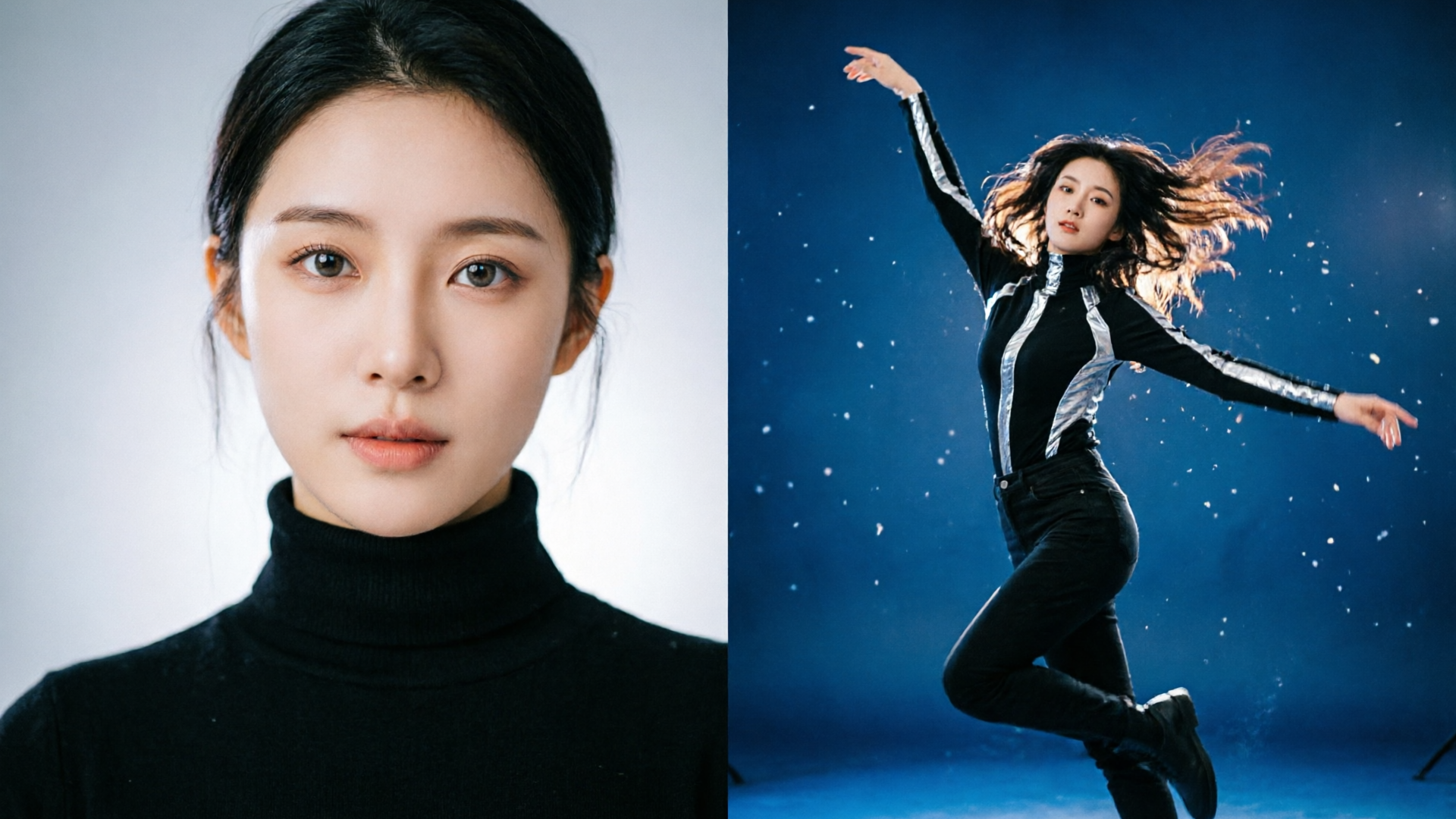
Want to turn one selfie into a scroll-stopping TikTok dance without filming hours of footage? The new wave of selfie dance generator tools makes that possible. This guide walks creators through practical image and audio choices, when to use pre-built effects, and a concrete walkthrough using PlayVideo.AI AI Video Effects so you can output a finished 9:16 dance clip in minutes.
Why ‘photo-to-dance’ AI is exploding on TikTok and Reels (what’s changed technically and socially)
Two things collided to make photo-to-dance videos an overnight phenomenon: model advances and social appetite. On the technical side, recent breakthroughs in motion-diffusion, pose-transfer and fine-tuned video diffusion models enable services to synthesize short, body-aware clips from a single reference image. Research like "DanceTogether" highlights identity-preserving synthesis that keeps facial features consistent while animating new motion — the same foundation many consumer tools now leverage (see the arXiv paper for details: https://arxiv.org/abs/2505.18078).
On the social side, short-form platforms reward highly repeatable formats. Creators can iterate quickly: one selfie, dozens of audio choices, and countless templates. Consumer apps such as Zance, Kling, and others have packaged these models into easy-to-use interfaces; that combination of technical feasibility and low friction drove rapid adoption. Wombo’s 200M+ downloads are a reminder that face-animation tools scale fast when they’re simple to use and shareable (Wombo on Wikipedia documents that growth).
The result: a new creative loop where novelty plus relatability equals virality. Tools that produce vertical, loop-ready output and platform-specific presets remove friction — and that’s exactly why creators are gravitating toward a selfie dance generator workflow instead of traditional shoots. But technical limits remain: many models trade absolute photorealism for energetic motion, and some outputs show aesthetic artifacts or “glitches.” Understanding those trade-offs helps you choose when to use a pre-built effect and when to invest in manual refinement.
Choosing the right source image and audio: photography and music tips that improve AI dance results
AI dance generators are sensitive to the input photo. A well-chosen source image reduces artifacts, improves tracking, and produces more convincing motion. Here are proven selection rules:
- Face clarity and resolution: Use a high-resolution selfie where the face is well-lit and unobstructed. Many generators preserve identity better when facial landmarks are clearly visible.
- Full upper body or crop options: If the tool supports torso or shoulder cues, supply an image that includes the upper body. If you only have a headshot, expect more stylized results and fewer believable limb motions.
- Neutral or slight expressions: A neutral to mildly expressive face maps more predictably across poses. Extreme expressions can introduce unnatural deformations when the model re-targets motion.
- Background simplicity: Plain or softly blurred backgrounds help the generator separate subject from environment, reducing compositing glitches.
- Outfit contrast and clean edges: Distinct clothing edges help the model infer limb boundaries.
Audio choices matter as much as the photo. Short-form dance clips thrive on rhythmic, high-energy audio with clear beats:
- Pick a 15–30s segment that has a strong downbeat every 1–2 seconds. That helps the motion feel synchronized.
- Use loop-friendly sections (instrumental hooks or percussive stems) to enable a seamless visual loop.
- If you need custom music, consider generating an original backing with an AI music tool to avoid licensing headaches — PlayVideo.AI’s AI Music Generator can create copyright-free instrumentals tuned to tempo and mood.
Finally, run quick A/B tests: try two photos and two audio clips, and compare encodings. Vendors and creator forums consistently report higher engagement for animated dance content versus static posts, but performance varies by creative execution — so test your own audience.
Template-first vs custom choreography: when to use pre-built effects (and why creators prefer one-click workflows)
Creators face a simple choice: use template-first effects or invest in custom choreography via text prompts or motion editing. Both approaches have merits, but the template-first route wins for speed and platform-readiness.
Why creators choose pre-built effects:
- Predictability: Tuned presets are engineered for common face types, aspect ratios, and loop behaviors. That predictability reduces trial/error.
- Speed: One photo in, finished vertical clip out — ideal for trend-chasers who must move fast. PlayVideo.AI AI Video Effects, for example, applies AI dance presets to a single photo and renders 9:16 output ready for TikTok and Reels.
- Consistency: Marketers and social teams can produce a stack of short ads or variations from a single asset without designing motion from scratch.
When to pick custom choreography:
- Brand specificity: If you need exact moves tied to a brand gesture or product interaction, custom choreography (via advanced generators or manual animation) gives full control.
- High-fidelity realism: Custom pipelines allow frame-by-frame fixes to reduce artifacts and match a high-production aesthetic.
A practical rule: start template-first for trend experiments and rapid iteration; switch to custom when a format proves successful and you need refined control. Many creators use both in the same campaign — test wide with presets, then double down on winners with custom edits. PlayVideo.AI AI Video Effects is built for that first phase: rapid experimentation using tuned presets that remove prompt-engineering and deliver platform-ready vertical clips.
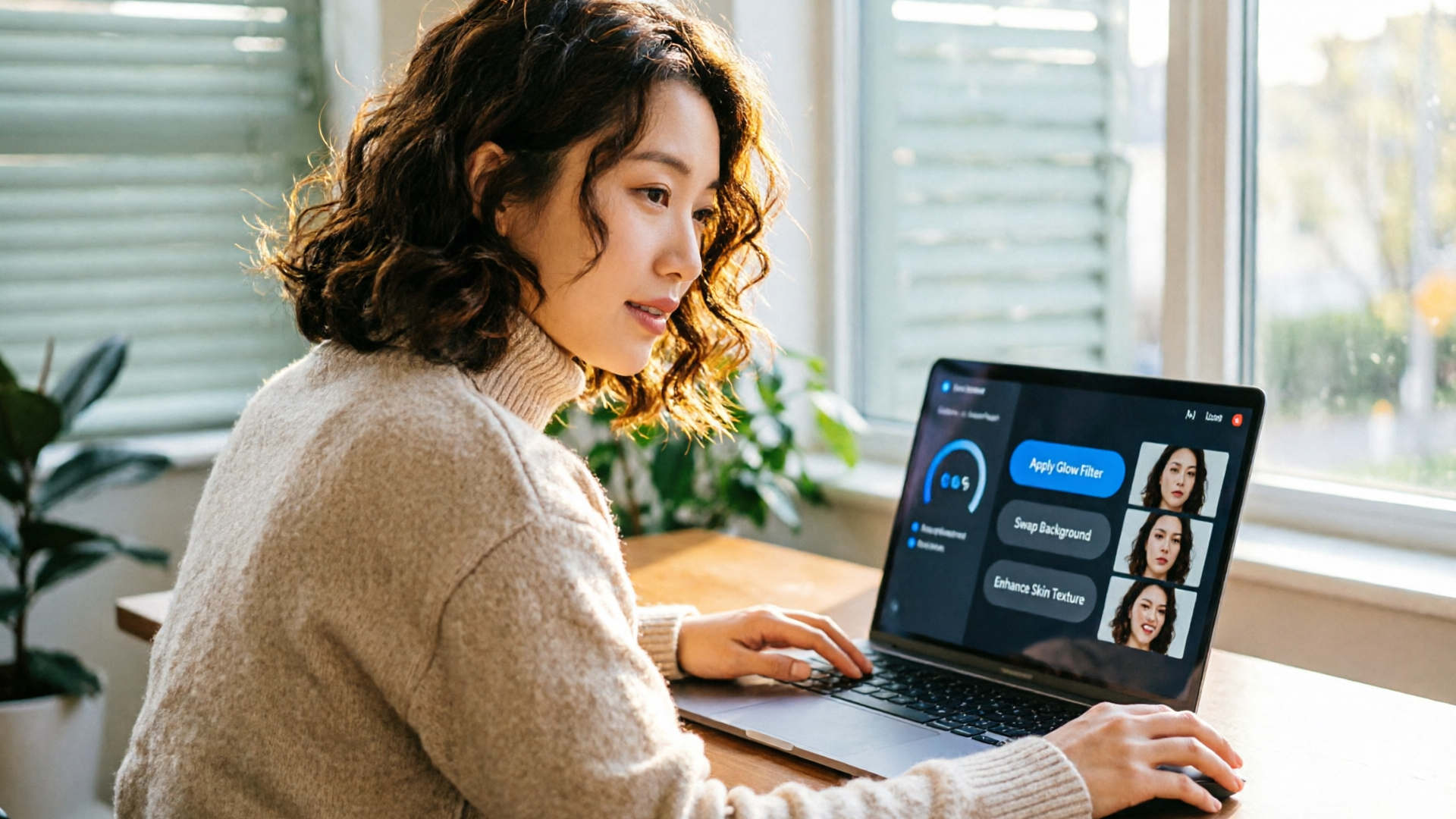
Step-by-step: Create a viral 15–30s TikTok dance from one selfie using PlayVideo.AI AI Video Effects
This worked example shows how to turn a single selfie into a vertical dance clip using PlayVideo.AI AI Video Effects. It focuses on speed and platform readiness.
1) Prepare your assets: choose a high-res selfie (face and upper torso visible), and pick a 15–30s audio clip or use PlayVideo.AI’s AI Music Generator to produce a tempo-matched backing track. If you need a custom instrumental, generate a 15s stick of music from /create-music and download the stem.
2) Open PlayVideo.AI AI Video Effects: navigate to the Effects library at /effects and pick a dance preset that matches your vibe (energetic, chill, or loop-focused). The Effects library provides tuned presets — no prompt-writing required.
3) Upload the selfie: select your photo and choose the TikTok/Reels aspect preset (9:16). Effects are optimized to render vertical output by default.
4) Attach audio: upload your chosen 15–30s clip. The effect will synchronize motion to the audio’s beat. If you generated music using /create-music, upload that file here.
5) Preview and tweak: the system queues the job and returns a rendered clip. Pick from alternate dance variations if the effect offers multiple motion styles. Because each effect is a tuned preset, you can try 2–3 variants quickly and pick the best.
6) Export and test: download the finished .mp4 and upload it to TikTok or Reels. Try both the full 15–30s and a tightened 12–15s loop to see which performs better in your audience test.
Estimated time: 2–10 minutes from upload to finished vertical clip, depending on queue times. This workflow trades manual animation complexity for repeatable speed — ideal for creators chasing trends and volume.
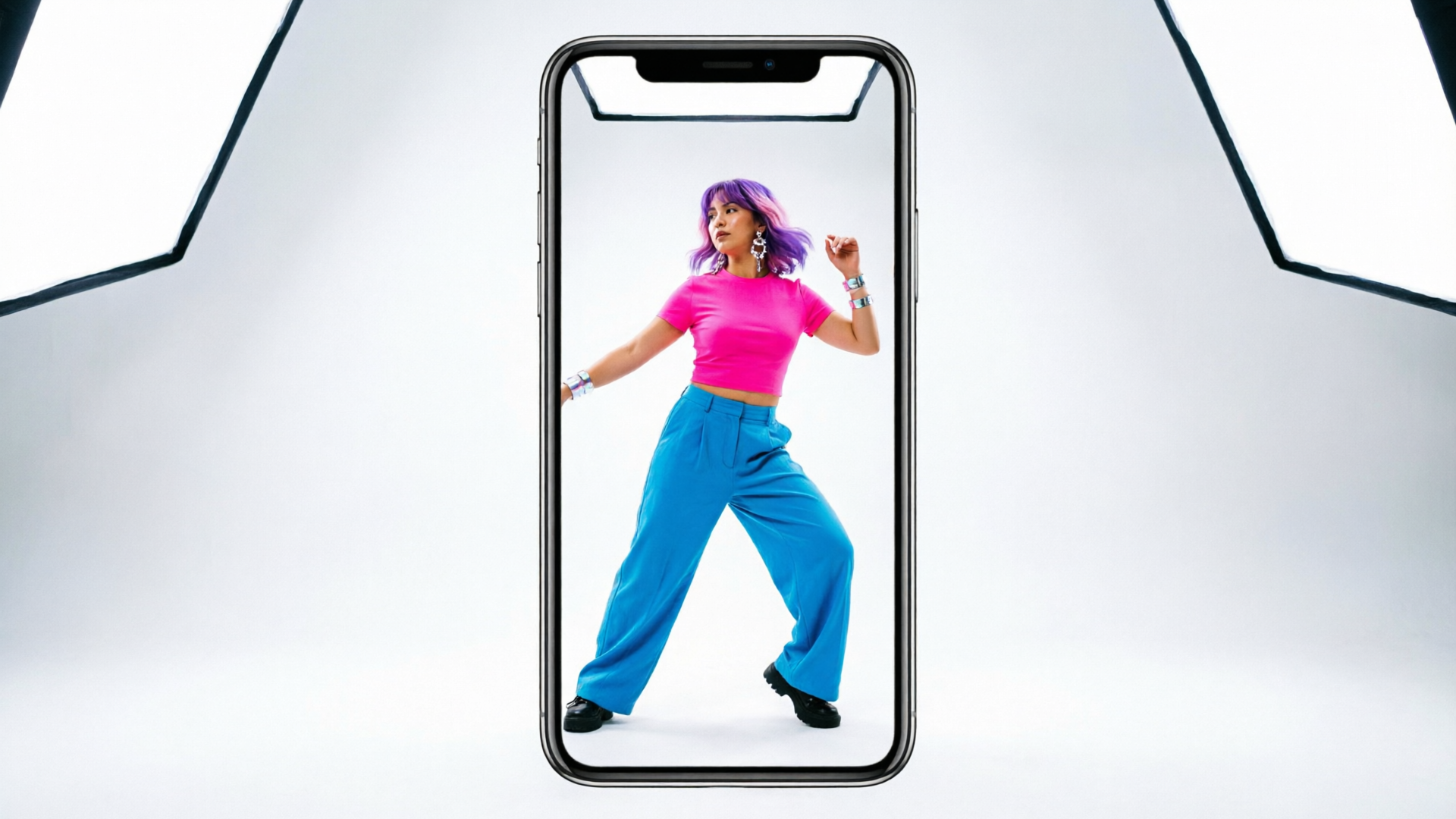
Refining realism and style: tips to tweak motion, framing, and lighting after generation
Generated clips often need small post-processing steps to feel native on platform feeds. Focus on three areas: motion realism, framing, and lighting/color.
Motion realism: If limbs or head motion looks disconnected, apply these quick fixes:
- Use subtle crossfades and motion blur in a video editor to mask jitter. A tiny 6–12px directional blur on hand motion can hide sampling artifacts.
- Layer short stabilizing crops on jump cuts — a 1.05× zoom on a 1–2 frame cut reduces perceived shake.
Framing: Vertical platforms reward centered action and readable negative space. If the subject appears too small, reframe with a smart crop or gentle zoom during export. For multi-clip ads, create several crops (tight face, half-body, full-body) and A/B test. PlayVideo.AI effects already produce 9:16 output, but you may need to nudge subject placement for overlays or text.
Lighting and color: Generated lighting can differ from your feed’s aesthetic. Match your brand by applying a consistent LUT or color grade across clips. Keep contrast and saturation tweaks modest — heavy grading can amplify artifacts. If the background looks inconsistent, swap it using an image created in /create-image and composite the generated subject over a clean backdrop.
Sound sync and sizzle: Tight audio editing helps perceptions of realism. Add transient hits, quick risers, or a one-frame sound design accent on key moves. If you need vocals or voice lines, use PlayVideo.AI AI Voices to record short callouts and drop them into the mix to localize or personalize the clip.
These refinements typically take 5–20 minutes per clip and elevate a playful effect into a campaign-ready asset.
Copyright, likeness, and platform policy checklist before you post an AI dance video
Before you publish, confirm you’re clear on copyright, likeness, and platform rules. This checklist reduces take-down risk and protects your brand:
- Music rights: Don’t assume a clip is clear just because you trimmed it. If you used a commercial song, verify licensing or use an original instrumental from an AI music tool (for example, generate a copyright-free track in /create-music).
- Likeness consent: If the selfie is someone else’s image, obtain written consent. Platforms vary, but creator communities and policy teams take impersonation and unauthorized use seriously.
- Platform policy: Review TikTok and Instagram rules on synthetic media and manipulated content. Both platforms update policies periodically; when in doubt, add a short disclosure in the caption.
- Brand guidelines: For paid or branded campaigns, confirm the effect aligns with advertising standards in your region (e.g., truth-in-advertising rules if the content implies endorsement).
- Sensitive use cases: Avoid generating content that alters public figures, minors, or depicts harmful behavior — those uses raise ethical and moderation flags.
A final pragmatic step: keep originals and a short provenance note (date, tool, assets used) for each clip. That documentation is useful if a platform requests more information or if you need to verify rights during a dispute.
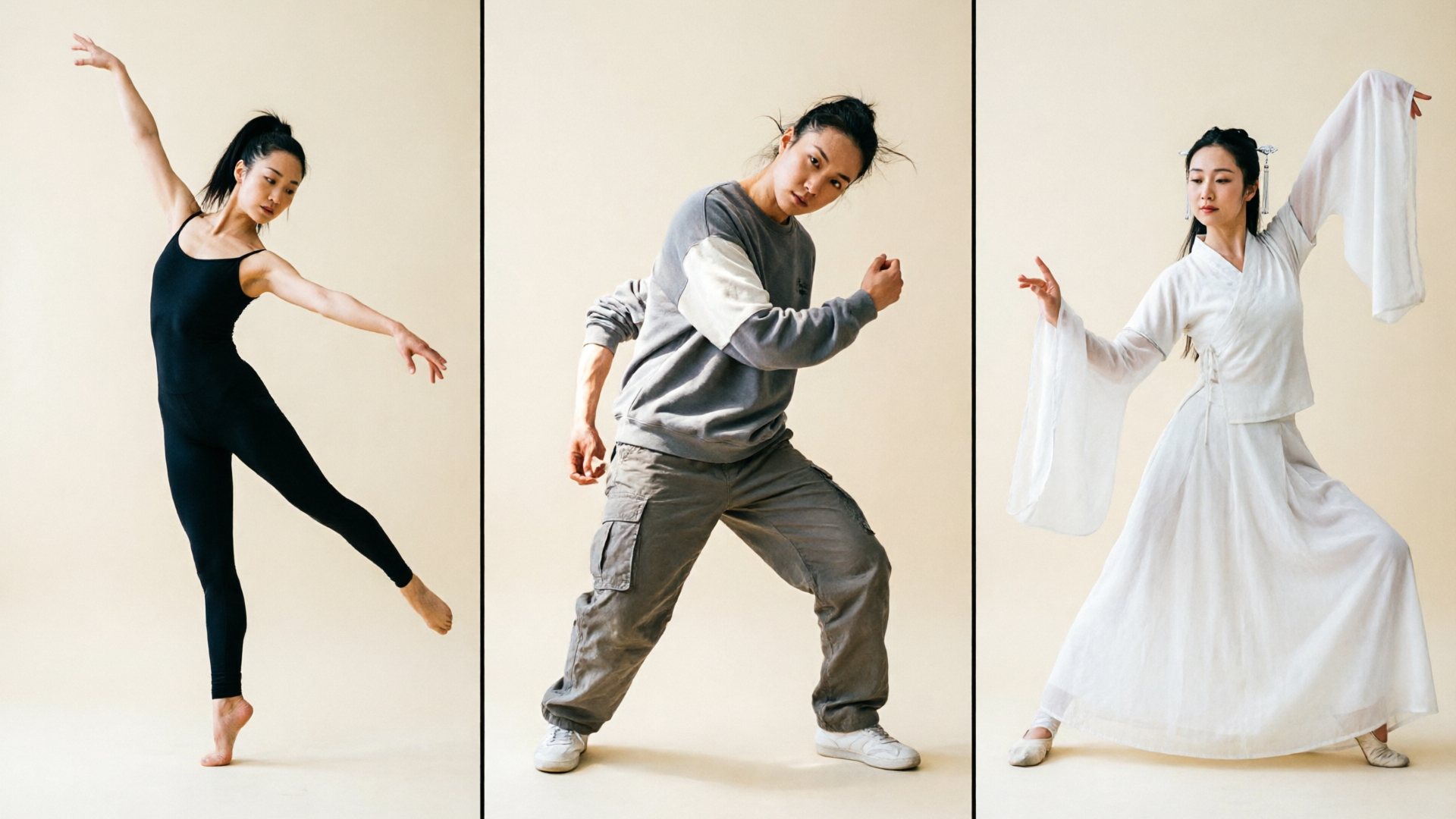
Metrics and promotion: how to test formats, measure engagement, and scale dance campaigns
Scaling a selfie dance generator campaign is about rapid iteration and disciplined measurement. Use a simple testing matrix: photo variant × audio variant × caption style. Limit each test cell to a single variable change so you can attribute lifts.
Key metrics to track:
- View-through rate (VTR): percentage of users who watch the full 15–30s clip. Short, loop-friendly edits often maximize VTR.
- Completion and replays: on TikTok, replays are a signal of virality — clips that invite a second watch (surprise moves, hidden transitions) perform better.
- Engagement rate: likes, comments, and shares. For dance content, comments that repeat a hook or duet behavior indicate format potential.
- Follower conversion: measure new followers per post to assess long-term value.
Promotion tactics:
- Cross-post vertical-optimized cuts to Reels and YouTube Shorts; small caption tweaks and native uploads expand reach.
- Use creator duets and stitches to invite participation — make the clip easy to duet by leaving negative space in the visual composition.
- Run a small paid test with multiple variants before scaling ad spend. Since PlayVideo.AI AI Video Effects can produce many variations quickly, create 6–12 candidate clips, A/B test with small budgets, and scale winners.
A practical numbered checklist for scaling:
- Create 6 variations (3 photos × 2 audio hooks) in one session using /effects.
- Upload native versions to TikTok and Reels with short, action-driven captions.
- Wait 24–72 hours, collect VTR and engagement, then double down on top 2 winners.
- Localize winners by swapping music or voiceover using /create-music and /ai-voices and test again.
Using this repeatable loop lets creators move from hypothesis to scaled creative stacks quickly. The core advantage of one-click effects is velocity: you can iterate more hypotheses per week than manual shoots allow.
Conclusion
A selfie dance generator workflow lets you test trends, produce volume, and stay nimble — especially when you start with tuned, platform-ready presets. PlayVideo.AI AI Video Effects is designed exactly for that use: one photo in, finished vertical clip out, with tuned dance presets and TikTok/Reels-ready output. Try the PlayVideo.AI AI Video Effects library and ship a viral-format clip from a single photo today: browse the AI Video Effects.