AI thumbnail variations: a creator’s playbook to generate, test, and scale winning YouTube thumbnails
A creator-first playbook to generate, test, and scale AI thumbnail variations. Practical prompts, workflows, and a step-by-step guide using PlayVideo.AI AI Image Generator.
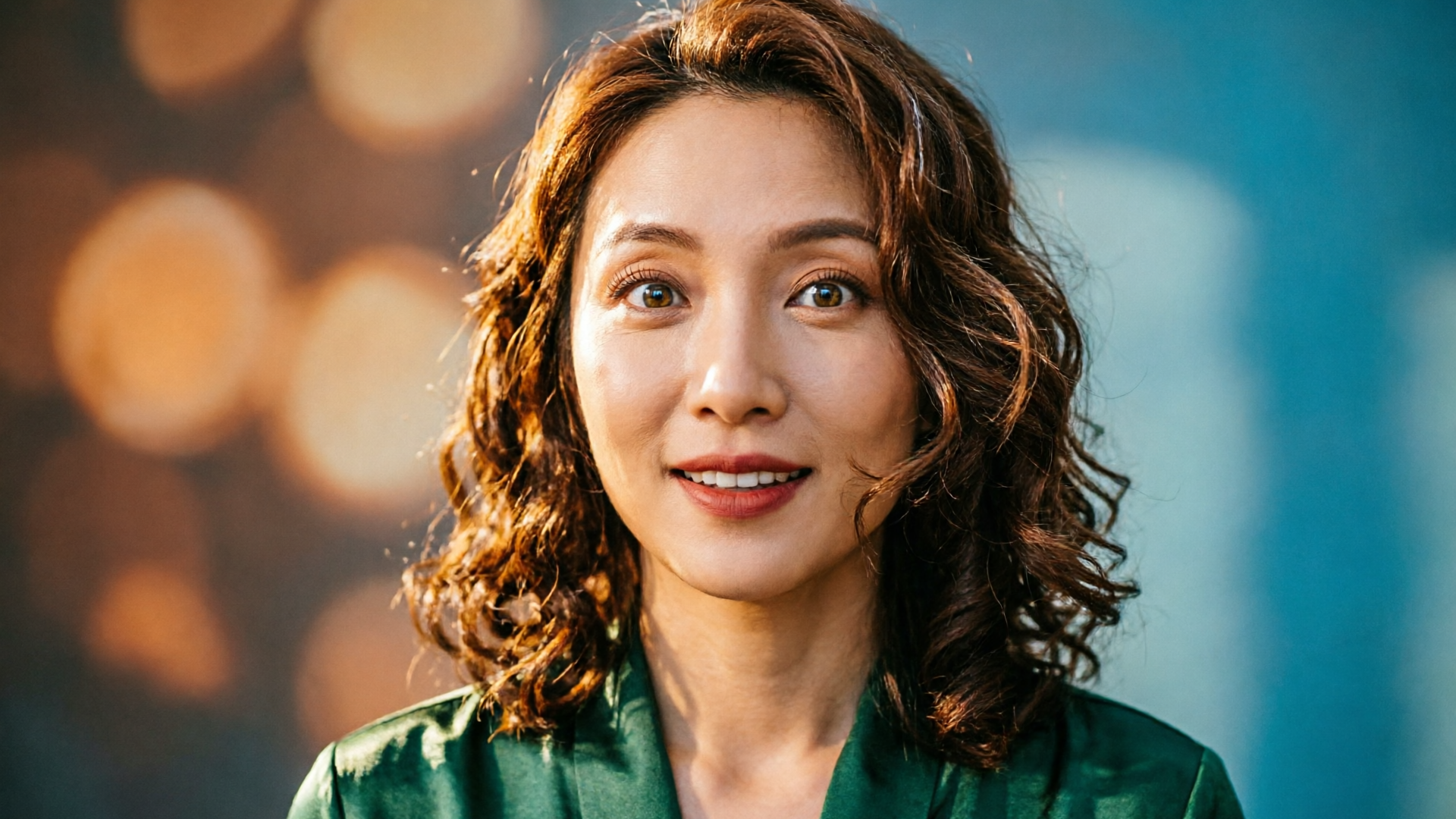
Thumbnails are packaging: small changes in composition, color, or expression can move clicks by percentage points. If your goal is a repeatable system for increasing YouTube CTR, you need a fast way to generate and test meaningful AI thumbnail variations — not random permutations.
This article shows a creator-first playbook for AI thumbnail variations: why multiple thumbnails matter, a creative checklist to spin one idea into six test-ready variants, and a proven workflow to generate and iterate using PlayVideo.AI AI Image Generator. You'll get step-by-step prompts, a mini walkthrough for producing six aspect-correct options, and practical A/B test sizing and naming conventions you can use immediately.
Why thumbnail variants matter: the data-driven case for testing multiple thumbnails
If your average YouTube thumbnail CTR sits between 4%–6%, a two-point absolute lift — say 5% to 7% — is not small; it compounds into materially more views from the same impressions (Hooksnap’s dataset shows that kind of lift can translate into roughly 50% more views over time). That math is why thumbnail variants are a high-leverage, low-cost lever for creators.
Two additional facts matter when planning experiments. First, roughly 90% of best-performing videos use custom thumbnails rather than auto-generated frames, so treating thumbnails as deliberate packaging pays off. Second, YouTube has shipped native thumbnail testing features in recent years; that means you can capture statistically measured CTR for variants instead of relying on gut feel — treat each test as a data point in a running experiment.
Variants also build institutional knowledge. Producing 4–6 variants per video quickly grows a catalog of packaging outcomes you can reuse across future episodes, landing pages, and ad campaigns. The catalog approach reduces guesswork and accelerates briefs for designers or AI prompts. Later sections cover how to turn that catalog into reusable assets across channels.
How to turn a single idea into 6 meaningful thumbnail variants (creative checklist)
Start with one clear idea — a dominant subject, emotion, or hook — then apply controlled changes that test distinct hypotheses. The goal is meaningful variation, not noise. Use these six axes to create variants:
- Focal subject: face close-up vs product close-up vs scene-wide. Test whether identity or context drives clicks.
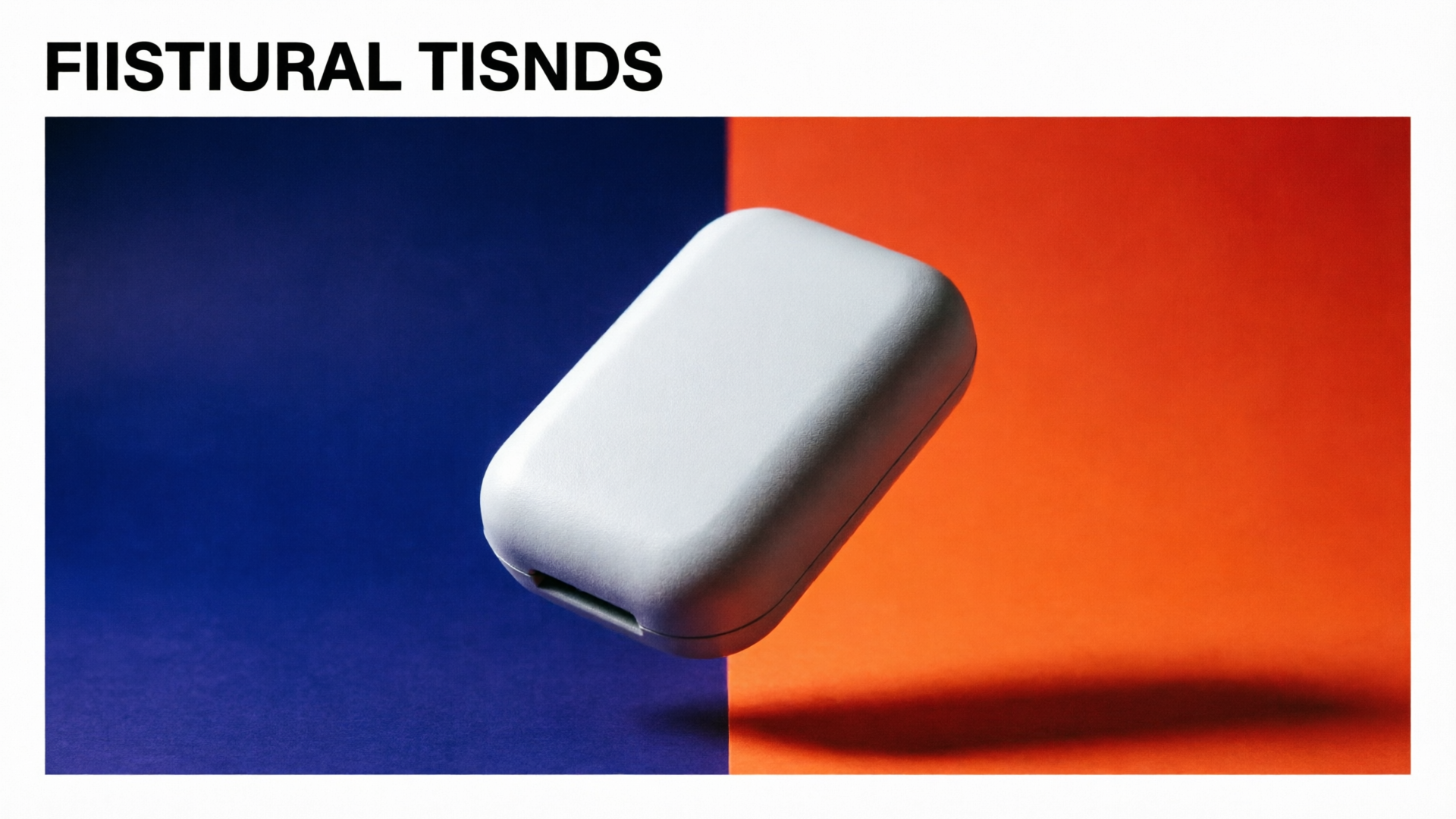
- Color contrast: high-contrast complementary palette vs muted brand tones. High contrast usually lifts visibility on small screens.
- Text treatment: no text, small caption, large one-line callout. Minimal readable text wins when it amplifies curiosity.
- Expression & emotion: surprised face vs confident grin vs neutral. Emotional cues change perceived intent and curiosity.
- Background context: blurred environment vs clean backdrop vs illustrative element (arrow/graphic).
- Framing & crop: tight 4:5 headshot vs 16:9 horizontal crop vs square variant for reuse.
Turn the axes into six distinct variants by changing 2–3 axes per image so each is a testable alternative instead of a single-pixel tweak. Example plan from one idea (episode: "How I Edited a Viral Clip"):
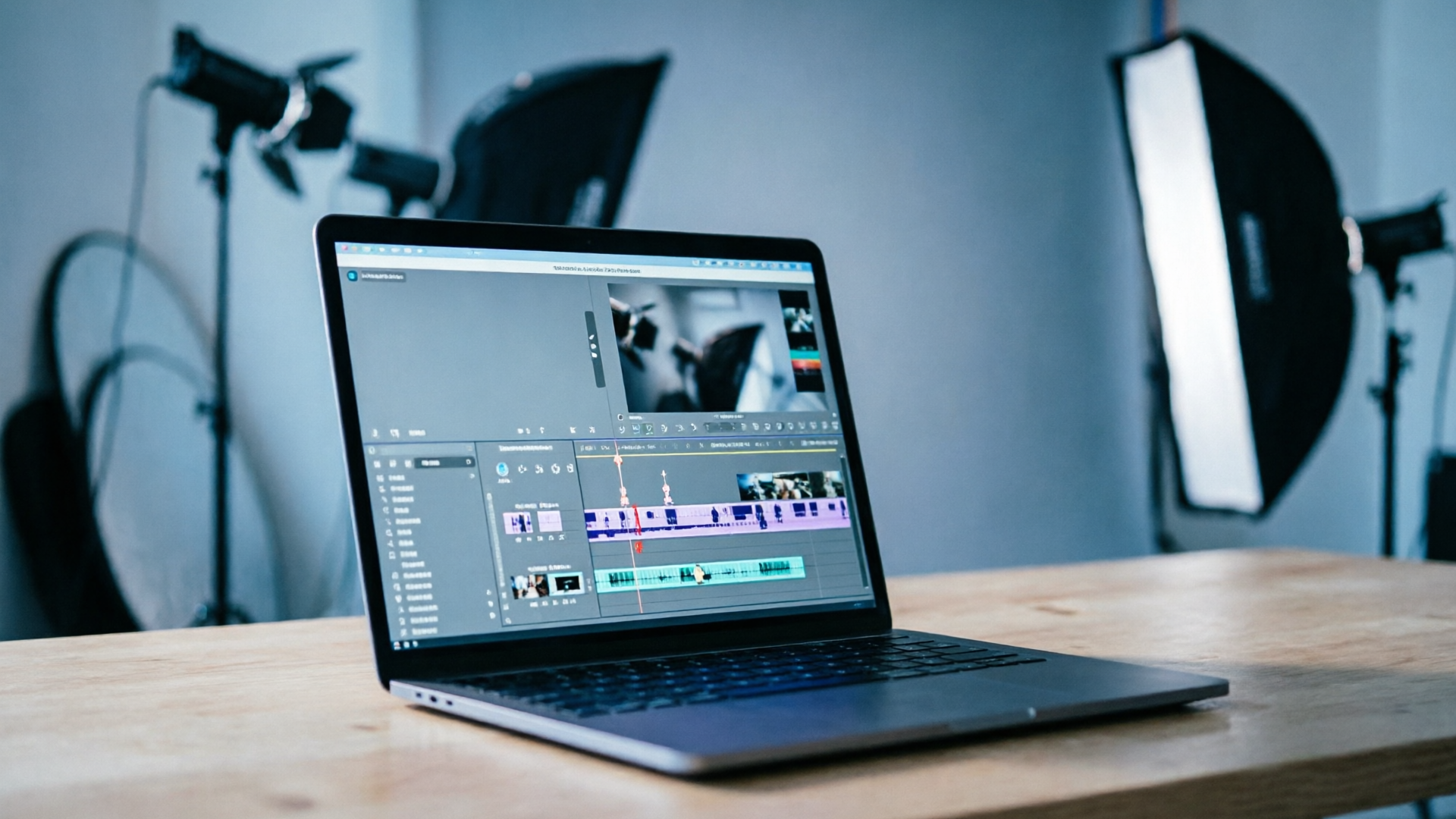
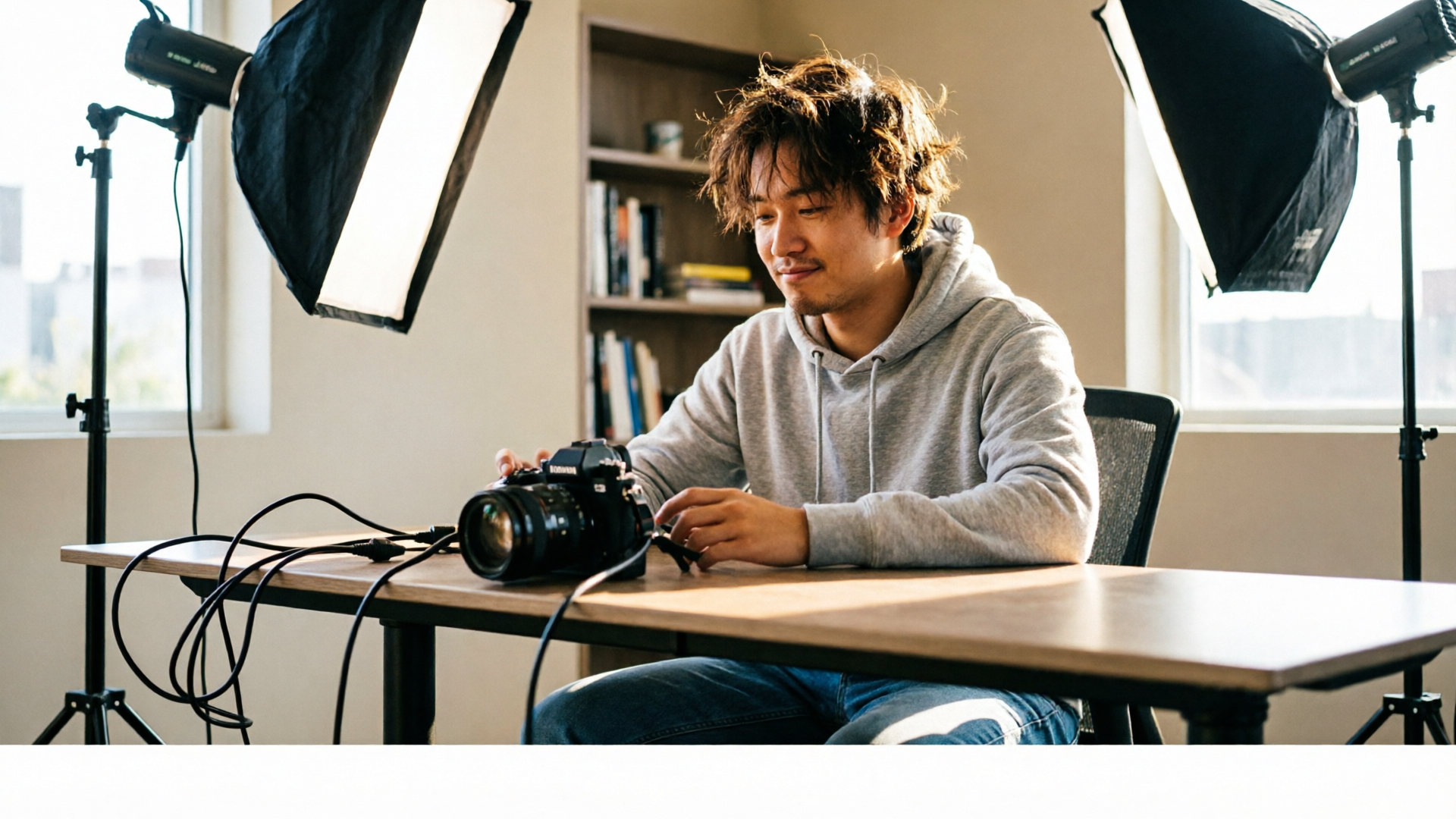
1) Close-up surprised face + high contrast + small caption 2) Product shot (editing timeline) + muted tones + no text 3) Mid-shot with arrow pointing to timeline + high contrast + short text 4) Tight headshot + confident smile + large one-line title 5) Stylized illustration of waveform + brand colors + no face 6) Clean background + candid behind-the-scenes shot + small caption
This checklist keeps variants intentional and ensures each image tests a hypothesis about what drives clicks.
Workflow: Generate thumbnail variants fast with PlayVideo.AI AI Image Generator
PlayVideo.AI AI Image Generator is purpose-built for this workflow: generate images from text prompts, edit and restyle uploaded photos in-place, output the aspect ratios platforms need, and save variations to your library so you can iterate. Use the generator to produce consistent, on-brand variants without rebuilding from scratch.
Practical 6-image walkthrough using PlayVideo.AI AI Image Generator:
1) Pick your master frame: upload a high-resolution still (a face shot or product photo) or start from a short prompt describing the scene. 2) Create a base prompt that includes subject, emotion, composition, and color palette. Example: "tight headshot of a mid-30s creator, surprised expression, warm studio key light, high contrast teal and orange palette, shallow depth of field, legible one-line caption area on right, cinematic 16:9". 3) Use the generator to produce the base image. Save it to the library and export in 16:9. 4) Variant generation: use the edit-and-restyle flow to adjust one axis per run. For a product shot variant, upload the same photo and prompt: "restyle to show editing timeline overlay, muted gray-blue tones, medium crop, minimal text area". The AI Image Generator's edit-in-place keeps the subject consistent while changing composition. 5) Output aspect ratios: request the generator to export the same prompt in 16:9, 4:5, and 1:1 in one pass so you have YouTube and ad-ready versions without recomposing. 6) Save each variant to a named folder in the library (see naming conventions in the checklist section).
Why this matters: the PlayVideo.AI AI Image Generator supports saving variations and producing multiple aspect ratios from the same prompt in one pass. That saves time and keeps visual language consistent across thumbnails, hero images, and ad sizes. If you plan to turn a winning thumbnail into a short promo video, the output can flow directly into the AI Video Generator as a starting frame, preserving your look and saving edit time (/create-video).
How to run lightweight A/B tests and interpret thumbnail performance signals
Not every creator can run perfectly powered A/B tests from a single upload. Use lightweight experiments that give directional signals and accumulate outcomes over time.
Design the test frame: choose 4–6 variants and rotate them across uploads or use YouTube’s native thumbnail testing where available. If your channel has limited impressions, run a multiple-upload holdout: publish the same episode concept across several uploads (different clips, episodes, or platforms) and switch thumbnails to gather aggregate impressions. TubeAnalytics and other creators recommend this approach for smaller channels.
Key metrics to track beyond raw CTR:
- Click-through rate (CTR) by variant: the primary signal.
- View velocity (views per hour in the first 24–72 hours): helps separate clicks that retain viewers.
- Watch time and audience retention: a high CTR that drops retention may signal a misleading packaging mismatch.
- Conversion events (subscribe, landing page clicks, or watch next) when thumbnails are used cross-channel.
Interpreting signals:
- Directional wins: a variant consistently +1–2 percentage points CTR across multiple uploads is worth prioritizing.
- Trade-offs: if variant A has higher CTR but lower watch time than B, consider using A for discovery placements (ads, social) and B as the default organic thumbnail.
- Statistical caution: small-sample swings are common; aggregate results across uploads or test windows rather than making one-off decisions.
Use external methodology for benchmark context: Hooksnap’s study offers CTR lift context and helps translate percentage lifts into view and revenue outcomes (https://www.hooksnap.io/blog/youtube-viral-thumbnail-data-study-2026). That single external reference helps ground your decision-making in published dataset outcomes.
Iterating on winners — when to edit, remix, or retire a thumbnail variant
A winning thumbnail is not immortal. Treat it like a product experiment: nurture winners, retire stale designs, and remix promising elements into new variants.
When to edit a winner:
- Small false positives: a variant shows steady CTR but needs a tweak to match brand colors or readability on mobile — edit-in-place using the PlayVideo.AI AI Image Generator to adjust color or text without starting over.
- Seasonal or topical updates: add event badges or updated captions for time-sensitive promos.
When to remix:
- Partial winners: if a variant’s composition and expression perform well but color or text underperform, remix the image by changing the color palette, cropping, or text weight. The generator’s restyle workflow makes this fast.
When to retire:
- Performance decay: a thumbnail that loses click lift over several months and reduces retention should be archived. Keep it in your library for reference, but stop using it in new promos.
A worked example: Variant A (tight headshot, surprised) lifts CTR by 1.8 points but shows a 10% lower average watch time. Remix by keeping the headshot but changing the background to a softer gradient and removing the large caption to reduce clickbait feel. Use PlayVideo.AI AI Image Generator to edit-in-place and export the new variant across 16:9 and 4:5 — you keep the core win (expression) while fixing the retention problem.
Cross-channel reuse: turning winning YouTube thumbnails into thumbnails, hero images, and ad creatives
One of the biggest efficiency wins from thumbnail testing is reuse. Winning imagery can and should be repurposed across landing pages, ads, and social posts — but that requires deliberate export and retargeting considerations.
Practical reuse steps:
- Export matched aspect ratios in one pass: produce 16:9 for YouTube, 4:5 or 9:16 for social, and 1:1 for ad platforms. PlayVideo.AI AI Image Generator outputs multiple aspect ratios from the same prompt so the look stays consistent.
- Tailor text and overlays per channel: keep the focal subject identical but tweak captions for platform context (shorter for Instagram, stronger CTA for paid ads).
- Use winners as hero frames on landing pages: a thumbnail that increases CTR usually converts better when used as the hero image because the visual promise is consistent across discover and conversion.
- Feed the image into video promos: import the winning thumbnail into the AI Video Generator to create short trailers or animated intros that preserve the same composition and color grade (/create-video).
Ad creative tip: create a small library of 4–6 variants per campaign and run rapid creative optimization for paid placements. Use the generator’s edit-in-place to produce ad-sized crops that keep the subject centered and text readable at small sizes. This reduces design overhead and keeps your creative test bed consistent across organic and paid channels.
Checklist & templates — prompts, naming conventions, and metrics to automate thumbnail experiments
Use a standard naming and prompt template to scale experiments and keep results analyzable.
Prompt template (fill the brackets):
"[subject], [age/identity], [expression], [composition], [lighting], [color palette], [caption area instructions], cinematic, legible at small sizes, 16:9—also export 4:5 & 1:1"
Example filled prompt:
"female creator mid-30s, surprised expression, tight headshot, warm key light, high contrast teal and orange palette, left caption area with 4 words max, cinematic, legible at small sizes, 16:9—also export 4:5 & 1:1"
Naming convention (folder/name variant):
- YYYYMMDDchannelepisode_variant
- Example: 20260605CityShowEp12close-surprisehc-teal
Metrics to log per variant:
- Impressions
- CTR
- First 24h views
- Watch time per view
- Retention (first minute)
- Conversions (subscribe, click-through)
Automation tips:
- Save prompts as presets in the PlayVideo.AI AI Image Generator and use the edit-in-place preset for color or text-only changes.
- Export multiple aspect ratios in one pass so assets are campaign-ready.
- Use a shared spreadsheet or lightweight analytics dashboard to aggregate variant performance across uploads; label each row with the naming convention above.
Follow this checklist and you’ll build a repeatable machine: generate tested thumbnails quickly, learn from directional signals, and scale the visual language that reliably increases CTR and downstream conversion. For creators ready to produce and iterate visually, the PlayVideo.AI AI Image Generator gives you the prompt-driven controls and export formats you need to ship faster and keep look-and-feel consistent across channels. For audio and motion extensions, consider pairing winning frames with the AI Music Generator for promos (/create-music) or turn them into short teasers with the AI Video Generator (/create-video).
Conclusion
Start by picking one recent video with a 4%–6% CTR baseline and generate six purposeful variants using the prompt and naming templates above. Use YouTube’s native test tools or a multiple-upload holdout to gather directional results, then remix the winner with PlayVideo.AI AI Image Generator’s edit-in-place flow for ad and hero exports. Open the AI Image Generator and spin up your first thumbnail variants to start compounding CTR lifts into real reach.