From Photo to Playable: Fast Image-to-Video AI Workflows for Creators
Learn how to convert single product photos into high-performing short videos using PlayVideo.AI AI Video Generator. Step-by-step workflows, batching, and distribution tips.
If you have product photos gathering dust, you’re sitting on the fastest path to high-performing short-form video. This guide shows how to use PlayVideo.AI AI Video Generator to turn a single still or a short brief into a polished 6–15s clip — no editing skill required. You’ll learn which images work best, prompt and brief tactics, a hands-on single-photo walkthrough, a batch-A/B testing workflow, and how to deploy those clips on landing pages and social. The primary keyword here is image to video AI, and PlayVideo.AI AI Video Generator is the tool that makes it real.
Why animating photos is the fastest way to scale short-form video creative
Short-form video is the de facto attention channel for customers researching products; platform trackers show rapid audience growth (TikTok exceeded 1.6 billion monthly active users by 2026) and marketers report heavy daily time spent in short feeds. That means a single short clip can outperform a still image across awareness, click-through, and conversions. Equally important: consumers want short video when evaluating purchases — “78% of consumers prefer short-form video when learning about products or services.”
For creators and small teams, the practical barrier to video is the time and cost of production. Animating existing product photos collapses that barrier. You don’t need new shoots, complicated edits, or motion-graphics pipelines; you need a tool that turns one photo and a short brief into a cinematic clip. PlayVideo.AI AI Video Generator is built for exactly that: it generates short-form AI videos from a text prompt, animates a single still image into motion, and renders outputs in vertical 9:16, square 1:1, and horizontal 16:9 formats so the same creative assets can be reused across TikTok/Reels/Shorts and landing pages.
Why this scales faster than conventional video:
- Minimal input: a single high-quality photo plus a one-line prompt replaces multi-shot editing sessions.
- Faster iteration: you can keep iterating on the same prompt with credits to test hooks and pacing.
- Repurposing: one source image produces multiple aspect ratios without reshoots.
These advantages turn image-to-video AI into a production multiplier for indie creators, marketers shipping ads without a team, and founders who need landing-page demo loops immediately. The result is more experiments, faster learning, and creative economies that favor winners.
Choosing the right photo and brief: image prep and prompt design for reliable results
Good outputs start with good inputs. Image-to-video tools are forgiving, but you’ll get the cleanest motion and fewest artifacts when you follow basic photo prep and prompt rules.
Image prep checklist
- Resolution: start with images around 1024×1024 px or larger. Lower-resolution source files are more likely to produce motion artifacts and softer details; industry guides recommend ~1024px minimum for best fidelity. If your photo is a wide product shot, crop or provide a centered version for framed subjects.
- Clean background: neutral backgrounds or isolated product shots keep the AI focused on subject motion (floating, subtle parallax, turntable spin). Busy backgrounds can introduce unwanted warp or subject separation issues.
- On-model subject: choose photos where the product is well-lit, in-focus, and unobstructed. The PlayVideo.AI image-to-video capability keeps the subject on-model, but the input still determines styling.
Brief and prompt design
- One-liner clarity: give a concise action and mood (e.g., “6s cinematic product loop: slow 3D parallax, soft vignette, warm film grain, crisp highlight on logo”). PlayVideo.AI AI Video Generator accepts text prompts or a still image and converts them into a cinematic clip — keep directions short and specific.
- Tell it the shot: indicate camera moves (push-in, pan, rotate), timing (6–8s), and focal points (logo reveal, button zoom). Example: “8s vertical: push-in on product, subtle rotation to right, shimmer on metal, endpoint close-up on texture.”
- Aspect and delivery: include desired aspect ratio (9:16 for TikTok/Reels) and use-case (story hook, landing demo).
Prompt examples that work
- Hook-focused: “6s vertical hook: quick rotate, highlight label, bold contrast, upbeat energy.”
- Demo loop: “10s horizontal demo loop: slow push-in, product detail close-up at 8s, cinematic depth.”
Following these prep and prompt rules reduces rework and helps PlayVideo.AI preserve subject integrity while adding motion. If you need edits to the source photo (color correction, background cleanup), consider the PlayVideo.AI AI Image Generator to make quick adjustments before generating video (/create-image).
Hands-on workflow: Turn a single product photo into a 6–15s demo loop (step-by-step)
This walkthrough shows a minimal, repeatable process that yields a landing-page demo loop in under 20 minutes.
Inputs you need
- One high-resolution product photo (≥1024px)
- Short one-line prompt describing motion, mood, and aspect
- Optional: brand color notes or logo placement
Step-by-step using PlayVideo.AI AI Video Generator
- Upload the still image or paste your one-line brief into the AI Video Generator (/create-video). PlayVideo.AI converts either a text prompt or a still image into short cinematic AI video, so either path works.
- Select aspect ratio: pick 16:9 for a landing demo or 9:16 to repurpose for social. The generator natively outputs 9:16, 1:1, and 16:9 from the same prompt, so plan for multi-format delivery.
- Enter a concise prompt: e.g., “10s cinematic demo loop: slow push-in, subtle 3D parallax, textured spotlight on product label, soft vignette, no copy overlays.” Keep the instruction focused on camera motion and mood.
- Choose pacing and style presets if available — faster renders usually default to a clean cinematic look. PlayVideo.AI renders short clips in minutes, not hours, so you should see a draft quickly.
- Review and iterate: if the subject looks off-model or motion feels weird, revise the prompt (e.g., “less rotation, keep center framing”) and re-run the prompt. PlayVideo.AI lets you keep iterating on the same prompt with credits, which speeds A/B cycles.
- Export multiple formats: render 16:9 for the landing page hero, 1:1 for Instagram feed, and 9:16 for Reels/TikTok. Use the same prompt to keep visual parity across placements.
Quick styling tips
- Motion subtlety: product demos often benefit from restrained moves — small parallax, slow push-in, and a single reveal point. Over-dynamic motion can make the product look unnatural.
- Lighting anchors: mention "soft rim light" or "specular highlight" in your prompt to help the model preserve material cues (metal vs. fabric).
- Keep a reference: if you have a moodboard, attach an edited image version via the PlayVideo.AI image editor or the AI Image Generator (/create-image) to lock color and texture.
Worked example (concise)
- Photo: clean, 2048×2048 product shot of a stainless water bottle on white.
- Prompt: “8s vertical demo: slow 10% push-in, 15° right rotation, shimmer on cap, crisp shadow, close-up on logo at 6s.”
- Result path: Upload photo → choose 9:16 → paste prompt → render → review → iterate once to reduce rotation → export 9:16 and 16:9. In practice this takes minutes, and you end with a polished clip for social and a cropped 16:9 for the landing page.
This workflow minimizes dependencies on editors and creates a reliable demo loop you can A/B test.
Hands-on workflow: Batch-create TikTok/Reels hooks from 10 product images and A/B test variations
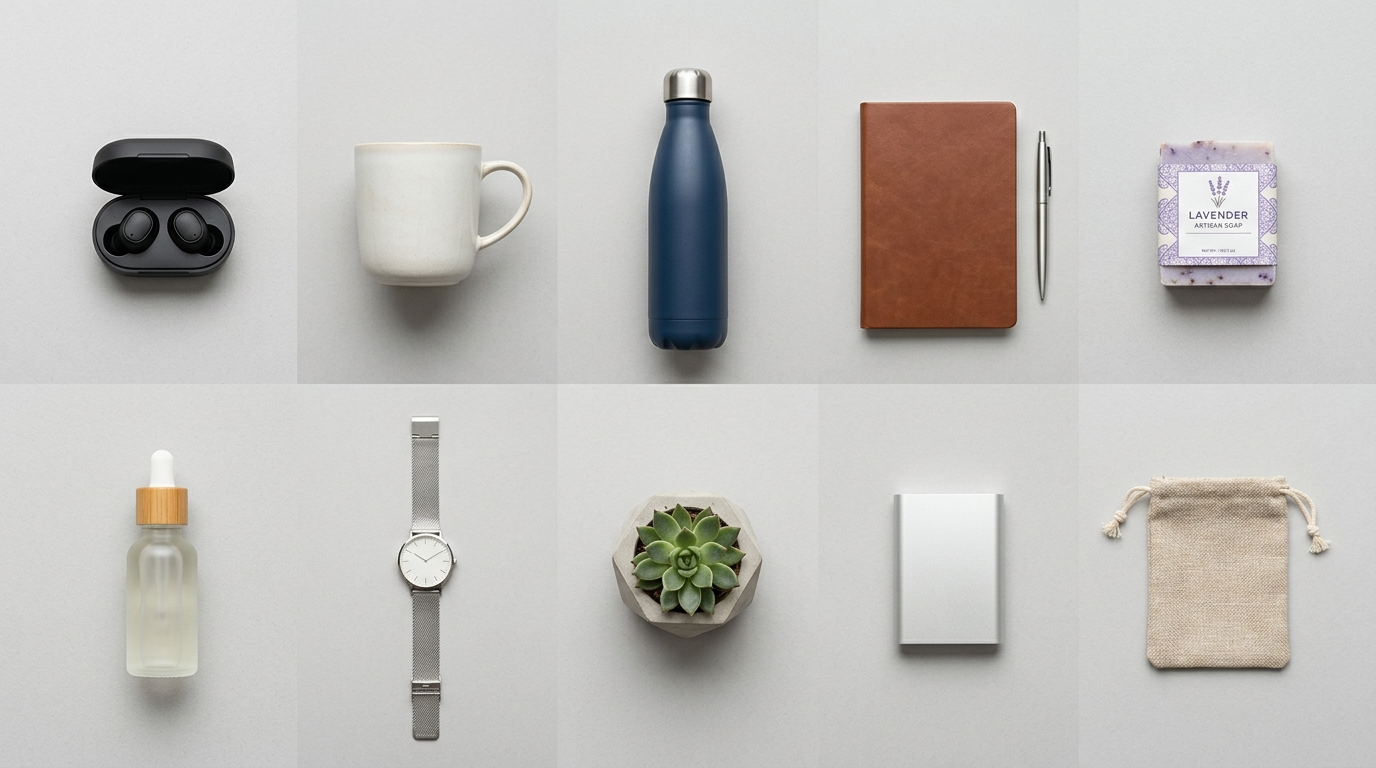
Scaling means repeatable batch processes. A single-photo workflow is great for one product, but growth teams need dozens of hooks quickly. The batch workflow below turns 10 product images into multiple short hooks ready for A/B testing.
Preparation
- Gather 10 product images (1024px+), ideally isolated shots or consistent backgrounds.
- Write 3 short prompt templates that vary the hook: “feature highlight,” “lifestyle mood,” and “surprise reveal.” Each template runs across all images to create controlled variations.
Prompt templates (examples)
- Feature highlight: “6s vertical hook: quick rotate, crisp label zoom, bright specular highlight, fast 0.6s reveal.”
- Lifestyle mood: “8s vertical mood: gentle parallax, warm film grain, relaxed tempo, product in context.”
- Surprise reveal: “5s vertical punch: quick flash, jump cut to close-up, bold vignette.”
Batch steps using PlayVideo.AI AI Video Generator
- Create a spreadsheet with image names and the three prompt templates.
- Upload images in a batch to PlayVideo.AI AI Video Generator (/create-video) or use the bulk-upload input if the platform allows.
- Apply each prompt template across all images to produce 30 clips (10 images × 3 templates). PlayVideo.AI can animate a still into motion from a text prompt; batching the prompts gives controlled variation.
- Export clips in native 9:16 for immediate upload to TikTok and Reels.
- Label outputs with metadata: prompt type, image ID, and expected hook (e.g., "featurehighlightimg03"). This metadata is crucial for measuring which creative element wins.
A/B testing strategy
- Run small-budget tests: launch each hook variant to a small audience segment for 24–48 hours and measure engagement metrics (view-through, CTR, add-to-cart).
- Keep variables minimal: test one creative difference at a time (motion style, copy overlay, or music).
- Iterate fast: since PlayVideo.AI renders in minutes and supports repeated iterations, replace losing variants quickly.
Audio and finishing
- Add a short loop or audio cue from PlayVideo.AI AI Music Generator (/create-music) or pick a stock audio bed. Short music loops increase retention and brand recognition.
- For narration or callouts, use PlayVideo.AI AI Voices for consistent voiceovers across variants (/ai-voices).
This batch approach gives growth teams a steady stream of testable hooks and a data-backed way to scale creative. Coupled with fast renders and repeatable prompts, you turn 10 images into dozens of learnings in a single campaign sprint.
Practical next steps: Integrating animated photo clips into landing pages, ads, and Shorts distribution
Once you have a set of animated clips, the work shifts to placement and performance optimization. Animated photo clips are versatile — they serve as landing-page hero loops, social hooks, and animated B-roll for product explainers.
Landing pages
- Hero demo loop: replace the static hero image with a muted 6–10s loop in 16:9 that starts on page load. A subtle push-in or logo reveal gives perceived motion without distracting the user.
- Conversion overlays: use the loop behind headline copy and a strong CTA. Keep the loop muted and ensure the focal point aligns with key conversion elements (product, price, CTA).
Paid social and organic
- Hook-first: 9:16 clips produced for TikTok and Reels should front-load the visual hook in the first 1–2 seconds. Use the play-tested hooks from your batch tests and promote winners to wider audiences.
- Platform specs: export native 9:16 for Reels/TikTok and keep critical visual information within safe frames.
YouTube Shorts and repurposing
- Repurpose a 9:16 winner as YouTube Shorts by trimming to 15–30s and adding a strong narrative caption. Shorts favor quick, repeatable visual patterns, and a product loop with an early reveal fits that behavior.
Measurement and iteration
- Compare performance across placements: a clip that converts on a landing page may fail on paid social and vice versa. Track CTR, add-to-cart, and conversion rates by clip ID.
- Rapid replace: because PlayVideo.AI renders clips quickly and allows iterating on the same prompt with credits, swap underperforming creatives without a production bottleneck.
When to add finishing layers
- If you need custom captions, logos, or complex copy animations, export the PlayVideo.AI clip as a base asset and do final compositing in your editor of choice. Often, small overlays or a short text animation are enough to localize or tailor messaging.
If you want cohesive brand visuals across stills and clips, use the PlayVideo.AI AI Image Generator to create or refine image assets before animating (/create-image). For audio-first experiments, generate short tracks or stems with PlayVideo.AI AI Music Generator (/create-music) and swap beds to measure the impact of sound on retention. These supporting tools shorten the path from idea to a campaign-ready asset and keep everything on-brand.
Frequently Asked Questions
How large does my photo need to be for best results?
Start with at least ~1024×1024 pixels; higher-resolution images (2048px+) produce cleaner motion and fewer artifacts.
Can I keep iterating on the same prompt if the first render isn’t perfect?
Yes. PlayVideo.AI AI Video Generator lets you iterate on the same prompt with credits so you can refine motion, timing, and framing quickly.
Which aspect ratio should I render first?
Render the version that matches your highest-priority placement: 9:16 for TikTok/Reels/Shorts, 16:9 for landing pages, and 1:1 for Instagram feed—export all three when possible.
Conclusion
Animated photo clips turn dormant assets into testable, high-impact video fast. For creators and marketers who need repeatable short-form output, PlayVideo.AI AI Video Generator removes the production bottleneck: drop in a still or a one-line brief, pick your aspect, iterate until it lands, and export multi-format clips in minutes. Start by batch-testing three short prompts across a set of hero photos, measure which hook wins, then scale winners across paid social and your landing page. Open the AI Video Generator, drop in a reference image or brief, and ship a clip during your next break.