How to generate mood-matched AI music for tempo-perfect video scoring
Practical guide to creating tempo- and mood-matched, copyright-safe background music with AI. Workflows, prompts, licensing checks, and PlayVideo.AI AI Music Generator steps.
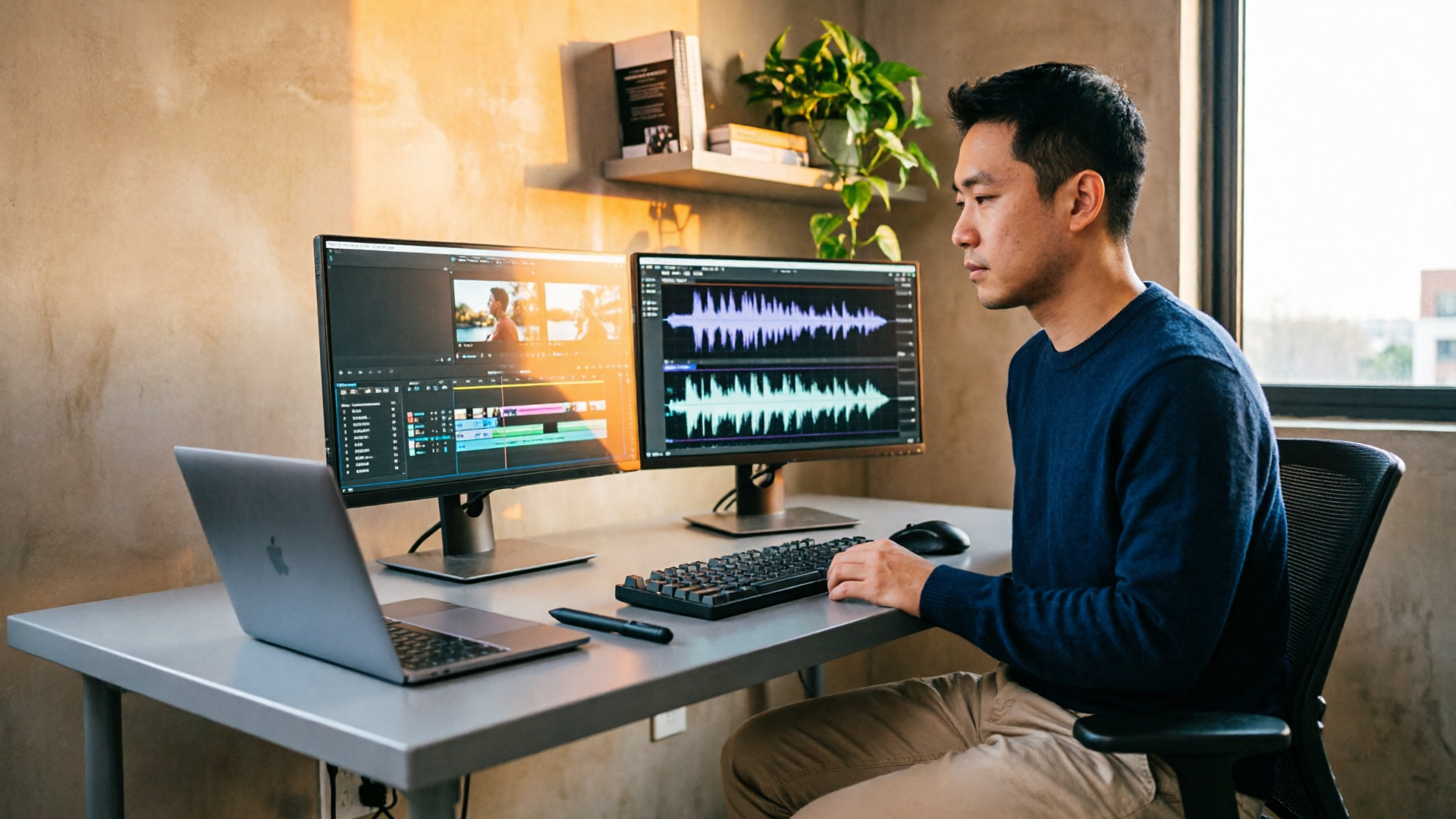
Matching a video's pacing and emotional tone with the right music is one of the fastest ways to level up your edits. In this guide you'll learn why tempo, energy, and mood matter for viewer engagement, how modern models generate music from visuals, and practical workflows to create tempo- and mood-matched, copyright-safe instrumental tracks. Throughout the piece I'll show concrete steps using the PlayVideo.AI AI Music Generator so you can produce ready-to-drop, copyright-free stems for your next project.
Why tempo, energy and mood matter: the science behind matching music to moving images
Tempo and energy are not just aesthetic choices — they shape perception. When music tempo and on-screen motion align, viewers perceive motion as more natural, edits feel tighter, and emotional cues land faster. Editors and sound designers routinely match BPM to cut rate and camera movement because rhythm sets expectations: a faster tempo supports quick cuts and higher energy; a slower tempo supports long takes and reflective moods.
Research in video-to-music generation reinforces this intuition. Recent diffusion-based frameworks (for example Diff-BGM) explicitly model dynamic visual features to influence rhythm while using semantic features to shape melody and atmosphere. These systems show that visual conditioning can reliably control beat alignment and the overall mood of a generated track — an important proof point for creators who want their score to follow the picture rather than fight it. See the Diff-BGM paper for technical detail: https://arxiv.org/abs/2405.11913.
Practical guides and editor playbooks also underline a repeatable rule: match tempo to cuts and camera motion. That means measuring your sequence’s average cut-per-minute or estimating perceived motion, then selecting a BPM and energy level that amplify the edit. Getting this right at the start saves hours in the mix and prevents the viewer’s attention from slipping away.
Common tempo/mood mistakes creators make (and how they sabotage viewer engagement)
Mistake 1 — Picking music because it's "good" rather than "right": A high-production track can still be wrong for a clip if its tempo and energy fight your edit. A triumphant, high-BPM piece will feel off if the video is a slow product demo with long pans.
Mistake 2 — Ignoring cut pacing: Editors often choose mood first and tempo second. If you don't match beats to cuts or transients, the music will feel untethered. That creates a subtle cognitive dissonance — viewers notice that something is off even if they can’t name it.
Mistake 3 — Over-reliance on library loops: Many creators loop a licensed track and expect it to fit; tempo drift, mismatched stems, and locked-in arrangements limit flexibility. If you need different sections or exact BPM matching, a pre-made loop may slow you down.
Mistake 4 — Assuming copyright is solved: Using a track from a free or “AI” source without checking sync/commercial rights is a live risk. YouTube’s Content ID processed an enormous volume of claims in 2024; creators should not assume immunity just because a track was generated. Always confirm perpetual sync and commercial use rights.
Avoiding these mistakes starts with a deliberate brief — pick tempo, energy, and arrangement goals up front. That lets you use AI tools to generate tracks tailored to both mood and edit, rather than shoehorning an existing song into the timeline.
How modern AI models generate music for videos: what creators should know (diffusion, beat/tempo control, visual-conditioning)
Contemporary music-generation models use several technical levers creators should understand.
- Diffusion models and conditioning: Diffusion-based systems (cited in papers like Diff-BGM) progressively refine audio from noise while conditioning on inputs — visual features, semantic tags, or tempo metadata. Conditioning lets the model control rhythm and atmosphere separately, which is why diffusion frameworks can produce tracks that match both beat alignment and mood.
- Visual-conditioning and event alignment: Systems like SONIQUE demonstrated converting visual descriptions into musical tags and using conditional diffusion to align musical events with on-screen actions. This means you can supply a visual cue or a scene description and get a track that follows key moments rather than an unrelated background bed.
- Explicit beat and tempo control: The best practical tools expose BPM and energy controls so creators can lock tempo to their edit. Academic systems can automatically align beats to action, but many consumer interfaces simply offer tempo/beat snapping and exportable stems for manual alignment.
For creators, the takeaway is simple: prefer tools that let you specify tempo, mood, and stems. That combination allows reliable alignment to cuts and gives the flexibility to edit sections in a DAW or NLE. If you want to read the underlying research, the Diff-BGM paper offers a concise technical foundation: https://arxiv.org/abs/2405.11913.
Choosing the right brief: writing a precise music prompt for mood, BPM, genre and length
A precise brief produces repeatable results. Treat your music prompt like a shot list for sound.
Start with these components:
- Mood and adjectives: three concise descriptors (for example: warm, hopeful, intimate).
- Tempo/BPM target: exact number or range (e.g., 92–96 BPM for steady mid-tempo; 140 BPM for energetic cuts).
- Genre and instrumentation: one or two items (ambient pad + piano, lo-fi beat with electric bass, synthwave drums + arps).
- Length and structure: total seconds and desired sections (e.g., 0:00–0:10 intro, 0:10–0:50 verse loop, 0:50–1:00 outro riser).
- Mix needs: instrumental-only / stem exports / loopable motif.
Example prompt you could paste into an AI music tool: “Instrumental, warm and hopeful, 95 BPM, 70–90s indie-pop mood. Piano arpeggio, soft electric bass, brushed drums, 75s length with a 10s intro, 50s loopable core, and a 15s fade. Export as stems and a full mix.”
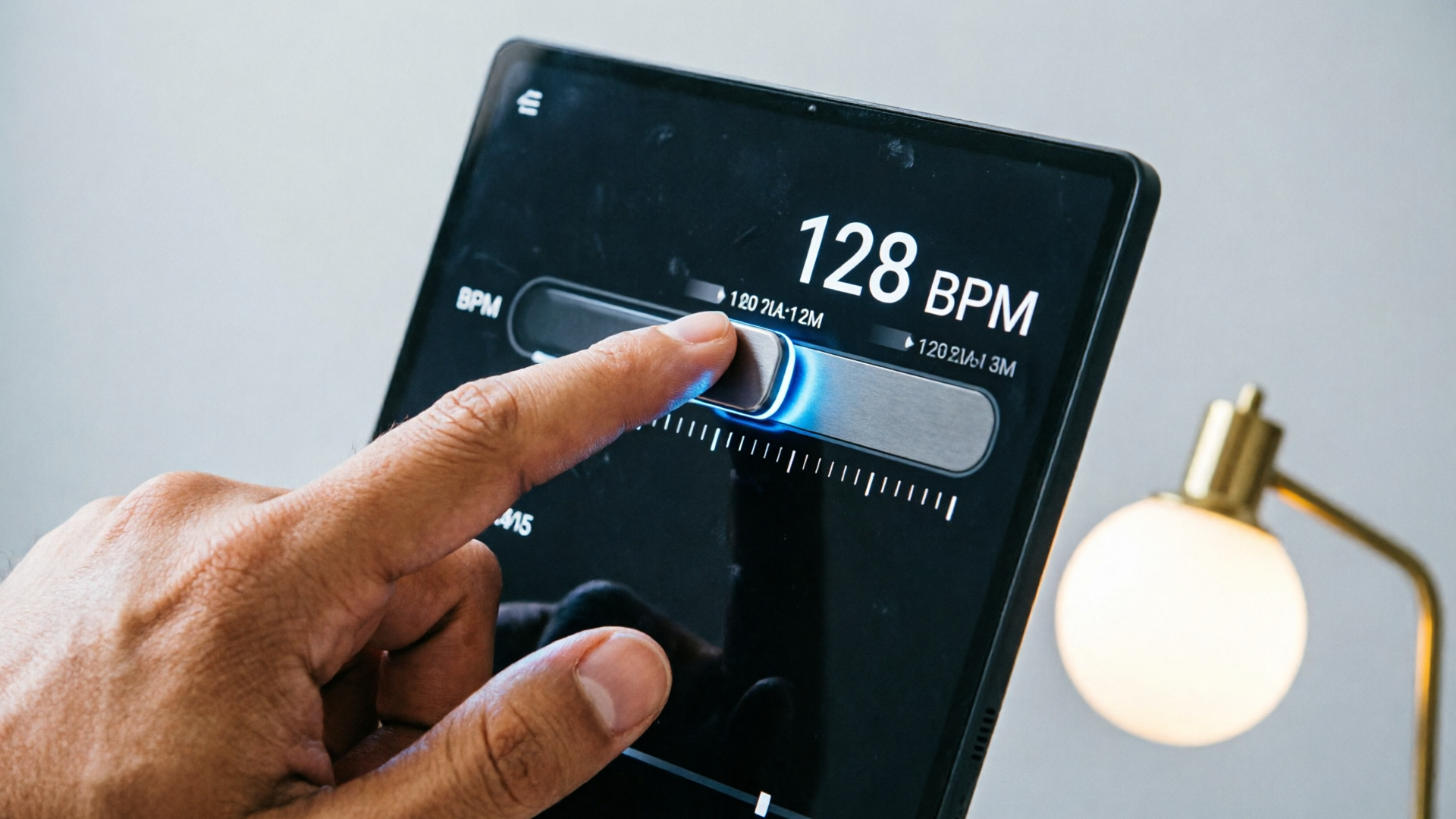
Writing the brief this way makes tempo and mood first-class citizens of the creative decision. When using the PlayVideo.AI AI Music Generator you can paste or type a prompt like this, set the BPM slider, select instrumental-only, and request stems for precise editing.
Workflow #1 — From clip to score: generate a tempo-matched instrumental for a 60–90s vlog sequence
This walkthrough converts a 60–90s vlog segment into a tempo-matched, copyright-safe background track using the PlayVideo.AI AI Music Generator.
Step 1 — Analyze the clip: Scrub the clip and note average shot length and camera motion. If cuts are frequent (about 3–4 cuts per 10 seconds), you’ll want a tempo in the 120–140 BPM range; if cuts are slow and camera pans, target 80–100 BPM.
Step 2 — Create the brief: Write a prompt that includes mood, BPM, instrument palette, and structure. Example: “Bright, conversational, 96 BPM, upbeat indie-folk instrumental. Acoustic guitar strums, upright bass, light brushes on drums. Length 80s, with loopable 40s core and exported stems.”
Step 3 — Use PlayVideo.AI AI Music Generator:
- Open the AI Music Generator and paste the brief.
- Set tempo to 96 BPM and choose “instrumental” with stems enabled.
- Choose a style preset close to indie-folk and generate.
Step 4 — Review and refine: Play the generated mix against the clip. If the downbeats don’t align with cuts, either adjust BPM by small increments in the generator or tempo-map the track in your editor. Because the PlayVideo.AI AI Music Generator exports stems and lets you guide tempo and mood, a second quick generation can fix phrasing or instrumentation.
Step 5 — Finalize in the NLE: Import stems, set project BPM to match the generated track, and nudge edits to align transient hits. Add a short riser or silence where you need dramatic contrast.
This workflow gets you a tailored, copyright-safe instrumental scored to your edit in under an hour for most short projects. If you need visuals to match or a thumbnail image for the upload, pair the result with assets from the AI Image Generator to keep a consistent brand look (see the AI Image Generator).

Workflow #2 — Create a looped theme or channel intro: crafting short, reusable motifs and consistent stems
Channel intros and recurring themes need consistency and brevity. The goal is to make a motif that can be shortened, looped, or spliced across episodes without sounding stale.
Step 1 — Define the motif: Decide on a 4–8 second hook that captures your brand’s mood. Use one or two lead instruments so the motif reads even at low bitrates or small speaker sizes.
Step 2 — Set tempo and bar structure: For intros, choose a tempo that works across your content. A common approach: 100–110 BPM for modern creators — fast enough to feel lively, slow enough to be readable. Lock the motif to a 4-bar loop so it’s easy to repeat and sync.
Step 3 — Use PlayVideo.AI AI Music Generator to create variants:
- Prompt: “8s hook at 105 BPM, bright electronic pluck lead, punchy kick, warm pad bed; export loopable full mix plus stems and a version with half-time drums.”
- Generate 3 variants with small instrumentation swaps (plucked synth, clean electric guitar, muted trumpet) so you can rotate intros without losing brand coherence.
Step 4 — Produce stems and a stembed: Request stems for lead, percussion, bass, and pad. Keep a ‘stembed’ — a single stem mix of rhythm elements that you can layer under different leads.
Step 5 — Implement and scale: In your editor, create a short intro template that automatically pulls the lead stem and fades the stembed under the first frame. Because PlayVideo.AI outputs stems and consistent BPM control, swapping leads or stretching loops is simple and keeps channel identity intact.
This approach reduces friction for batch production and ensures your intro music never conflicts with voiceover — if you need narration, consider pairing the motif with the AI Voices feature to test readthroughs before finalizing.
Copyright and reuse: verifying commercial rights and avoiding later Content ID problems
Generating music quickly is only half the battle; safe reuse is the other half. There’s growing industry friction: YouTube’s Content ID ecosystem processed billions of claims in 2024, and creators have reported strikes from re-used or unclearly licensed material. That makes licensing verification non-negotiable.
Checklist for safe publishing:
- Confirm commercial and sync rights: The generator must explicitly grant perpetual sync and commercial usage for generated tracks. Tools that hide terms or offer only non-commercial licenses are risky for monetized channels.
- Request stems and a full mix: Having stems helps you prove originality (and lets you re-edit rather than republish identical audio assets).
- Keep generation metadata: Retain prompts, timestamps, and export receipts in case of disputes.
- Prefer platforms with clear, written policies: Many free or novelty generators omit clear commercial licensing; the safest path is a generator that documents perpetual sync and commercial rights.
PlayVideo.AI AI Music Generator is built around these needs: it produces original tracks with style, tempo, and mood controls and exports usable stems. That means you can both edit the music to your picture and publish with confidence, provided you keep the generator’s license records with your project files. For broader context on how music-to-video disputes play out, industry reporting highlights the scale of Content ID claims and the importance of documented licensing.
Mixing and editing tips after generation: tempo-mapping, loudness, stems, and transitions
After you generate a track, the edit/mix phase polishes the score to the picture.
Tempo-mapping and beat alignment:
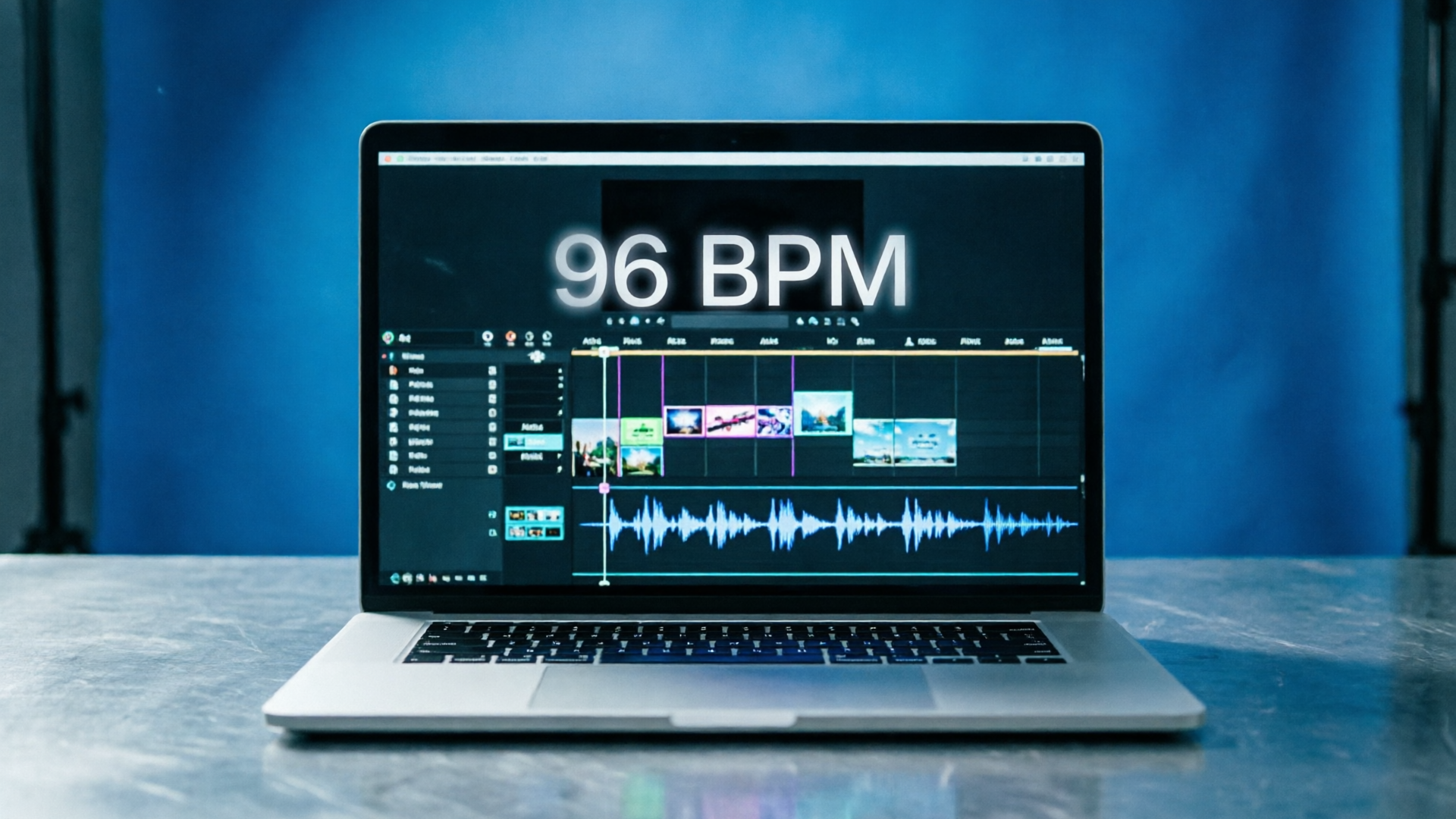
- If beats are off by a fraction, use tempo-mapping in your DAW or NLE to nudge transients to cuts. Some generated tracks will line up perfectly if you locked the BPM; others need micro-adjustment.
Stems and balancing:
- Use stems to lower or remove elements that conflict with dialogue (pads or low-frequency bass). Stems also let you create alternate versions for different platforms: reduced low-end for mobile, fuller mix for long-form.
Loudness and LUFS:
- Set your final mix to target loudness depending on the destination (e.g., -14 LUFS for YouTube long-form, -16 to -18 LUFS for social short form). Use gentle multiband compression on master bus if the track feels peaky.
Transitions and loops:
- For seamless loops, crossfade the loop ends or generate a looped edit from the generator. When making a rising transition, automate low-pass filters or volume rises rather than abrupt cuts.
Quick checklist for final delivery:
- Export stems and a full mix.
- Create a dialogue-safe version if your project includes talking heads.
- Normalize to destination LUFS, then deliver WAV or high-bitrate MP3 as required.
These editing steps are faster when your generator provides stems and tempo control — features the PlayVideo.AI AI Music Generator explicitly supports — so you spend less time recreating the wheel and more time dialing the fine-grain feel.
Why PlayVideo.AI AI Music Generator is the logical next step for creators needing copyright-free, mood- and tempo-matched tracks
If you want a practical way to produce tempo- and mood-matched background music that’s ready to drop into timelines, the PlayVideo.AI AI Music Generator is designed for that exact use case. It generates original songs and instrumentals from a text prompt, lets you guide style, tempo, and mood, and exports tracks and stems that remove library licensing headaches.
Concrete strengths that matter in daily workflows:
- Direct tempo control: set BPM to match cut pacing or camera motion so the generated track aligns with your edit from the start.
- Mood and style guidance: describe the emotional tone and instrument palette in the prompt and the generator responds, producing tracks that support rather than fight your visual storytelling.
- Stems and export-ready mixes: export separate stems for lead, rhythm, bass, and ambiances so you can mix around dialogue and create alternative versions without regenerating audio.
Short worked example (mini walkthrough):
- Open PlayVideo.AI AI Music Generator (/create-music) and paste: “Warm, optimistic, 96 BPM, instrumental indie-folk — acoustic guitar arpeggio, soft upright bass, brushed drums. 80s length with a 40s loop core. Export stems.”
- Set BPM to 96, select instrumental-only, and choose the ‘indie’ style preset.
- Generate and audition. If a transient needs moving by a beat, export stems and tempo-map the percussion in your DAW.
That mini-process demonstrates how the generator’s tempo and stem features turn a short brief into a publishable track in under an hour. For creators producing video and image assets in the same workflow, consider pairing the music with thumbnail art or scene visuals from the AI Image Generator (/create-image) and using the AI Video Generator (/create-video) for quick visual tests.
Frequently Asked Questions
Can I set an exact BPM in the PlayVideo.AI AI Music Generator?
Yes — the generator exposes tempo controls so you can target a specific BPM to match cuts or camera motion.
Will tracks from the generator be flagged by Content ID?
No tool can guarantee zero disputes, but PlayVideo.AI AI Music Generator provides original tracks and clear export metadata plus licensing terms that grant commercial and sync rights to reduce the risk of Content ID matches.
Can I get stems for editing dialogue-heavy videos?
Yes — request stems on export. Separate stems let you duck or remove elements that conflict with voiceover and create dialogue-safe mixes.
Conclusion
Practical scoring is about decisions you can repeat: measure your tempo needs, write a focused brief, and use a tool that exposes tempo, mood, and stems. The PlayVideo.AI AI Music Generator gives you that control — original instrumental tracks, tempo guidance, and exportable stems so you can finish edits faster and publish with fewer licensing questions. Open the AI Music Generator and generate a tempo-matched track for your next video in minutes.