From Photo to Scroll‑Stopper: Build 9:16 Product Teasers from a Single Image
Turn one product photo into high-converting 9:16 product teasers with image-to-video AI. Workflows, templates, and measurement tips using PlayVideo.AI.
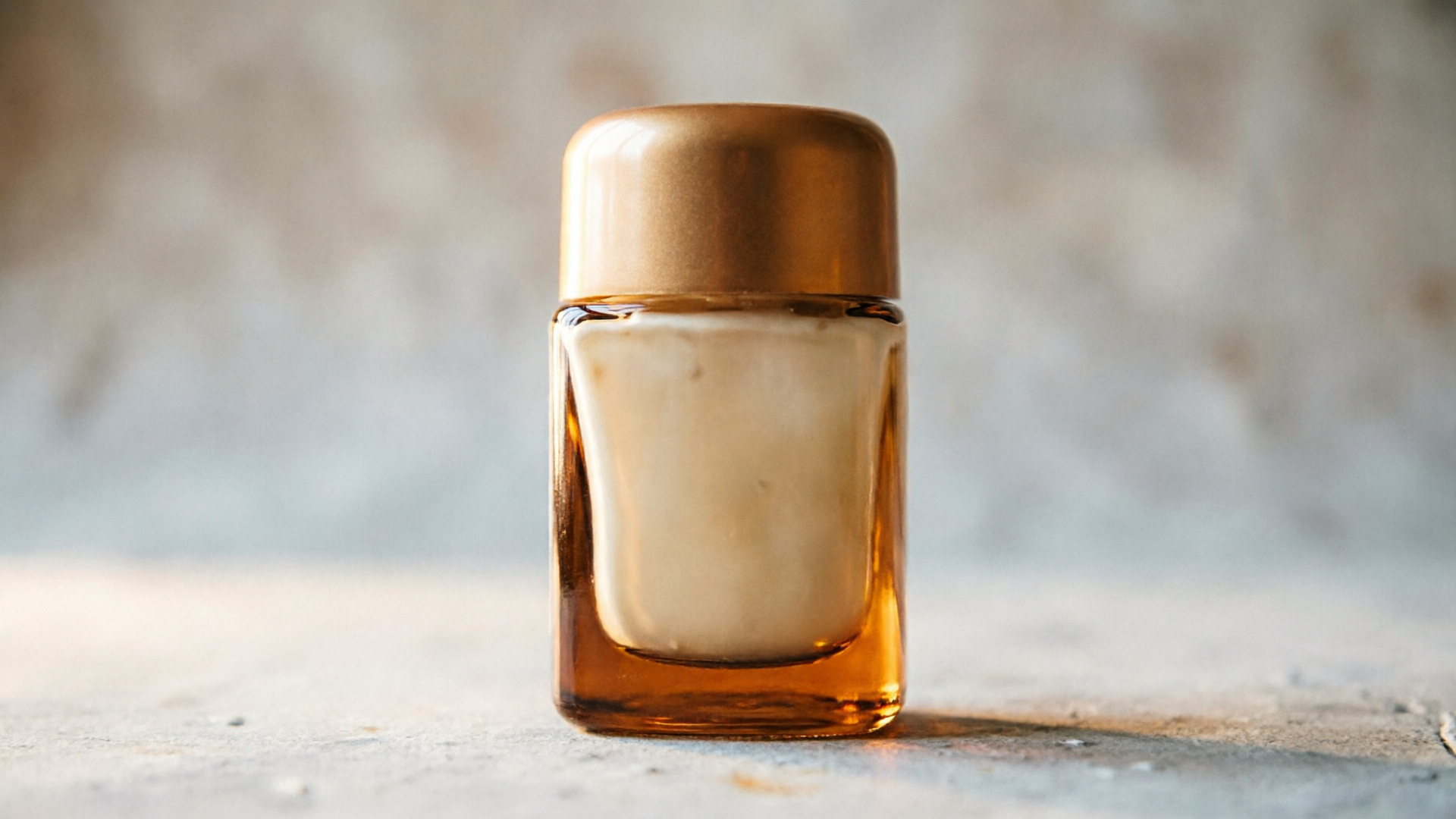
The founder checks the analytics: clicks are fine, but the landing-page heatmap shows people scrolling past the hero image. You have one brilliant product shot — now imagine turning that single photo into a thumb‑stopping vertical loop that halts the scroll and drives conversions. That’s the practical promise of image to video product teaser workflows, and PlayVideo.AI AI Video Generator is designed to make it happen in minutes.
This article walks you from why 9:16 matters for mobile, through the technical limits of current image-to-video models, to two hands-on workflows: a 15–30s TikTok/Reel loop and a landing-page demo loop. You’ll get concrete safe‑zone rules, a mini walk‑through using PlayVideo.AI AI Video Generator, creative templates, measurement benchmarks, and the common pitfalls to avoid. By the end you’ll know how to convert a single product photo into repeatable vertical creatives that increase engagement and conversions, and exactly how to do it with PlayVideo.AI AI Video Generator.
Why vertical (9:16) product videos outperform static images — the mobile-first case for image-to-video
Mobile is where people discover products. The 9:16 aspect ratio (1080×1920) is the de facto standard for TikTok, Instagram Reels and YouTube Shorts; using that native frame prevents letterboxing and avoids UI overlays that crop or hide important edges. Platform guides recommend 1080×1920 for best results, and creator playbooks back it up: native vertical content gets better distribution in short‑form shelves and avoids visual clutter from platform UI.
Beyond distribution, vertical video often converts better on mobile landing pages. Industry benchmarks estimate that vertical short-form video can increase mobile conversions by roughly 10–20% on landing pages — a meaningful lift when a small percentage change scales across traffic. That lift comes from three practical effects: motion attracts the eye, short pacing quickly communicates value, and the fullscreen vertical canvas keeps the product centered in the user’s attention.
For ecommerce marketers and solo founders who only have one hero shot, image-to-video AI removes the bottleneck of a full production. Instead of scheduling a reshoot or hiring motion artists, you can animate the still image into a 9:16 clip that meets platform specs and preserves the product on-model. When your goal is rapid iteration and high-volume ad testing, starting with a vertical output eliminates rework and speeds up A/B cycles.
How image-to-video AI works today: models, inputs, and output constraints creators should know
Image-to-video models are multimodal: they take a still image and a text prompt (or structured controls) and synthesize short clips with plausible motion. Modern families of image-to-video models — for example research and vendor lines like Seedance / Pika-style approach — typically accept a single high-quality reference photo plus a prompt describing motion, camera moves, and lighting.
Practical constraints you’ll see across vendors and model tiers:
- Clip length caps: many generators limit output to short clips (often under 30 seconds) because longer synthesis multiplies compute and raises artifact risk.
- Resolution ceiling: 1080p (1920×1080 or 1080×1920 when vertical) is the common top-tier output; higher resolutions are still rare and costly.
- Model tradeoffs: faster model tiers produce usable motion for rapid testing, while high‑quality tiers require longer render times and more credits but yield more photorealistic motion and better texture preservation.
For creators this means two practical workflows: iterate fast on a lower-quality tier to test hooks and pacing, then render finalists at a higher-quality tier for landing pages and paid placements. PlayVideo.AI AI Video Generator follows this same pattern: it generates short-form AI videos from a text prompt, animates a single still image into motion, and outputs vertical 9:16 along with 1:1 and 16:9 framings — letting you use the same prompt to create multiple placements without redoing creative direction.
Understanding these constraints helps you design prompts and choose render settings that match your timeline, budget, and campaign quality goals.
What makes a thumb‑stopper product teaser: visual hooks, pacing, and safe‑zone design for 9:16
The best product teasers do three things in sequence: stop the scroll with a bold visual hook, demonstrate the product quickly, and finish with a clear visual CTA or loop point. Hook-first structure is simple and practical: open with a high-contrast motion or unexpected frame (0–2s), show the product action or core benefit (2–12s), then reinforce with a CTA or brand stamp (final 1–2s).
Visual rules for 9:16:
- Center your focal product elements. Keep the product within the middle third to avoid TikTok/IG UI overlays at the top and bottom. That also ensures captions and ad overlays don’t occlude critical details.
- Use scale and parallax to create perceived motion from a still. Slight digital camera moves, slow zooms, and layered foreground/ background shifts give depth while keeping the product on-model.
- Prioritize the first frame. Platforms autoplay muted; the first 1–3 seconds must communicate the core proposition without audio.
Formatting and copy tips:
- Keep on-screen text concise and within safe zones (avoid lower-right where share buttons appear).
- Use bold type for value statements (e.g., “Ships in 24hrs”) and reserve the last frame for a short CTA like “Shop now” or “Swipe up.”
These rules reduce the risk of lost information on mobile and help your animated output from an image feel deliberate and ad-ready rather than an experiment.
Hands-on workflow A — Turn one product photo into a 15‑30s TikTok/Reel loop (step‑by‑step)
This hands-on workflow focuses on speed: get a test clip in 10–20 minutes and iterate rapidly.
Step 1 — Prep the photo (5 minutes):
- Use a clean 1:1 or landscape product image with a neutral background. If you need quick clean-up, PlayVideo.AI AI Image Generator (/create-image) can remove background or create variations.
- Crop or extend the canvas to 9:16 with the product centered. Leave breathing room around the subject for parallax.
Step 2 — Pick a hook and motion (2 minutes):
- Choose a single visual hook: a reflective highlight sweep, a pop scale on the product, or a dramatic reveal from blurred foreground.
- Write a concise prompt: e.g., “Animate this product with a slow 3D parallax, subtle highlight sweep from top‑left, and a 2s punch scale at 8s; keep lighting warm and photorealistic.”
Step 3 — Create the clip in PlayVideo.AI AI Video Generator (5–10 minutes):
- Open the AI Video Generator (/create-video). Upload the reference image, paste the prompt, select vertical 9:16 output, pick a fast render tier for the first pass.
- Set length: 15–20s and enable a loop-friendly end (match start scale or position).
- Render and review. If the motion feels off, iterate by adjusting the prompt (increase parallax, reduce camera tilt) and re-render — PlayVideo.AI lets you keep iterating on the same prompt with credits.
Step 4 — Add audio and finalize (5 minutes):
- Quickly score with a 10–20s upbeat loop from PlayVideo.AI AI Music Generator (/create-music) or pick a platform-appropriate trending sound.
- Export and upload to Reels/TikTok. Use a 15s trimmed version for Reels testing and the full 20–30s for longer engagement measurements.
Result: from a single photo you’ll have a loopable, platform-ready vertical clip that emphasizes the product and fits the hook-first timing recommended for short-form ads.

Hands-on workflow B — Create a 9:16 product demo loop for landing pages and paid vertical ads (script, timing, CTA placement)
This workflow prioritizes conversion and brand consistency over maximal iteration speed. Use a slightly higher-quality model tier for better photorealism and preserve brand design across frames.
Step 1 — Define the script and timing (10 minutes):
- Hook (0–2s): A bold visual or benefit headline visible without sound (e.g., “Leakproof in 60s”).
- Demo (2–12s): Show the product in action or a close-up detail that proves the claim.
- Reinforce (12–18s): Highlight key specs or trust signals (free returns, money‑back) in short phrases.
- CTA/loop (18–20s): Visual CTA and brand stamp; design the last frame so it lines up with the first for a seamless loop.
Step 2 — Prepare assets (10 minutes):
- Use your hero photo and optionally a second lifestyle image for cutaways.
- Prepare concise microcopy for each segment; keep text within safe zones.
Step 3 — Build in PlayVideo.AI AI Video Generator (15–25 minutes):
- Open the AI Video Generator (/create-video). Upload the hero image and add the scripted prompts for each segment: e.g., “Frame 1: slow zoom in, show product label and overlay ‘Leakproof in 60s’ in upper center; Frame 2: rotate to show cap detail; Frame 3: pullback with CTA.”
- Choose vertical 9:16 and select a higher-quality render tier. Set the clip length to 20s.
- Render and review. If you need a different pacing, adjust segment lengths in the prompt and re-render.
Step 4 — A/B split for paid ads (10 minutes):
- Create two variants: one with a quick product-only demo, another with a lifestyle cutaway and social proof. Use the same prompt and change only the secondary image or microcopy.
- Export .mp4 and upload to your ad platform, ensuring the thumbnail shows the product centered.
This workflow produces an ad-grade vertical demo that balances storytelling with the conversion-focused timing that performs on landing pages and paid placements.
Creative templates and prompts for image-to-video: product reveal, transform, lifestyle mockup, and animated B‑roll
Here are four tested templates you can use as starting prompts in PlayVideo.AI AI Video Generator. Each is written to preserve the subject of your photo and produce 9:16 output.
1) Product reveal (hook + slow reveal): Prompt: "Animate the uploaded product photo into a cinematic 9:16 reveal: start blurred with a bright lens flare at top-left (0–1.5s), then clear into a slow 3D parallax zoom over 5s; warm studio lighting and soft shadow. Keep product centered; add subtle specular highlights."
2) Transform (before/after morph): Prompt: "Turn this image into a smooth transform sequence: left side shows the product closed, then a morph cut to the product open with internal detail revealed; camera slides right during morph, total 12s. Clean white background and natural shadows."
3) Lifestyle mockup (product in context): Prompt: "Integrate the product into a shallow lifestyle scene: animated table surface foreground, soft bokeh background, product gently rocking on-axis; add sunlight rim light and natural color grading. 9:16 framing, product centered."
4) Animated B-roll (texture and detail): Prompt: "Create a 10–15s detail loop highlighting materials: slow macro pan across texture, rotating highlight, and a 1s punch scale at the end to reset loop. Neutral background, high fidelity texture preservation."
These prompts are intentionally modular: tweak motion magnitude, lighting, and loop point to match your brand voice. When you need supporting visuals or new photo variants, consider PlayVideo.AI AI Image Generator (/create-image) to produce consistent backgrounds or alternate colorways that the video generator will animate cleanly.
Measuring success: what metrics to track for product teasers (engagement, view‑through, and conversion benchmarks)
Measuring performance for vertical product teasers requires tracking creative and conversion metrics across the funnel.
Creative engagement metrics:
- View-through rate (VTR): measures how many people watched to a target timestamp (e.g., 3s, 10s). Short-form platforms prioritize retention; higher VTR often correlates with better distribution.
- Watch time and completion: average seconds watched and percent completion indicate if your hook and pacing hold attention.
Conversion metrics:
- Click-through rate (CTR) from the ad or social post to your landing page.
- Landing-page conversion rate: use a clean A/B test where the only variable is the hero creative.
Benchmarks and targets:
- Use the industry benchmark: “Vertical video produces 10 to 20% more conversions on mobile,” as a target range to test against when comparing a static hero to a vertical demo. Source: FoundryCRO landing page benchmarks.
- For paid social, aim first for a 3–5% CTR and build towards higher VTR; if VTR is low (<25% at 3s) revisit your first 2 seconds.
Testing cadence:
- Run rapid creative iterations: test 3–4 variants per week if traffic allows; favor quick low-cost renders for early picks, then finalize winners in higher-quality renders.
Tracking tips:
- Use consistent thumbnails and UTM tagging so that differences are attributable to the creative.
- Measure both short-term ad metrics (CTR, VTR) and landing-page conversions to assess actual revenue impact.
By combining creative metrics with conversion measurements you can quickly tell whether an image-to-video product teaser is worth scaling.
Common pitfalls and quality tradeoffs with AI-generated video — resolution, watermarks, brand consistency, and legal considerations
AI-generated video accelerates production but has tradeoffs you need to manage.
Resolution and fidelity:
- Many image-to-video models top out at 1080p; that’s fine for social but may not meet retina hero needs for some landing pages. Plan for upscaling or higher-quality renders when finalizing a hero clip.
Watermarks and licensing:
- Free or trial tiers on some platforms add watermarks; always confirm export options and use paid credits for watermark-free assets in campaigns.
Brand consistency:
- Automated motion effects can change color grading and texture subtly. Lock color profiles in your prompts or run a final color pass in an editor to ensure consistent brand look across assets.
Legal and IP considerations:
- If your product photo contains third-party logos or copyrighted imagery, confirm you have rights to modify and animate those elements. When using model-driven generation, keep prompts factual about brand assets to avoid generating confusing or inaccurate trademarked substitutions.
Render cost vs. speed:
- Fast tiers are cheap and instant for iteration, but higher-fidelity tiers cost more credits and take longer. Reserve high-quality renders for finalists to control spend.
Knowing these pitfalls lets you build a production checklist: (1) confirm export resolution and watermark status, (2) test color/texture fidelity, (3) verify legal rights, and (4) plan render tiers by stage (iterate vs finalize).
Why PlayVideo.AI AI Video Generator is the fastest path from still to cinematic vertical demo (feature-led next steps)
If your brief is: "one product photo, many vertical placements, fast iteration," PlayVideo.AI AI Video Generator maps directly to that need. The tool generates short-form AI videos from a text prompt, animates a single still image into motion, and outputs vertical 9:16 along with 1:1 and 16:9 — so you can create platform-ready clips without rebuilding prompts for each aspect ratio.
Concrete proof points that matter in a production workflow:
- Speed to render: PlayVideo.AI renders short clips in minutes, not hours — ideal for the rapid experiment-and-learn cadence that ecommerce teams need.
- Same-prompt multi-format output: build one prompt and get 9:16 for Reels/TikTok and 1:1 for Instagram with minimal tweaks.
- Iteration model: keep iterating on the same prompt with credits to refine motion and pacing without rebuilding the creative spec.
Quick walkthrough — animate a product photo into a 20s demo with PlayVideo.AI AI Video Generator: 1) Open the AI Video Generator (/create-video) and upload your hero photo. 2) Enter a prompt: “Create a 20s vertical product demo: 0–2s bold zoom-in hook with text ‘Waterproof in 60s’ at upper-center, 2–14s close-up rotate to show cap and seal, 14–18s benefits overlay, 18–20s CTA ‘Shop now’ and loop.” 3) Select vertical 9:16 output and choose a fast render for the first pass. 4) Review, tweak the prompt for pacing, and re-render at higher quality once you have a winner.
Because PlayVideo.AI keeps the subject of your photo on‑model and supports quick multi-format exports, it minimizes rework and lets teams test multiple hooks quickly. When you combine the AI Video Generator with PlayVideo.AI AI Music Generator (/create-music) for custom sound and AI Image Generator (/create-image) for alternate colorways, you have a full rapid production stack for vertical product teasers.
"Render fast, test faster: iterate on the same prompt until the hook lands."
Frequently Asked Questions
Can I use any product photo for image-to-video?
Yes, but for best results use a high-resolution, well-lit photo with a clear subject. Neutral backgrounds and centered composition make it easier for the model to preserve product detail.
Will the generated video be high quality enough for paid ads?
Most generators output up to 1080p which is suitable for social and many landing pages. For ad creatives you can render finalists at a higher-quality tier to improve photorealism and texture retention.
How do I avoid platform UI covering important copy?
Keep key messaging and product focal points within the center-safe zone (middle third) and avoid placing CTAs near the bottom-right where share and comment buttons appear.
Do I need to buy music separately?
No — PlayVideo.AI AI Music Generator can produce short, copyright-free tracks to pair with your clip, or you can import platform-licensed audio if preferred.
Conclusion
Turning a single product photo into a high-performing 9:16 product teaser is a repeatable production pattern, not a one-off trick. Use hook-first timing, protect safe zones, and iterate quickly: start with fast renders to find the right creative, then finalize winners at higher quality. PlayVideo.AI AI Video Generator is built around that exact loop — animate a still image, output native vertical 9:16, and keep iterating on the same prompt until your hook lands. Open the AI Video Generator and drop in your photo or prompt to ship a test clip during your next break.