Podcast episode art generator: scale on-brand covers and thumbnails
How podcasters can batch-generate on-brand episode art and thumbnails, export platform-ready sizes, and feed visuals into PlayVideo.AI workflows.
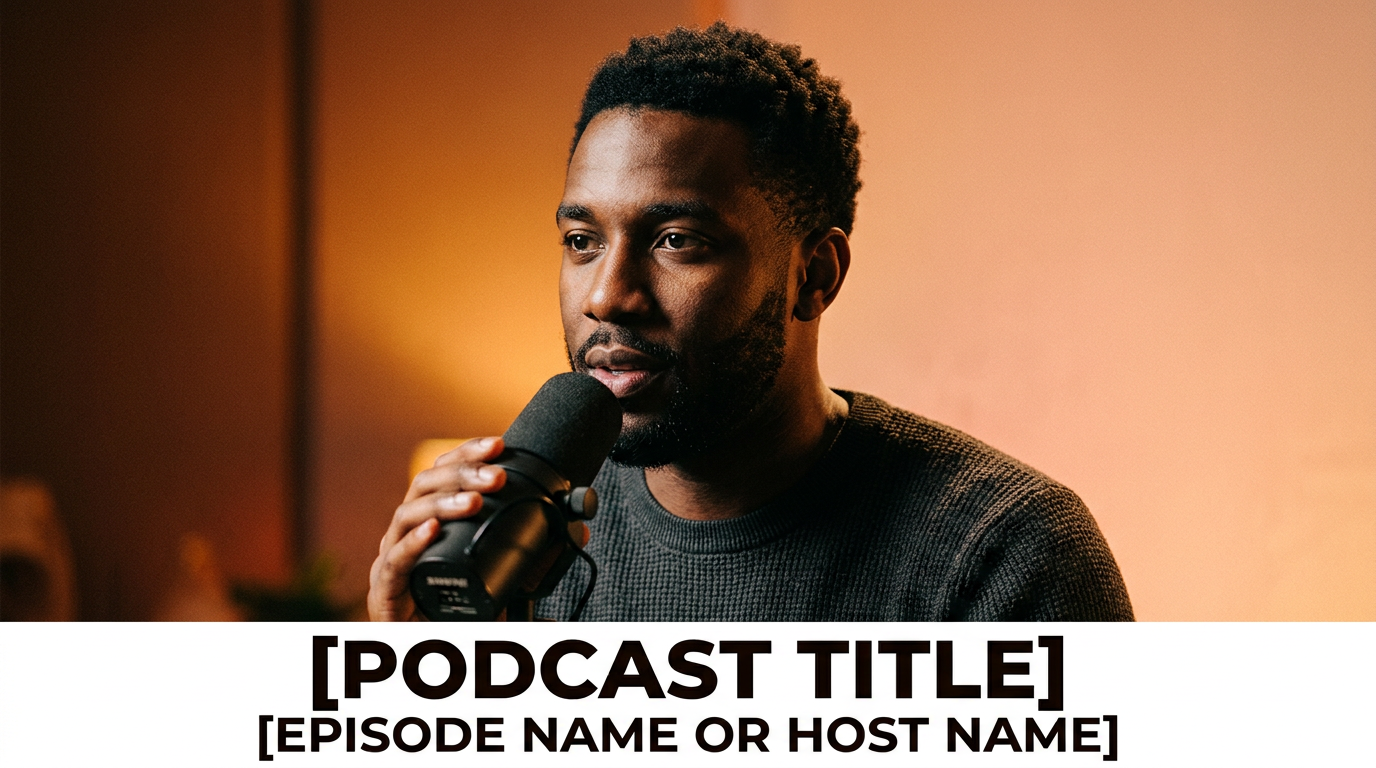
Podcasters who publish weekly episodes face a simple arithmetic problem: more episodes means more visuals to create. The right podcast episode art and thumbnail can be the difference between a scroll and a click—so you need a fast, repeatable way to make consistent covers and A/B-testable thumbnails. This guide shows how to use a podcast episode art generator to produce high-resolution masters, platform-specific crops, and multivariate thumbnails without hiring a designer.
Throughout this article I’ll demonstrate practical rules (what works at tiny thumbnail sizes), a two-step batch workflow for generating 20 cover variations, and a short walkthrough using the PlayVideo.AI AI Image Generator to export multiple aspect ratios and save iterations. If you manage a show, network, or a roster of podcasts, these steps will cut design time and keep visuals consistent across Apple, Spotify, YouTube and social.
Why episode art and thumbnails still drive discovery: design rules and platform specs you must follow
Episode art and thumbnails are the visual hook for discovery. Even where audio is primary, listeners scan image grids and feed cards—so cover clarity and platform compliance matter. Apple Podcasts and most major directories recommend square cover art in the 1400×1400 to 3000×3000 pixel range, RGB color, and JPG/PNG formats; exporting a 3000×3000 master image is now the modern recommended approach to future-proof your show across new players and high-DPI displays.
Design rules that survive tiny thumbnails:
- Keep title text short: experts recommend 3–6 words so the title remains legible at phone thumbnail sizes (~64×64–150×150 px).
- Single focal point: a strong, high-contrast subject (portrait, logo, or icon) reads faster than crowded compositions.
- Contrast and hierarchy: use a high-contrast color for the title area and limit fonts to one or two weights.
- Avoid fine detail: thin lines, small badges, and long taglines vanish at 100 px wide.
Thumbnails still drive clicks. Creator case studies and thumbnail research show custom thumbnails and simple, high-contrast overlays can lift CTRs by sizable margins—often in the tens of percent versus default auto-generated images. That makes investing a small amount of time in clear episode art pay off across discovery funnels.
Platform behavior note: episode-specific artwork support differs across players and hosting setups. Some podcast apps ignore episode-level art and show only the series master. Keep a strong show-level master and publish episode images where supported—your feed and host settings determine how reliably listeners see episode artwork.
Practical takeaway: build a 3000×3000 master, design to read at 150 px, and limit text to 3–6 words. When you need to generate many episode images, a podcast episode art generator that outputs multiple aspect ratios and saves variations speeds everything up.
From one cover to many: using AI to generate consistent cover-art variations and A/B testable thumbnails
Scaling visuals from a single cover means solving two problems: consistent brand language and fast iteration. AI generators let you start from a single approved master and create dozens of stylistic variations that keep the same color palette, typography treatment, and focal composition while testing different backgrounds, crop choices, or text treatments.
Why AI helps:
- Speed: AI image tools can produce many variations in minutes rather than hours of manual design.
- Consistency controls: by fixing prompts (colors, focal subject, typography hints) you can get repeatable outputs.
- Aspect outputs: modern generators can produce multiple aspect ratios in one pass—handy for square covers, 16:9 hero images, and social-native crops.
Example proof points from creators: internal tests of AI-assisted thumbnails report CTR gains (21–54%) while cutting design time from hours to minutes when producing multi-variant sets. Those gains matter most when you’re running A/B tests across platforms—small lifts in CTR compound across episodes.
How to keep variations useful for testing:
- Change one variable per variant (e.g., background color, headline weight, or portrait crop). That isolates what moves CTR.
- Produce a controlled set (A, B, C) with identical copy and focal crop variations.
- Label files consistently so analytics can map CTR back to the visual variant.
Using the PlayVideo.AI AI Image Generator for variation: the generator can create images from prompts, restyle an uploaded photo, and output those variations to multiple aspect ratios in a single pass. That lets you keep the same visual language across tests and export thumbnails sized for each placement without extra manual cropping.
Hands-on workflow — batch-generate 20 episode-cover variations (templates, prompts, and filename conventions)
Goal: produce 20 on-brand episode covers in a reproducible batch that you can A/B test and feed into other promos.
Step-by-step workflow (120–180 minutes for first run; under 30 minutes for repeats):
1) Prepare a 3000×3000 master and brand tokens:
- Master image or logo (PNG, transparent background), hex color values (primary, accent, neutral), and a short type spec (font family or closest visual description).
2) Create prompt templates for the PlayVideo.AI AI Image Generator:
- Base prompt: "Square podcast cover, clean portrait focal point, strong contrast, brand colors #123456 and #F2A900, bold headline area, minimal props, high readability at small sizes, 3000x3000".
- Variation knobs: change background style (gradient / solid / texture), headline placement (top / bottom / center), and portrait crop (tight / medium / wide).
3) Batch process in the AI Image Generator:
- Upload the master photo or logo (if you have a host portrait, upload it and use edit-in-place).
- Paste the base prompt and create 5 prompt variations by changing the knobs above.
- For each prompt, request 4 output variations (the generator’s "save variations" ability preserves the core prompt but explores style). That yields 20 images.
4) Filename convention for analytics:
- Use a pattern: seriesnameepisodeXXvariant-KpromptY3000x3000.jpg
- Example: curiouscastep12vAp13000x3000.jpg
5) Save to a dedicated library folder inside PlayVideo.AI and tag with season, episode number, and test cohort.
Worked example using PlayVideo.AI AI Image Generator:
- Open the AI Image Generator (/create-image) and upload your host portrait named host_photo.png.
- Enter prompt: "3000x3000 square podcast cover, close-up portrait of host_photo.png, warm gradient background in #0A84FF, bold white headline band at bottom, limit title to 4 words, high contrast, legible at 150px".
- Select edit-in-place so the generator uses your uploaded portrait as the subject.
- Under outputs, choose 4 variations and enable "save variations to library".
- Repeat with three alternate prompts (different background textures and headline placement) to reach 16–20 total.
This workflow produces a consistent batch you can immediately export into platform-specific crops and upload into your hosting dashboard or YouTube thumbnails manager.
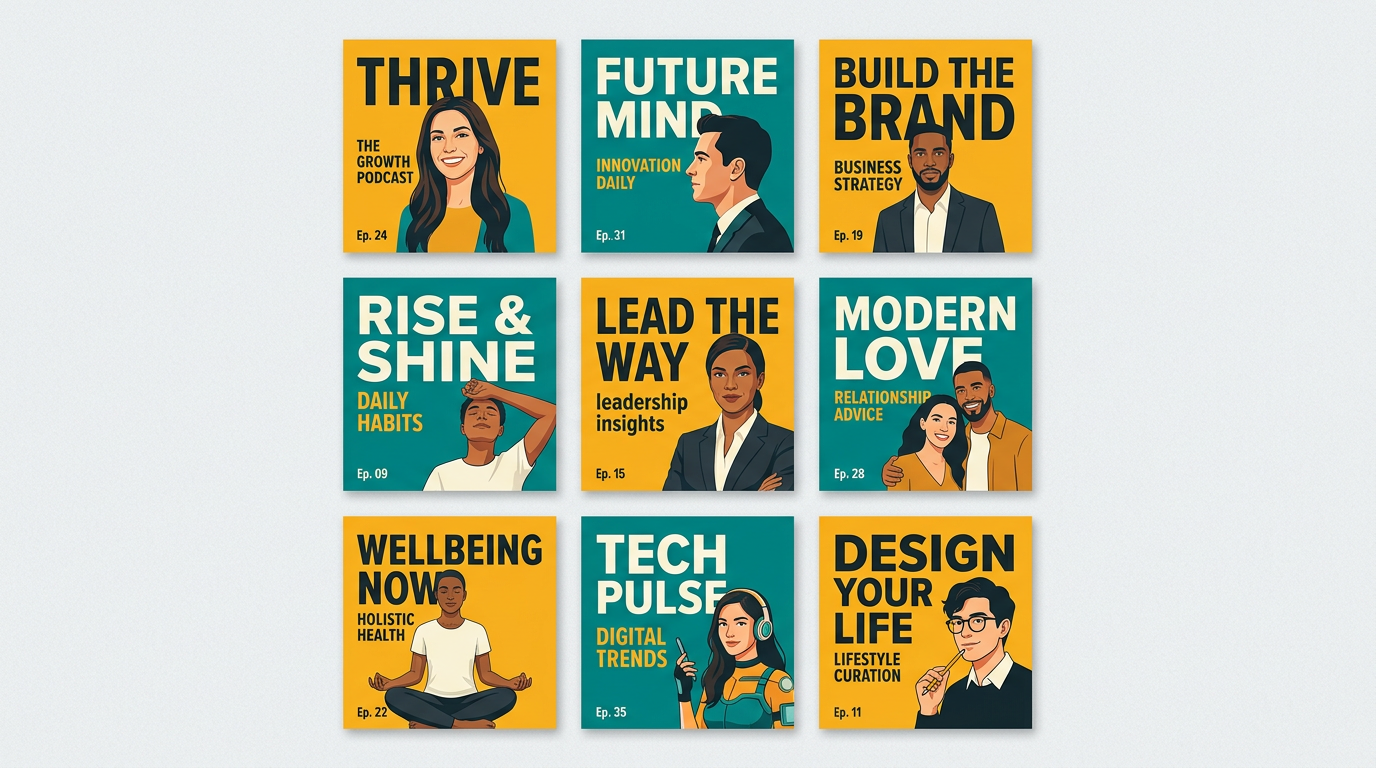
Hands-on workflow — export optimized thumbnails for Apple, Spotify, YouTube and social (sizes, safe zones, and compression tips)
Once you have a 3000×3000 master and variants, export platform-ready assets to avoid rejections and poor scaling.
Required sizes and practical exports:
- Apple/Spotify cover: square 3000×3000 px (RGB, JPG/PNG). While 1400×1400 was historically acceptable, exporting 3000×3000 future-proofs for high-DPI devices and app requirements. See Apple’s artwork guidance for details: https://help.apple.com/itc/podcastspromoart/.
- YouTube podcast clip thumbnail: 1280×720 px (16:9). Export a hero crop centered on the focal point; keep text inside safe margins (16:9 hero crop will lose edges).
- Social preview crops: 1080×1080 (Instagram square), 1200×628 (Facebook/Twitter link card), 1080×1350 (Instagram portrait). Generate these to maximize post real estate.
- Small thumbnails for UI: 150×150 or 100×100 compressed versions—use for web players or RSS previews that render tiny icons.
Safe zones and text placement:
- Keep important text and faces at least 10% inside the image edges to account for platform UI overlays and automatic cropping.
- For YouTube-style hero crops, place the headline on the left or bottom third so channel overlays and time stamps don’t obscure it.
Compression and export tips:
- Export the 3000×3000 master as a high-quality JPG (quality 85–92) or PNG if you need transparency for later compositing.
- Create compressed thumbnails (100–200 KB target) for web players—use progressive JPG and a mild sharpening pass after downscaling.
- Avoid resaving the same JPG repeatedly; always export from the highest-resolution source.
How PlayVideo.AI helps: the AI Image Generator can output multiple aspect ratios in one pass, saving you the manual crop step. Request the generator to create a 3000×3000 master plus a 16:9 hero crop and a 1080×1080 social crop in the same job, then download each optimized file. That guarantees consistent composition across placements and removes the back-and-forth of separate edits.
Comparison: manual vs generator export
- Manual pipeline: edit master in a design app → export each crop → tweak composition per crop (time-consuming).
- AI-assisted pipeline: single prompt → multi-aspect outputs → minor touch-ups (much faster, repeatable). This reduces errors that can cause directory rejections and keeps look-and-feel consistent across platforms.
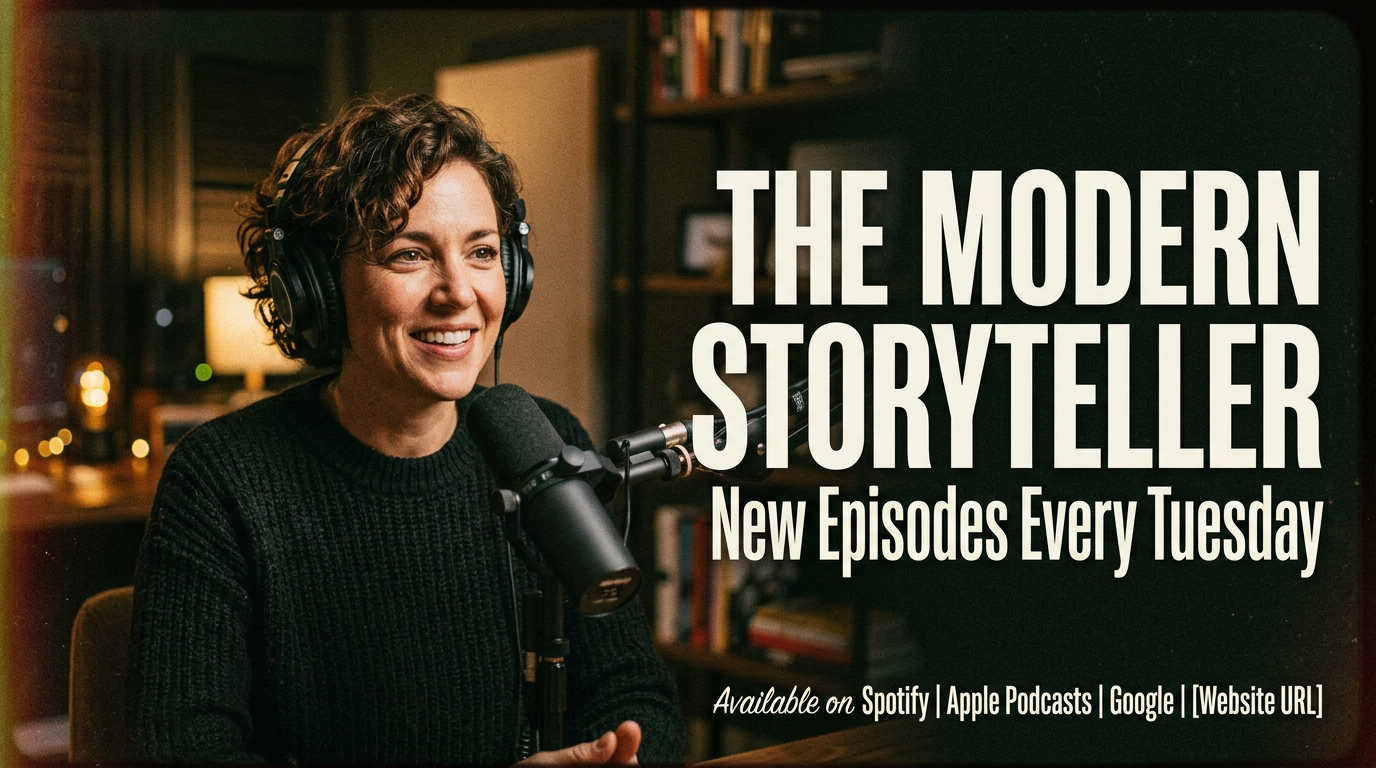
How to keep a consistent brand system: color palettes, typography, and metadata automation for series and seasons
A repeatable brand system turns episodic art into a predictable product. Without rules, each episode drifts. With a simple set of tokens you can automate most visual decisions.
Core brand system elements:
- Palette: primary, accent, neutral, and a high-contrast text color. Store hex and accessible contrast targets.
- Typography rules: headline length cap (3–6 words), font weight for titles, and supporting tag/font for episode numbers.
- Focal-treatment: portrait crop rules (tight vs medium), logo placement (top-left or bottom-right), and icon badges (season number).
Automation and metadata:
- Filename metadata: include series, episode number, variant, and season in the filename so automation tools can pick the correct files.
- Template metadata: keep a JSON or CSV mapping (episode → headline text, guests, publish date) and use batch tools to inject on-image text or generate thumbnails programmatically.
Practical automation using PlayVideo.AI:
- Use the AI Image Generator to store prompts and save variations to your library. The saved prompt acts as a mini-template: reuse it across episodes, swap the headline, and produce a new cover without rebuilding the design.
- Combine with PlayVideo.AI exports into the AI Video Generator when you need motion promos—those images become reference frames that already match your brand tokens.
Governance tips:
- Lock critical tokens: only allow approved hex values and headline lengths for episodic automation to prevent visual drift.
- Create three tiers of assets: show master (locked), episode template (editable by producer), and test variants (A/B experiment assets).
This approach keeps high-level consistency while allowing small creative experiments that drive CTR improvements.
From static art to motion-ready reference frames: feeding PlayVideo.AI image outputs into AI Video Generator and repurposing for promos
Static covers are often just the first asset. Short promos, audiograms, and social video clips increase reach. Use your generated covers as reference frames for quick motion pieces.
Why motion matters: a short trailer or animated thumbnail can increase engagement on social and YouTube. Instead of rebuilding visuals, feed your polished stills into the PlayVideo.AI AI Video Generator to produce short cinematic promo clips.
A simple repurpose workflow:
1) Select the best-performing cover variant from your A/B tests. 2) Export the 3000×3000 master and the hero 16:9 crop from the AI Image Generator library. 3) Open the AI Video Generator (/create-video) and upload the 16:9 frame as the starting image. 4) Use a text prompt like: "Pan slowly across the left side of the frame, subtle zoom, warm film grain, 6–12 second social promo; overlay episode title and host name; keep headline readable." The AI Video Generator will turn the still into a short clip without manual keyframing.
Add soundtrack and voice: drop a short music bed from the AI Music Generator (/create-music) and a short voice intro from AI Voices (/ai-voices) to produce a finished promo in minutes. This keeps audio branding consistent and avoids licensing friction.
Practical example: convert a 16:9 hero crop of your episode cover into a 10-second promo. The PlayVideo.AI pipeline allows you to reuse the same prompt family and visual tokens—so the motion pieces remain on-brand. Because the AI Image Generator saves variations and outputs multiple aspect ratios in one pass, the reference frames you feed into video are guaranteed to match the static thumbnails viewers clicked on earlier.
Final note: keep the visual hierarchy intact in motion—avoid revealing extra text that wasn’t visible in thumbnails; viewers expect consistent, legible frames that match the episode art.
Frequently Asked Questions
What size should I export for Apple Podcasts?
Export at 3000×3000 px, RGB, and JPG or PNG. Apple recommends square artwork between 1400×1400 and 3000×3000; using 3000×3000 future-proofs your shows.
How much text should be on my thumbnail?
Limit title text to 3–6 words and place it in a high-contrast area inside the safe margin so it remains legible at ~64–150 px thumbnails.
Can I use episode artwork everywhere?
Not always—some players only show the series master. Keep a strong show-level cover and publish episode-level art where your host or RSS supports it.
Will AI-generated art look consistent across episodes?
Yes—by locking prompt tokens (colors, focal crop, typography hints) and using edit-in-place on a host photo, you can produce consistent, repeatable variations.
Conclusion
If your show publishes frequently, a reliable podcast episode art generator workflow removes a major production bottleneck. Use a 3000×3000 master, keep text short and high-contrast, and batch-generate controlled variations for A/B tests. The PlayVideo.AI AI Image Generator makes this practical: edit-in-place with your host photo, output multiple aspect ratios in one pass, and save variations to your library so each new episode is a few prompt edits away. When you want motion promos, those same frames feed directly into the AI Video Generator for quick social clips. Open the AI Image Generator and spin up your first on-brand episode frame to start reducing design time and improving discoverability.