Turn a Headshot into a Viral Vertical Dance: One-Click Dance Video Workflows
Turn a single headshot or pet photo into a ready-to-post 9:16 dance clip. Practical workflows, A/B testing, and why PlayVideo.AI AI Video Effects is the fastest path.
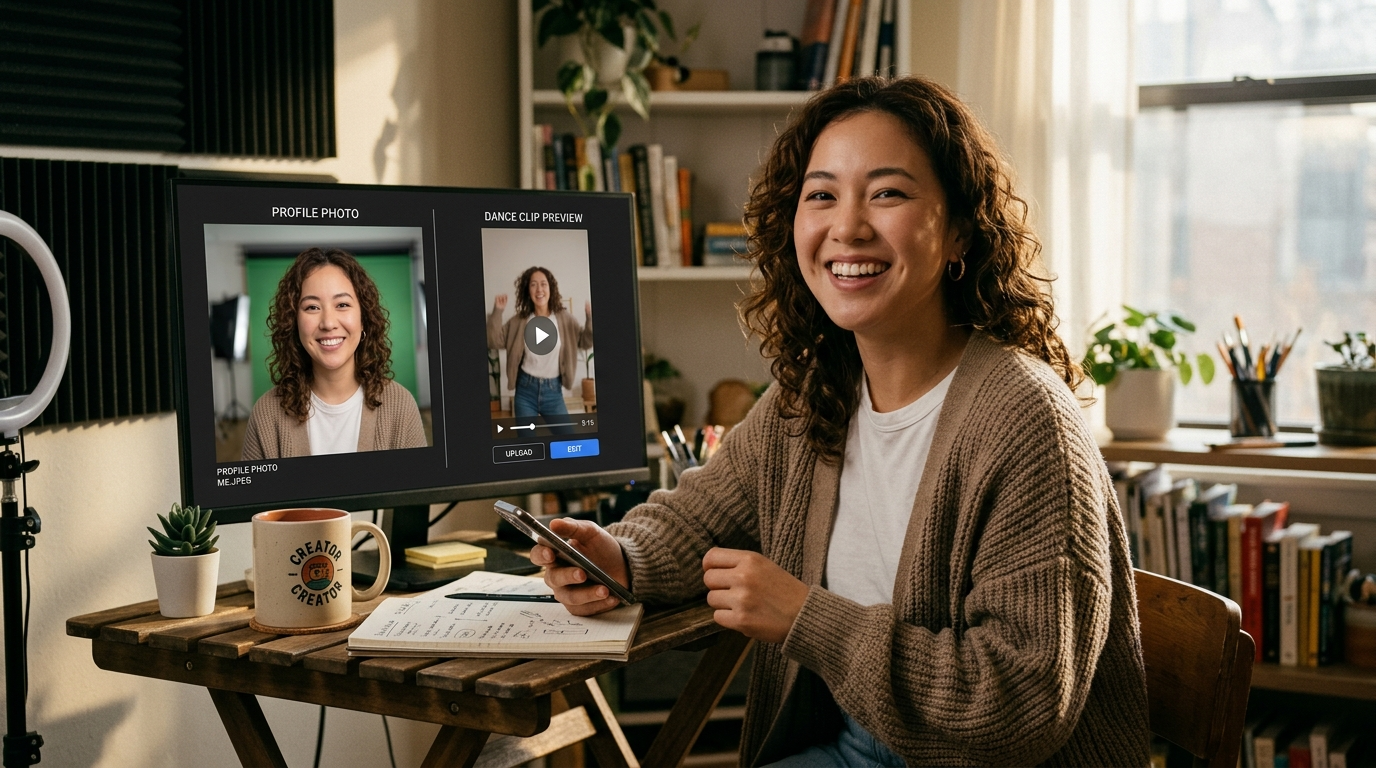
You tap a selfie, pick a trending move, and thirty seconds later you have a vertical dance clip ready for TikTok — no choreography, no camera setup, no reshoot. That’s the new creative baseline for creators and social marketers who want to ride dance trends without waiting for a film day or a dancer.
This article walks through why the one-click dance video is a growth tool, how these photo-to-dance effects actually work, and a practical, low-friction workflow that turns a single headshot or pet photo into multiple platform-ready 9:16 clips. Along the way I show a concrete walkthrough inside PlayVideo.AI AI Video Effects, explain limits you’ll hit with different photos, and give a hands-on A/B testing experiment you can run in an afternoon.
If you want quick stackable assets for TikTok, Reels, or Shorts, PlayVideo.AI AI Video Effects is the feature you’ll return to: it applies tuned dance, avatar, and lipsync presets to one image and renders finished vertical MP4s without prompt-engineering. Read on for the templates, trade-offs, and tested steps to publish faster.
Why AI 'photo-to-dance' effects are the next wave in short-form vertical content
Imagine a creator on a coffee break turning a single profile photo into five short dance clips, each with a different trending move and caption. That’s the promise driving consumer tools that let you "make photos dance": quick volume with consistent branding. For creators and small teams, the appeal is obvious — you can produce many trend-aligned assets from one shoot.
Photo-to-dance effects shift effort from shooting to iteration. Instead of booking talent, scouting locations, or learning choreography, you select a choreography template and let the model retarget motion to a static face or pet. That lowers the friction for participating in trends where timing matters. When a dance pattern spikes on TikTok or Reels, being able to spin up a clip in minutes is a competitive advantage.
PlayVideo.AI AI Video Effects is built precisely for this use case: it provides pre-built one-click effects — dance, avatar, lipsync, AI singing, and more — that turn a single photo into a finished vertical clip. Because each effect is a tuned preset, you don’t need to craft prompts or manage separate model parameters; you choose an effect, upload a headshot or pet photo, and export a 9:16 MP4 optimized for mobile.
This doesn’t replace thoughtful creative, but it lowers the activation energy for trend participation. For marketers and creators who need a consistent cadence of short clips — daily or multiple times per week — photo-to-dance effects are the fastest way to keep up without ballooning production costs.
Trends and numbers: why vertical dance clips win attention on TikTok, Reels, and Shorts
Short-form vertical video is the default format for mobile-first attention. Industry reporting shows publishers are adding vertical short-form modules and that YouTube Shorts led among platforms in publisher attention shifts, reinforcing vertical’s dominance for distribution strategy. These platform priorities mean that pieces designed for 9:16 are more likely to slot directly into organic feeds, ads, and discovery modules without reformatting.
From a creator perspective, vertical dance clips convert attention into follow and share actions because they map cleanly to platform behaviors: quick consumability, loopability, and clear audio-visual hooks. Academic analysis of short-form ecosystems finds that creators often trade longer watch time for wider reach by publishing multiple short vertical clips rather than fewer long-form pieces (see an industry study on short-form video). That model favors tools that produce many assets quickly — another reason one-click dance video workflows matter.
Practical takeaways for teams:
- Format matters: choose 9:16 outputs labelled for TikTok/Reels to avoid re-editing. Many generators explicitly offer TikTok/Reels templates so clips are sized and timed for platform norms.
- Frequency > polish (within reason): a steady stream of trend-aligned clips outperforms occasional perfect videos when the goal is reach.
- Reuse one photo: brands and influencers can generate multiple angles of the same persona by swapping choreography, hair/make-up retouches, or soundtracks.
Those behaviors are why PlayVideo.AI AI Video Effects emphasizes finished vertical rendering and tuned presets: the tool is designed for creators who need low-friction, platform-ready outputs that match where attention lives.
How AI dance effects work (models, templates, and limitations) — what creators should know
Under the hood, photo-to-dance systems generally combine three elements: a motion or choreography library, a retargeting/rigger model that maps motion onto a static image, and a rendering pipeline that synthesizes frames and composites the original subject. Many consumer tools use pre-trained choreography templates you can apply to any uploaded image; the template supplies the motion curve while the model generates facial expressions and body motion based on the headshot.
Key mechanics:
- Choreography library: reusable moves or dance sequences labeled for length and energy level. Creators pick a template (for example: quick two-step, full-body bounce, or low-key head-bop).
- Retargeting engine: takes the choreography and maps joints and facial animation to the static subject. Quality depends on the model’s training and the template’s coverage.
- Rendering and timing: creates the MP4, handles background, and aligns the clip to the chosen audio track.
Limitations to plan for:
- Photo quality and pose: images with clear facial landmarks and unobstructed shoulders produce cleaner motion. Side profiles or low-res selfies will often need a second attempt.
- Reference fidelity: some generators let you upload a reference video for closer match; if your goal is a near-exact recreation of a viral move, using a reference improves fidelity but raises complexity.
- Artifacts and uncanny motion: extreme poses or full-body dance actions on headshots can look synthetic; pick templates matched to the framing (head-and-shoulders vs. full-body).
Creators should expect to iterate on template choice, hair/cloth retouches in the image, and audio alignment. PlayVideo.AI AI Video Effects addresses many of these points by providing tuned presets for dance and avatar effects — presets reduce guesswork so you can focus on caption and caption testing rather than low-level parameter tuning.
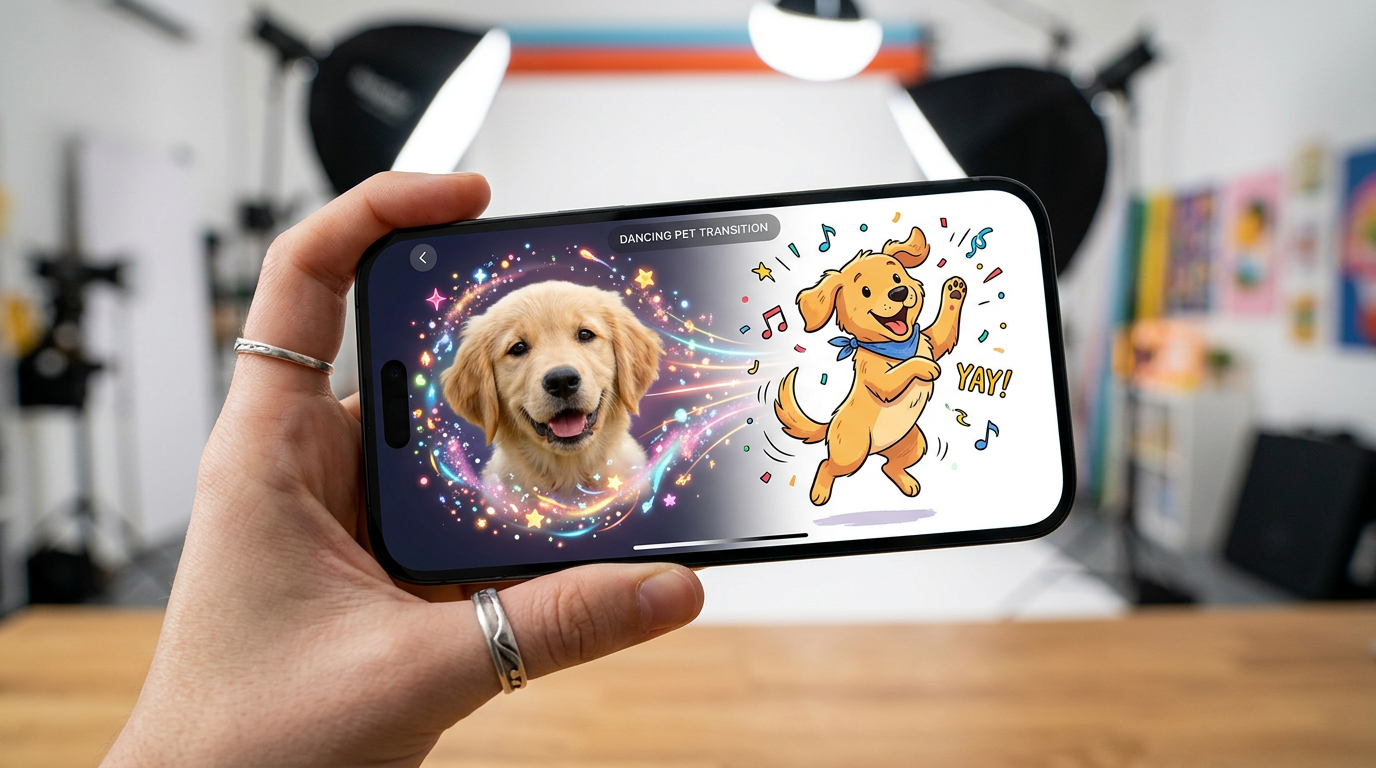
Workflow: From selfie or headshot to a ready-to-post 9:16 dance clip (step‑by‑step)
Here’s a practical walkthrough you can follow in about 10–20 minutes to produce a platform-ready clip.
Step-by-step using PlayVideo.AI AI Video Effects (worked example):
1) Choose your source photo. Pick a clear headshot or pet photo with good lighting and visible shoulders. Higher resolution reduces artifacts. 2) Open PlayVideo.AI AI Video Effects (/effects) and select the "Dance" effect preset. The preset is tuned for one-photo inputs and outputs a 9:16 MP4. 3) Upload the image and pick a choreography template. Templates are labeled for energy and length; choose one aligned with the trend you want to ride (e.g., 6–8 second loop for TikTok hook). 4) Select audio: either upload a trending sound or pick a track generated in PlayVideo.AI AI Music Generator (/create-music) if you want copyright-free backing. Trim to sync the motion with the beat. 5) Preview and adjust the template intensity or crop. If the subject looks off, try a different choreography (head-bop templates work better for tight headshots). 6) Render as vertical 9:16 MP4 and export. The effect queue shares rendering resources with other PlayVideo.AI features so you can batch multiple images.
Optimization tips:
- Crop for face/headroom before uploading if you need the face centered for TikTok.
- Use a consistent frame (same background color or brand overlay) across related clips to build recognizability.
- If lipsync or AI singing is needed, use the lipsync preset instead of the pure dance effect (both are available in the effects library).
This process turns one photo into a finished vertical clip you can post immediately. If you need more visual polish, combine the output with simple title overlays or a 1–2 second intro created in PlayVideo.AI AI Video Generator (/create-video).
Workflow: A/B testing dance templates and captions for platform lift (hands‑on experiment)
A/B testing is essential — small changes to choreography or captioning often produce outsized distribution differences. Here’s a hands-on experiment you can run in an afternoon with a single headshot and PlayVideo.AI AI Video Effects.
Experiment design:
- Objective: find which combination of choreography template and caption style yields higher engagement (views, shares, saves).
- Inputs: one headshot, three dance templates (low-energy, medium, high), two caption styles (straight descriptive vs. hook + CTA).
- Deliverables: 6 clips (3 templates × 2 captions), posted across similar hours on the same platform segment.
Steps:
1) Generate three 9:16 clips from the same photo using three different dance templates in PlayVideo.AI AI Video Effects. Keep audio constant to isolate choreography as the variable. 2) Create two caption variations: A) descriptive: "Me trying the latest dance trend"; B) hook: "Can you do this in one try?" + CTA to duet/comment. 3) Post each clip at similar times to avoid time-of-day bias and track short-term metrics (first 24–72 hours). Use platform analytics to measure view-through, saves, and engaged-viewers. 4) Compare: which choreography had longer average watch time? Which caption produced more comments?
What to expect and how to interpret:
- Templates with higher initial motion often generate more immediate loops, but simpler head-turn templates can produce more replays if the face is expressive.
- Hook captions typically drive higher comment rates, while descriptive captions may retain modestly higher saves if the clip includes an obvious how-to.
- Use the winning choreography + caption as a template set for a week: scale by swapping the photo (same brand look) to test repeatability.
This is a low-cost experiment because PlayVideo.AI AI Video Effects renders 9:16 outputs quickly; you can create the full test matrix without a film day. If you want to iterate on audio variations, pair the outputs with original stems from PlayVideo.AI AI Music Generator (/create-music) to test music-driven lift as a second variable.
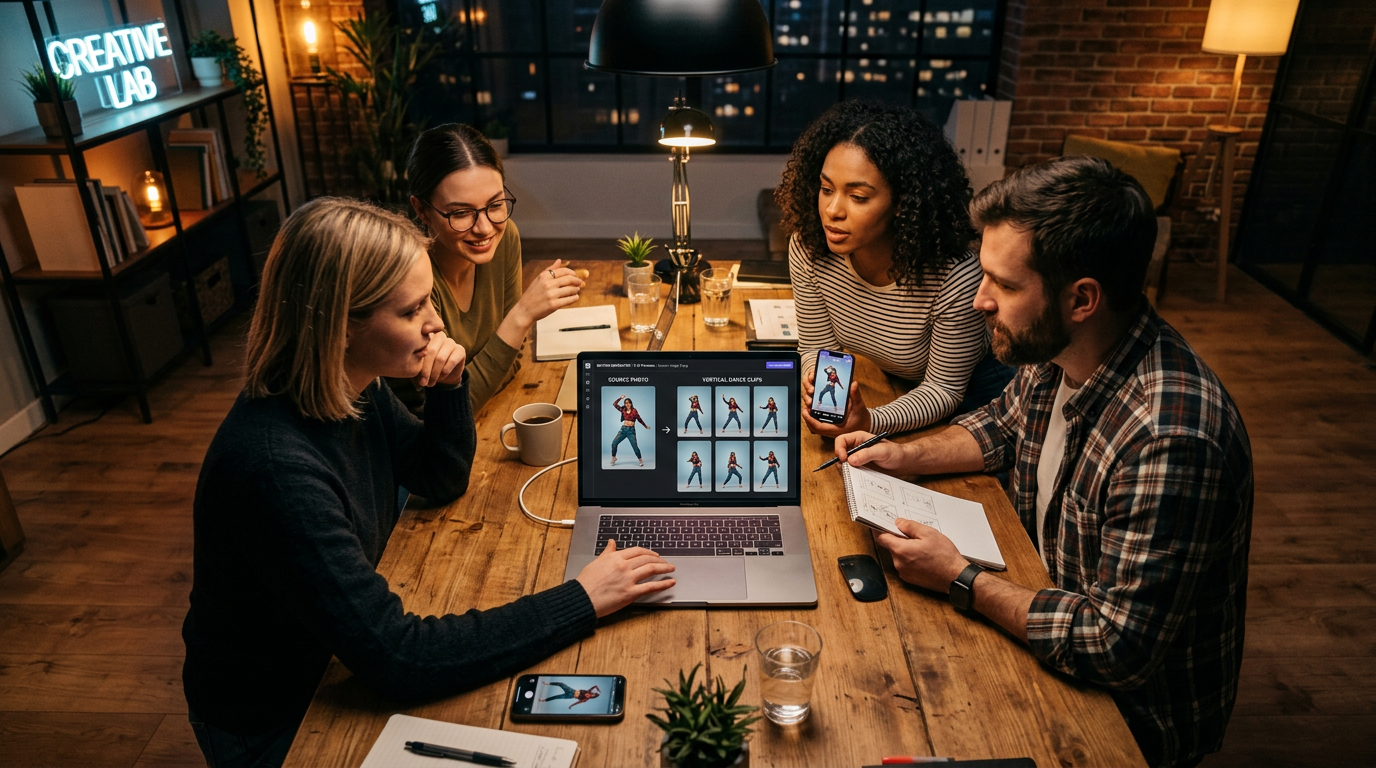
Creative edge: mixing lipsync, avatar, and AI singing effects to stand out — practical examples
Dance alone is effective, but mixing effects multiplies novelty. The PlayVideo.AI AI Video Effects library includes lipsync and AI singing presets along with avatar and news-anchor formats. Use these to layer concepts and keep a feed surprising.
Practical combinations:
- Dance + Lipsync: run the dance preset on the headshot and apply a short lipsync overlay for the chorus line. The mouth animation aligns to the vocal hook while the body performs the choreography. This combo works well when you want both movement and a vocal moment for chorus-driven trends.
- Pet dance + AI singing: create a playful pet clip using the dance effect, then apply AI singing to make the pet "sing" a branded jingle. Because PlayVideo.AI supports both effects, you can generate the two outputs and composite them or use an effects preset that includes both behaviors.
- Avatar + News-anchor: for informational hooks, use the avatar or news-anchor preset to deliver a 10–12 second tip, then cut to a dance clip as the punchline. The switch in format holds attention and signals the content type to viewers.
Examples you can ship today:
- Selfie trend remix: start with a 6-second dance loop that nails the hook, then append a 3-second lipsync that mouths the viral line. Post as a single 9:16 loop to increase replays.
- Product tease: use a headshot as an "influencer" avatar delivering a 10-second product line in the news-anchor preset, then jump to the product mascot doing a short dance using the same visual style.
These mixed-effect strategies are most efficient when effects are tuned presets — that’s the point of PlayVideo.AI AI Video Effects. You don’t spend time on low-level syncing because the library handles motion, lip alignment, and vertical rendering, so you can test formats instead of technical fixes.
Putting it all together: When to use PlayVideo.AI AI Video Effects vs. building a custom pipeline
You have two realistic paths: use a pre-built effects library like PlayVideo.AI AI Video Effects, or invest in a custom multi-model pipeline that gives you more control. Here’s how to choose.
Choose PlayVideo.AI AI Video Effects when:
- You need speed and volume: effects are one-click, tuned presets that produce 9:16 MP4s from one photo. If your calendar requires multiple trend-aligned posts per week, this is the fastest path.
- You want low technical overhead: no prompt-engineering, no stitching multiple models, and an effects queue that integrates with the rest of PlayVideo.AI.
- You’re testing hot formats: the library’s dance, avatar, and lipsync presets let you try many variations quickly and focus on captions and timing.
Consider a custom pipeline when:
- You need absolute fidelity to a specific choreography or tight brand control. Custom retargeting with uploaded reference videos yields higher fidelity but requires engineering resources.
- You require unique legal/rights workflows around music or model outputs that a platform can’t support by default.
Comparison table — quick decision guide:
| Need | Use PlayVideo.AI AI Video Effects | Build custom pipeline | |------|----------------------------------|-----------------------| | Speed to publish | Excellent (one photo → finished clip) | Slow (development + testing) | | Volume | Easy to scale via presets | Scales with engineering cost | | Creative control | High-level parameters, many templates | Full control over motion and rendering | | Cost | Predictable (credits/plans) | Higher upfront Dev cost |
If you’re a trend-chasing creator or a marketer running agile campaigns, the value proposition of PlayVideo.AI AI Video Effects is straightforward: one photo in, finished vertical clip out, and each effect behaves like a tuned preset so you can ship without a week of testing. For teams that need more control, hybrid workflows work well too: generate fast assets with AI Video Effects for organic feeds and reserve custom pipeline assets for hero campaigns.
When price and plan matter, check PlayVideo.AI Pricing (/pricing) to match expected volume against credits or subscription tiers. For creator teams who also need fresh imagery or custom backgrounds, combine the effects workflow with PlayVideo.AI AI Image Generator (/create-image) to prepare retouched source photos before effects are applied.
Frequently Asked Questions
How long does it take to turn a headshot into a vertical dance clip?
With one-click effects you can produce a preview in minutes and a finished 9:16 MP4 in under 10–20 minutes depending on queue time.
Will any photo work for a dance effect?
Better results come from clear, well-lit headshots with visible shoulders. Side profiles or low-res images may require re-cropping or a different choreography template.
Can I use trending sounds or must I use AI-generated music?
You can use either. Upload a trending sound or choose original stems from PlayVideo.AI AI Music Generator (/create-music) if you need copyright-safe tracks.
Conclusion
If your goal is steady, platform-ready vertical output from minimal input, PlayVideo.AI AI Video Effects is the fastest, lowest-friction tool to produce one-click dance video clips from a single photo. Start by uploading a clear headshot, pick a dance template, optionally add lipsync or AI singing, and render a 9:16 MP4 optimized for TikTok and Reels. For testing at scale, combine the effects with PlayVideo.AI AI Music Generator and iterate captions to find the highest-performing combinations.
Open the AI Video Effects library and ship a viral-format clip from a single photo today.